Gridsense Docs
Connect Your Devices
Learn how to connect your devices to Gridsense
Requirements
To provision devices, you will need to:
- be a member of an organization, and
- have been granted a role with device creation permissions
For example, to provision devices, You will need
to be a member of any role with the client_create permission.
If you are the administrator of the organization, you will have all permissions already granted to you. Otherwise, if you have been invited to the organization, you can request from your administrator to grant you the appropriate role.
Provisioning
You can provision devices in bulk or one by one.
Provisioning a single device
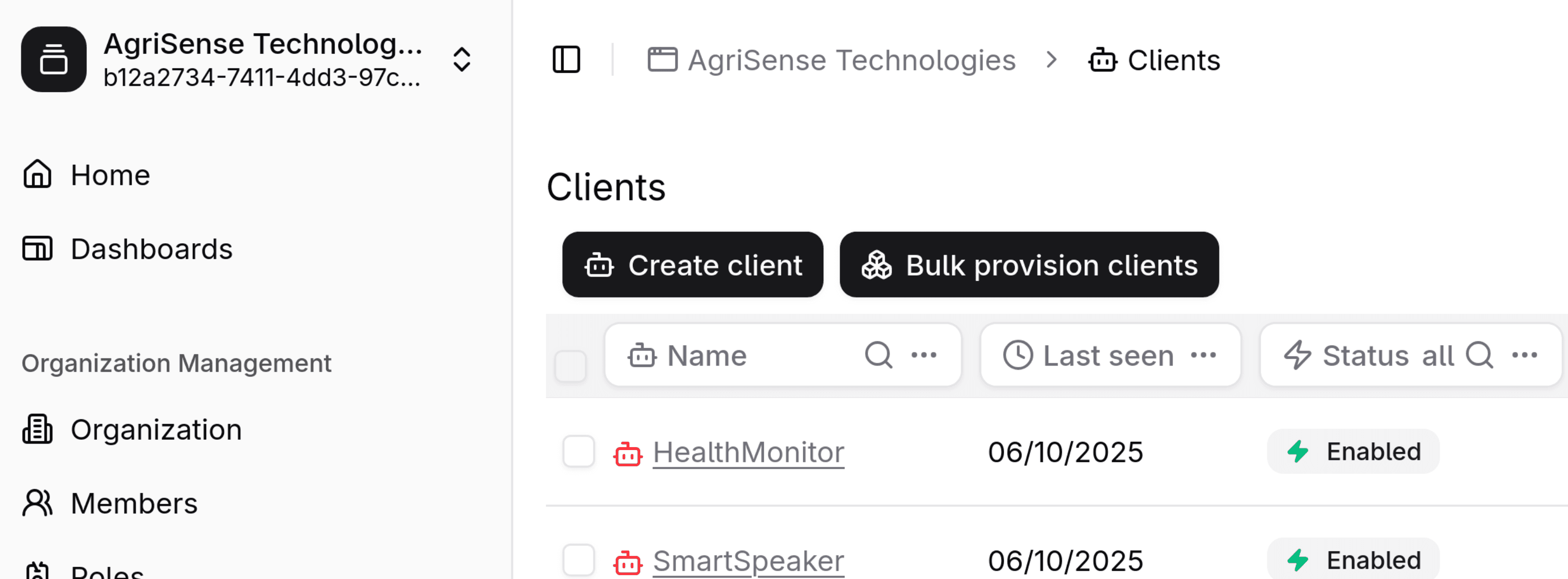
Head over to the devices page. Click on "Create device." In the dialog that pops up, you will be prompted to provide the device's information and credentials.
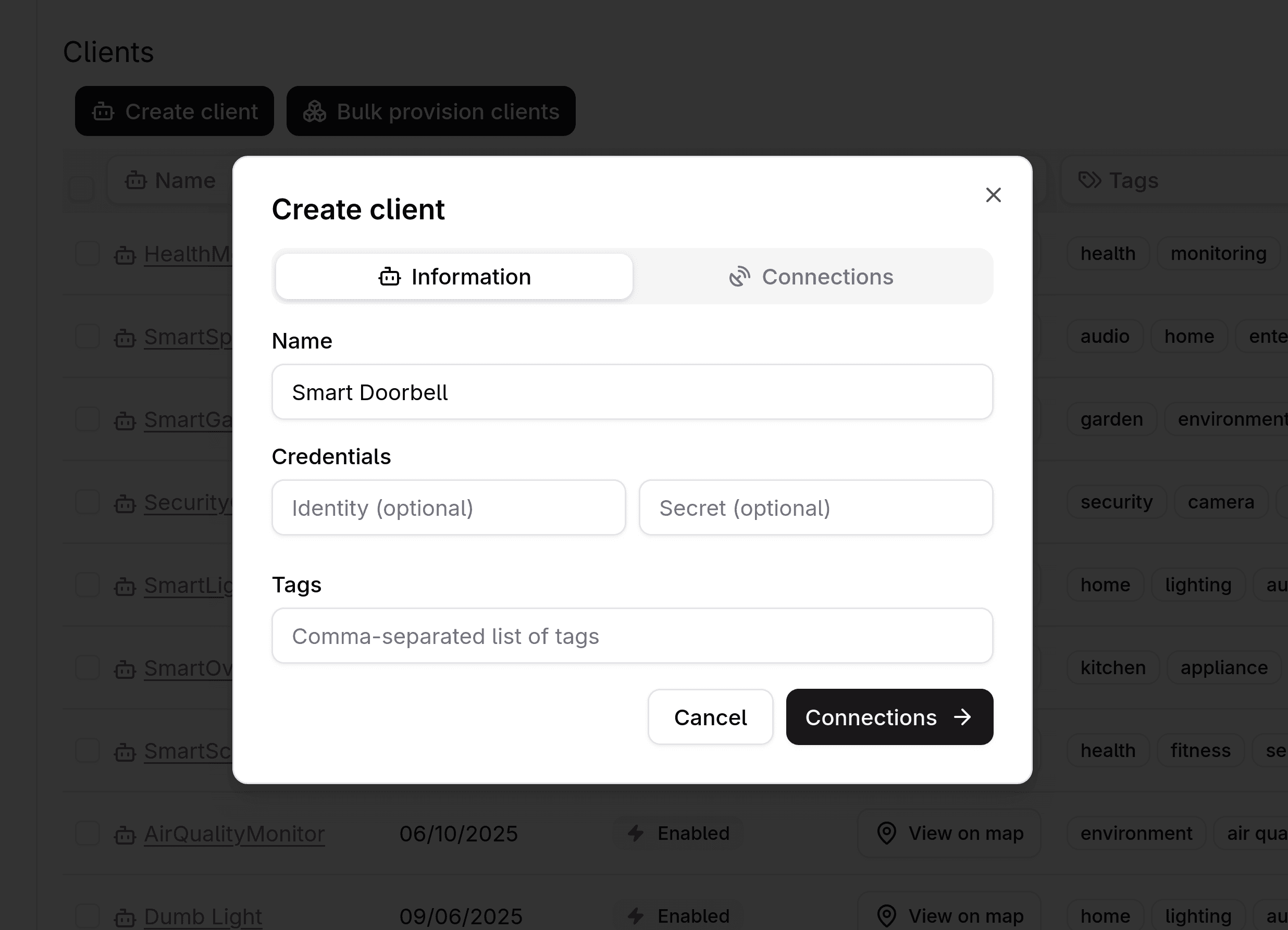
The provisioning dialog consists of two steps:
- Information
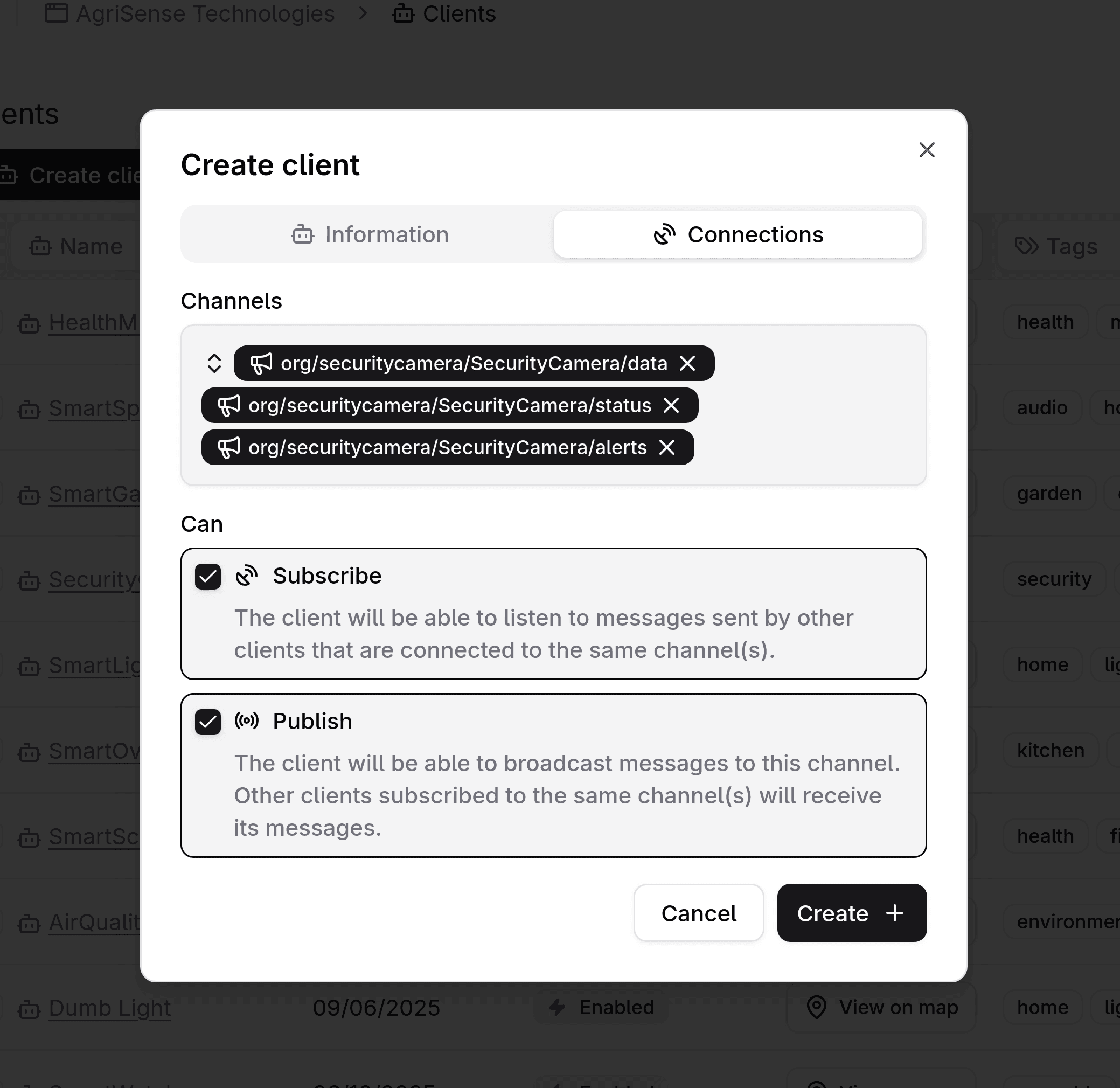
- Connections
Here's a breakdown of each step and the data required:
1. Information
| Field | Description | Example | Required |
|---|---|---|---|
| Name | The display name of the device. | Smart Light | |
| Identity | The device's unique identifier. Can be left blank. | smart_light | |
| Secret | The device's password. Will be used to authorize sending messages. If left blank, a random will be generated as the secret. | CC34756 | |
| Tags | A comma-separated list of tags. Can be helpful when filtering and searching. | home, lighting, automation |
2. Connections
| Field | Description | Required |
|---|---|---|
| Channels | A list of all the channels to which this device will connect. Can select zero or more channels from the dropdown menu. | |
| Subscribe | Allow the device to listen and read messages sent by other devices to the selected channels | |
| Publish | Allow the device to send messages to the selected channels. |
Provisioning multiple devices (bulk provisioning)
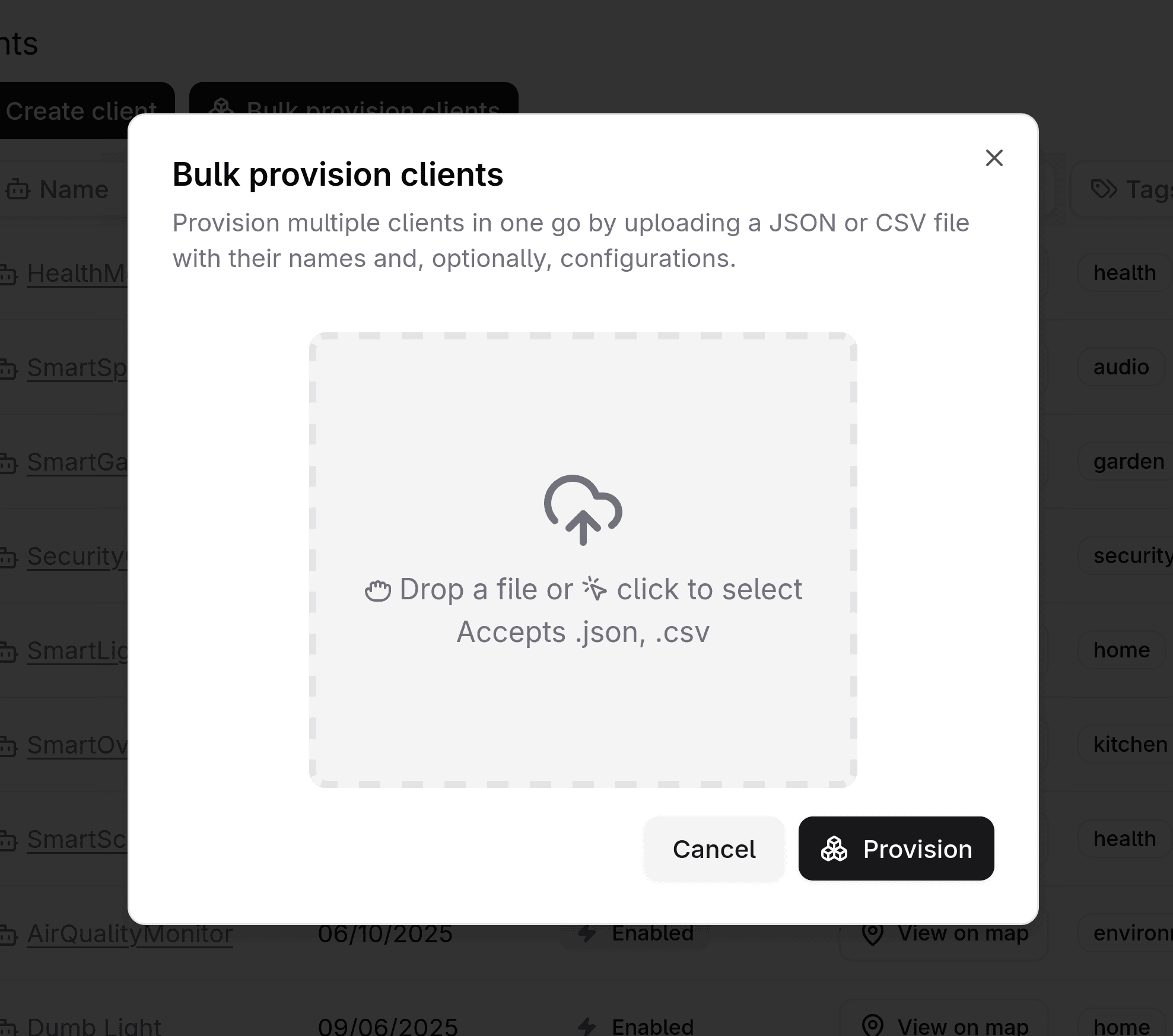
Head over to the devices page. Click on "Bulk provision devices." In the dialog that pops up, you will be prompted to upload a file that contains the information of one more more devices. You can click to open the file selector or drag and drop the file directly. The file can be either JSON or CSV, and must conform to the schema of each file.
JSON file schema
The JSON file must be an array of objects. Each object must follow the following schema:
| Field | Description | Example | Required |
|---|---|---|---|
| Name | The display name of the device. | Smart Light | |
| Secret | The device's password. Will be used to authorize sending messages. If left blank, a random will be generated as the secret. | CC34756 | |
| Tags | A JSON array of tags. Can be helpful when filtering and searching. | ["home", "lighting", "automation"] | |
| Metadata | A JSON object that describes the device. Note that the property location is reserved by Gridsense to allow maps to work properly. | {"model":"SL2025", "warranty": "void"} |
Example JSON file
[
  {
    "Name": "SmartThermostat",
    "Secret": "ST12345",
    "Tags": ["home", "temperature", "energy"],
    "Metadata": {
      "model": "X200"
    }
  },
  {
    "Name": "SecurityCamera",
    "Secret": "SC98765",
    "Tags": ["security", "camera", "home"],
    "Metadata": {
      "resolution": "1080p",
      "model": "SC2025"
    }
  }
]
CSV file schema
The first row of the csv file must be the header. There are four columns:
| Field | Description | Example | Required |
|---|---|---|---|
| Name | The display name of the device. | Smart Light | |
| Secret | The device's password. Will be used to authorize sending messages. If left blank, a random will be generated as the secret. | CC34756 | |
| Tags | A JSON array of tags. Can be helpful when filtering and searching. | ["home", "lighting", "automation"] | |
| Metadata | A JSON object that describes the device. Note that the property location is reserved by Gridsense to allow maps to work properly. | {"model":"SL2025", "warranty": "void"} |
Make sure the headers are properly capitalized; e.g. you should write Name
and not name.
Although only the Name field is required, the other column headers (Secret,
Tags, and Metadata) must be present, even if all rows leave them blank.
Example CSV file:
| Name | Secret | Tags | Metadata |
|---|---|---|---|
| SmartThermostat | ST12345 | ["home","temperature","energy"] | {"location":"living room","model":"X200","status":"active"} |
| SecurityCamera | SC98765 | ["security","camera","home"] | {"location":"front door","resolution":"1080p","status":"active"} |
Finish provisioning
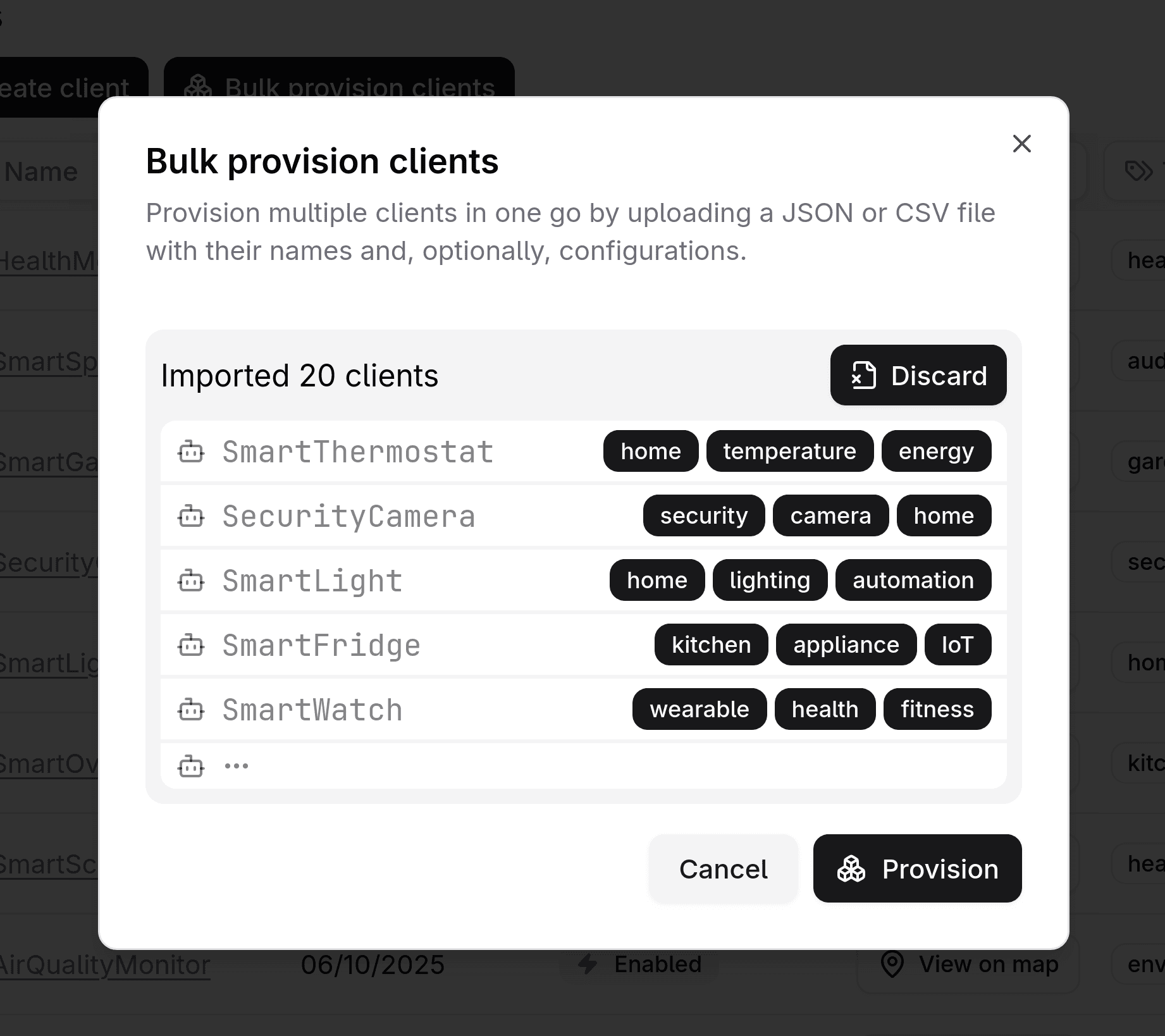
Once you have imported the JSON/CSV file, you will see a preview of the first five devices. You can complete the provisioning step by clicking "Provision." If you are unsatisfied with the result or would like to make changes, you can click "Discard" to start over.