Gridsense Docs
Process Data With Rules
Process and transform incoming data, store it into your Gridsense storage, send automated emails, and more
Sending messages is not sufficient for them to be stored and be used by different services across the Gridsense system. For messages to be stored and usable, they must be processed by a rule.
The rules workflow
Rules are created and customized in an interactive node-based workflow. There are three categories of nodes:
- Input
- Logic
- Output
Currently, there exists only one node in each of the input and logic categories, which makes them straightforward to work with. The output category contains five nodes, all of which are simple to understand and set up.
We will start with the input node and work our way through the rest.
Listen to incoming data
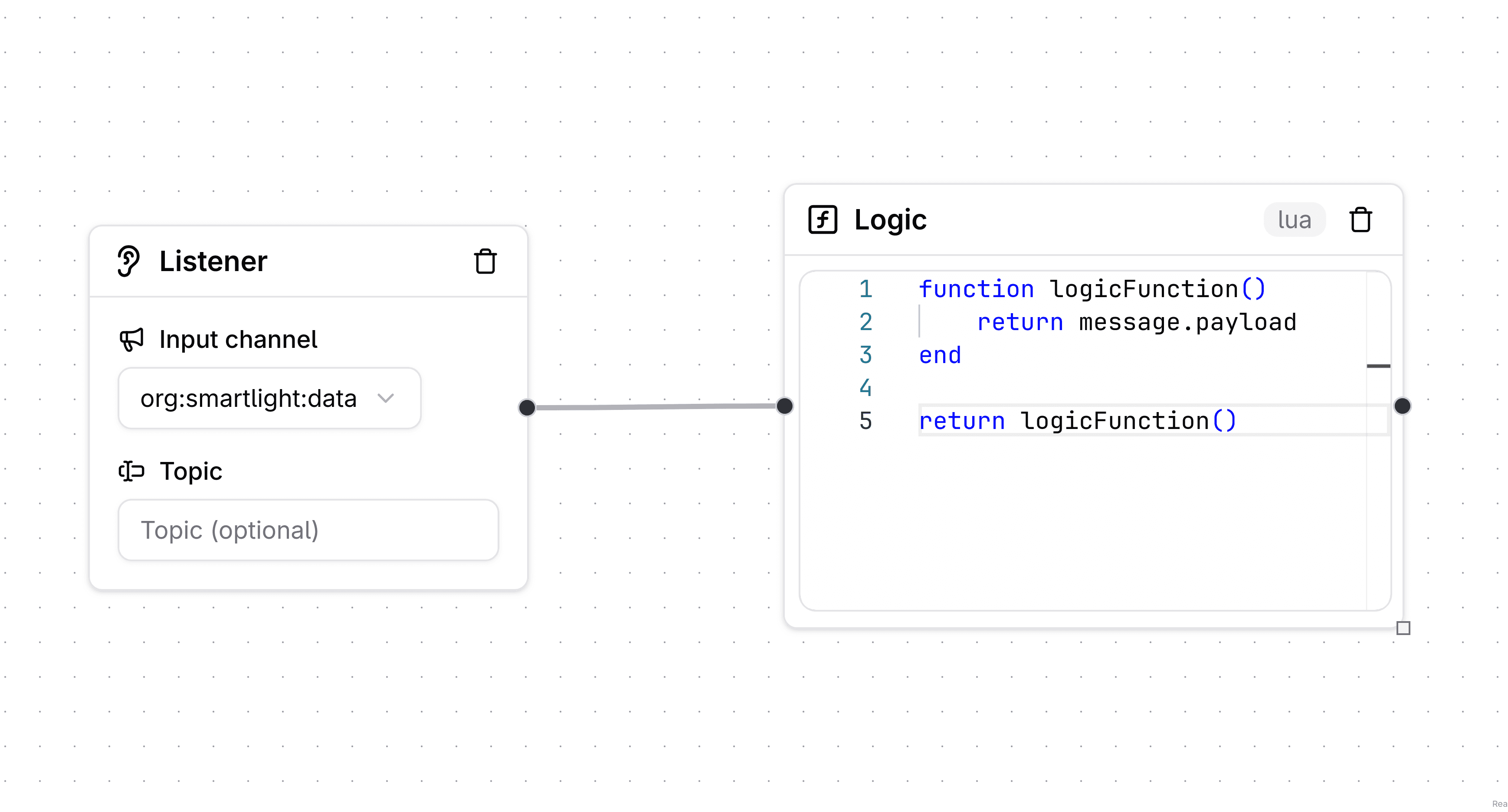
To manipulate data, we must first be able to listen to incoming data. The listener node allows you to listen to incoming messages, in their raw form, so you can then pipe those messages into the logic node.
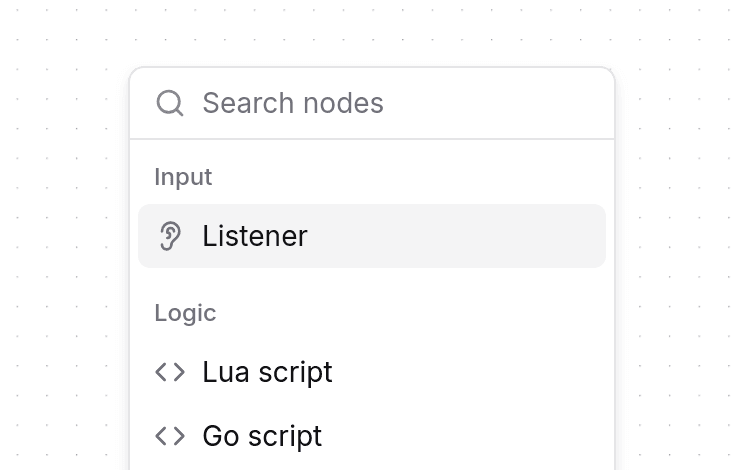
In the node editor, right click any where in the canvas to show the nodes
menu. Click on the "Listener" node.
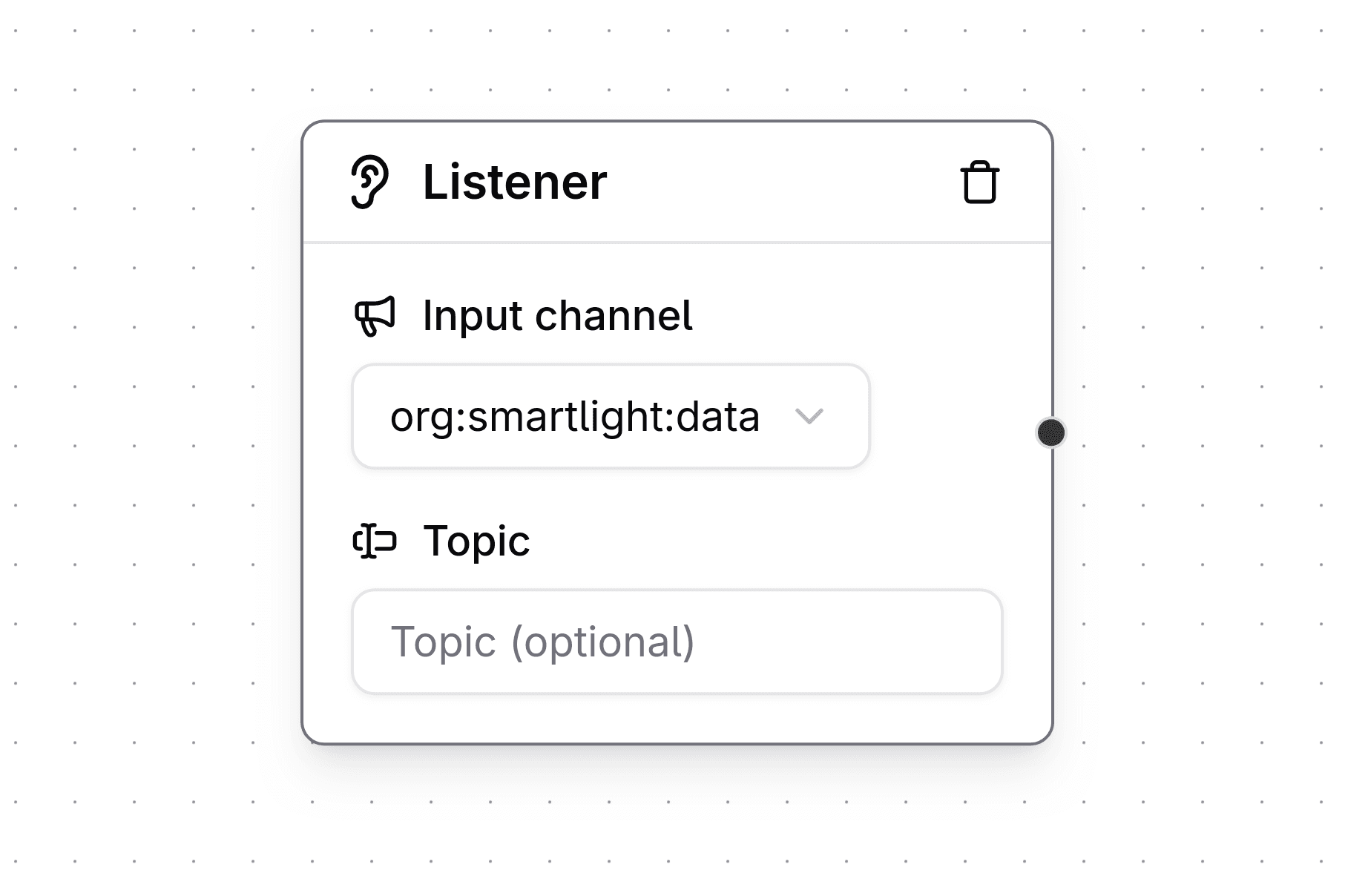
Pick a channel from the "Select channel" dropdown menu. If you want to listen
to a specific subtopic (see MQTT topic
structure), you may add it in the "Topic" field.
Process and transform data
Thanks to the Listener node, the logic node can now parse and transform your devices' messages.
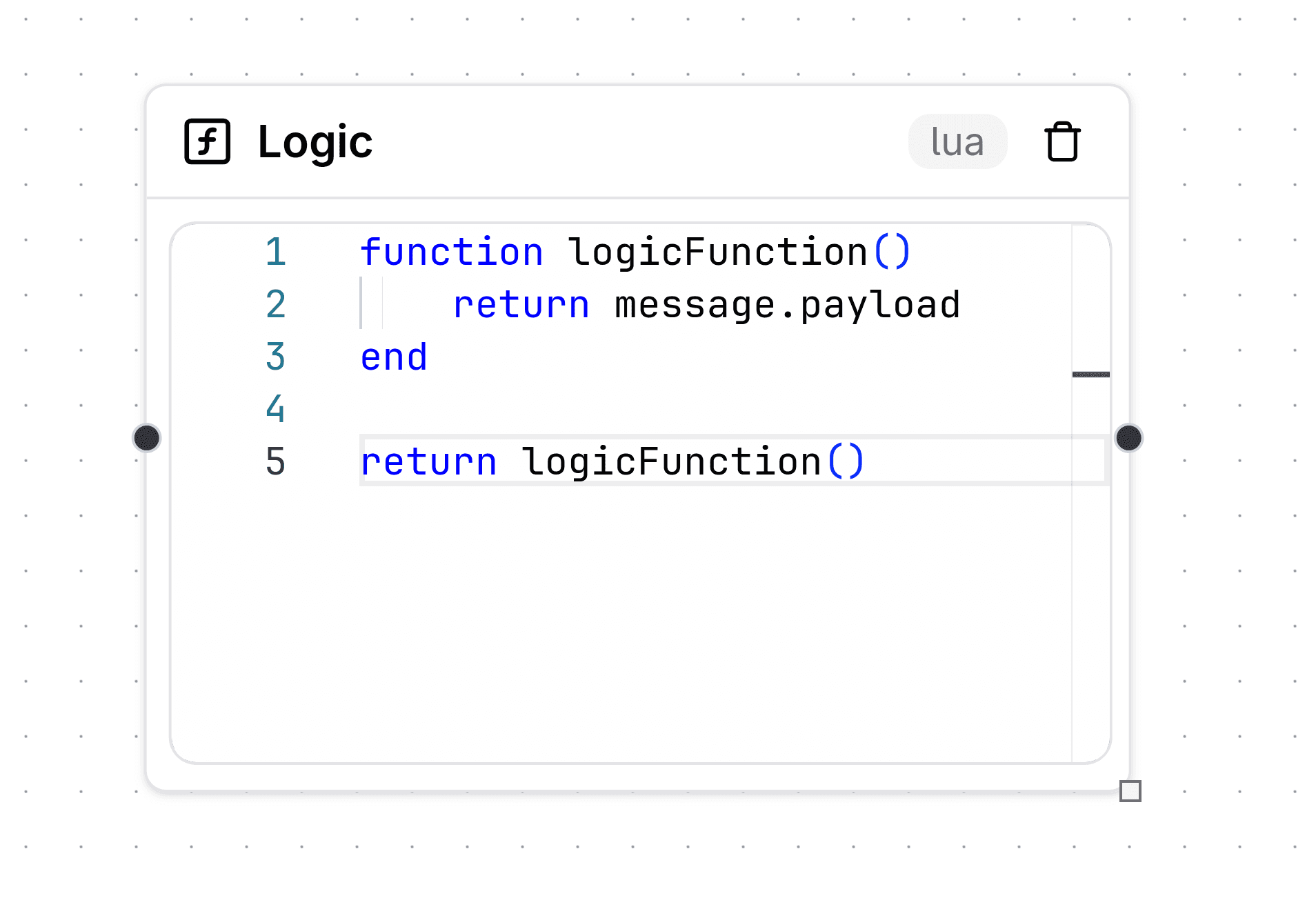
Again, right click any where in the canvas but this time add a "Lua script"
node. The script editor will already contain a basic script that simply
returns, or passes forward, the original message without modification.
Now connect the Listener node to the Logic node so data can flow from the
prior into the latter.
Working with the message's data
If you want to see the data coming from your devices while you are creating rules, you can use the TelemetryWatch popup directly where you are working.
The logic node is what allows you to process and transform incoming messages from devices. You should process data differently depending on your desired outcome.
In other words, to store messages into your organization's internal database, you will need to parse and transform the data into SenML. To have Gridsense automatically generate alarms based on certain device measurements, you will need to process the data into the alarm-specific format (see create alarms), and so on. Scripts must return a non-nil value for outputs to be invoked.
The following two examples parse JSON messages into SenML so that the data can be stored by Gridsense.
They make use of the global message.payload Lua table which stores the original message's data.
A Lua table is a data structure that can be indexed with both numbers and strings.
The table type implements associative arrays. An associative array is an array that can be indexed not only with numbers, but also with strings or any other value of the language, except
nil.
From "Programming in Lua" by Roberto Ierusalimschy, Lua.org
Example 1: convert a JSON object into SenML
If your device is sending data as a JSON object, then message.payload will
simply be a Lua table mirroring that JSON object.
Some MQTT libraries might send data as a JSON array even if you're only
sending an a single JSON object. Make sure to check the actual message being
sent by e.g. using mosquitto_sub to listen to the messages your device is
sending.
Let us consider the following JSON object:
{
  "device_name": "org/lighting/SmartLight/",
  "timestamp": "<time value>",
  "sensor_type": "brightness",
  "unit": "lm",
  "value": 100
}
In the Lua script, if you to access the objet's device_name
value, you may simply write message.payload.device_name.
To parse the entire message, the script would look something like this:
function logicFunction()
    local data = message.payload

    -- Convert to SenML format
    local senml_data = {
        {
            bn = data.device_name,
            bt = data.timestamp,
            n = data.sensor_type,
            u = data.unit,
            v = data.value
        }
    }

    return senml_data
end

return logicFunction()
Example 2: convert a JSON array into SenML (batched data)
If your device is sending data as a JSON array of objects,
then message.payload will be a Lua array of tables (technically, a table
of tables). To access the first object, you will access it through
message.payload[1], the second object through message.payload[2], and so
on.
Let us consider a device sending some measurements as a JSON array:
[
  {
    "device_name": "org/lighting/SmartLight/",
    "timestamp": "<time value>",
    "sensor_type": "brightness",
    "unit": "lm",
    "value": 100
  },
  {
    "device_name": "org/lighting/SmartLight/",
    "timestamp": "<time value>",
    "sensor_type": "temperature",
    "unit": "Cel",
    "value": 120
  },
  {
    "device_name": "org/lighting/SmartLight/",
    "timestamp": "<time value>",
    "sensor_type": "humidity",
    "unit": "%RH",
    "value": 140
  }
]
In the Lua script, if you wanted to access the second object's device_name
value, you may access it through message.payload[2].device_name.
To parse the entire message, the script would look something like this:
function logicFunction()
    local senml_data = {}

    for i, data in ipairs(message.payload) do
        -- Handle different sensor types
        local senml_entry = {
            bn = data.device_name or "unknown",
            bt = data.timestamp or os.time(),
            n = data.sensor_type or "unknown",
            u = data.unit or "",
            v = data.value or 0
        }

        -- Add additional SenML fields based on sensor type
        if data.sensor_type == "temperature" then
            senml_entry.u = "Cel"  -- Celsius
        elseif data.sensor_type == "humidity" then
            senml_entry.u = "%RH"  -- Relative Humidity
        elseif data.sensor_type == "brightness" then
            senml_entry.u = "lm"   -- Lumens
        end

        table.insert(senml_data, senml_entry)
    end

    return senml_data
end

return logicFunction()
Outputs
There are five output nodes, each serves a different purpose and is configurable in its own way. We will explore all five nodes below and demonstrate how each one can be used.
Store data into your organization
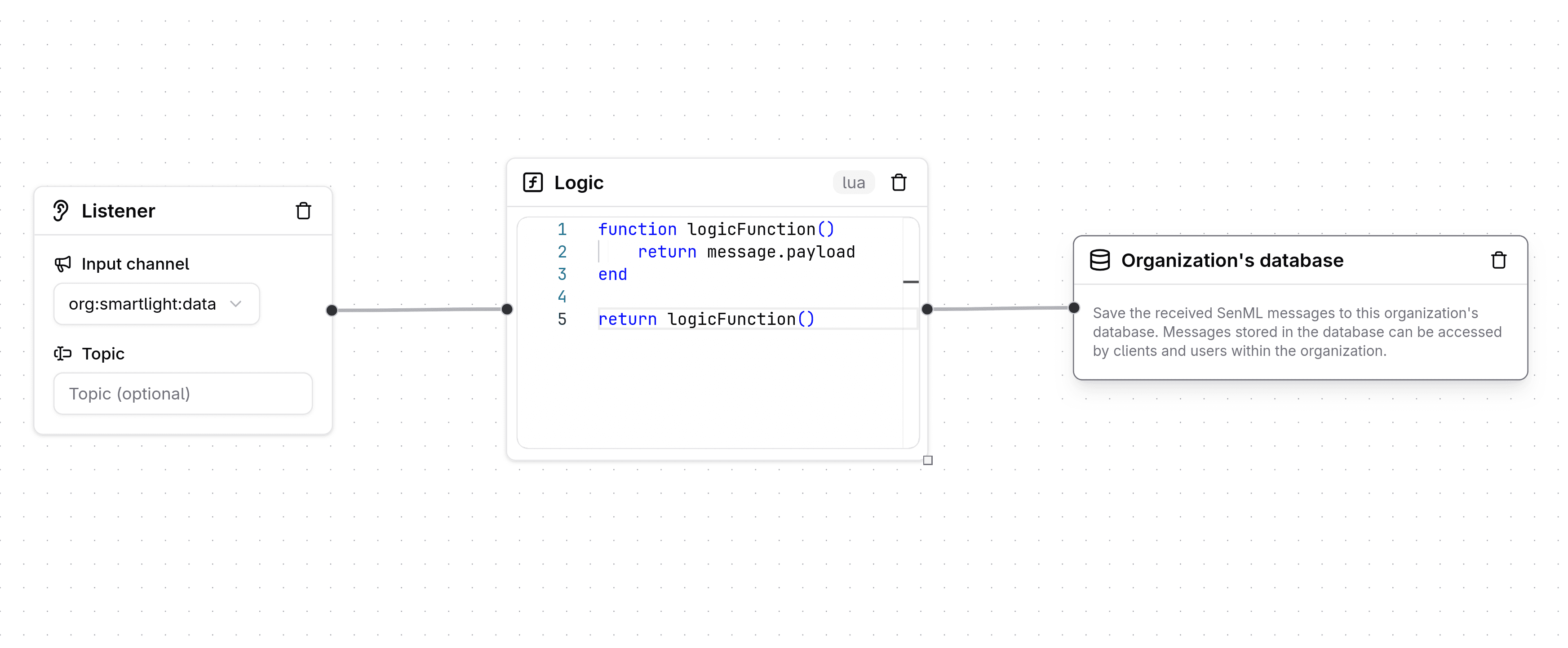
The simplest use case of a rule is storing incoming data into the organization's database. As mentioned in the beginning of the tutorial, sending data to Gridsense will NOT automatically lead to that data being stored and usable by Gridsense's services. For data to be stored and usable, you will need to use the "Internal database" output node.
This is a simple node that takes input from a logic node and has no outputs. It has no fields or dropdowns; you simply connect it and Gridsense handles the rest.
Common pitfalls
The output of the logic node must be valid SenML for the "Internal database" node to be able to save the data. Otherwise, the node will not work and the data will not be stored.
If your devices already send data as SenML, you can keep the logic node as is. If not, then you will need to modify the script to parse and transform the data into valid SenML, which will be passed onto the "Internal database" node.
Keep in mind that even if your devices send data as SenML, you must have a logic node in your rule. You cannot connect a "Listener" node to an "Internal database" node directly.
Store data in an external database
The "PostgreSQL database" node allows you to store data into an external PostgreSQL database.
The most important field is "Data mapping"; where the keys correspond to the columns and the values correspond to the parsed Go template values.
For example, if your table has the columns channel, value, and unit, you
could map the processed output of the logic node as follows:
{
  "channel": "{{.Message.Channel}}",
  "value":   "{{(index .Result 0).v}}",
  "unit":    "{{(index .Result 0).u}}"
}
Template variables
You can find the full list of available template variables in the table below.
| Variable | Description | Example |
|---|---|---|
{{.Result}} | The full processed output from the logic node | {{.Result}} |
{{.Result.<key>}} | A specific value from the logic node's processed output | {{.Result.v}} |
{{.Message.<key>}} | A specific value from the original input message (before logic node processing) | {{.Message.Channel}} |
{{(index .Result 0)}} | Access slices/arrays | {{(index .Result 0).v}} |
Send automated emails
The "Email" node allows you to send emails dynamically. Simply provide the subject, recipient(s), and content.
Similar to the PostgreSQL databse node's "Data mapping" field, The Email node's content field supports supports Go templates, which means you can use the same variables mentioned in the Template variables section above.
Here is an example that reports the brightness of a smart light device, which
is accessible through the {{(index .Result 0).v}} template variable from the
logic node's processed output. It also prints the unit, which is accessible
through the {{(index .Result 0).u}} template variable.
Office smart light brightness is currently {{(index .Result 0).v}} {{(index .Result 0).u}}.Create alarms
Another use case of the rules engine is to automatically create alarms based on incoming data. If a device sends a measurement that you deem out of the ordinary, you can have Gridsense look out for such measurements and automatically create alarms for you.
To create alarms, you must use the "Alarms" output node instead of the "Internal database" node. Unlike the Internal database node, the Alarms node expects output from the logic node to be in a specific schema that is different from SenML.
Below is an example Lua script that iterates over each object in a JSON array (the message sent from the device) and checks whether the reported device measurement is in a certain threshold. If so, it creates an alarm and assigns it its respective severity level with a specific message. The example assumes the device sends data in the SenML format.
function logicFunction()
    local results = {}
    local threshold = 20000

    for _, msg in ipairs(message.payload) do
        local value = msg.v
        local severity
        local cause

        if value >= threshold * 1.5 then
            severity = 5
            cause = "Critical level exceeded"
        elseif value >= threshold * 1.2 then
            severity = 4
            cause = "High level detected"
        elseif value >= threshold then
            severity = 3
            cause = "Threshold reached"
        end

        table.insert(results, {
            measurement = msg.n,
            value = tostring(value),
            threshold = tostring(threshold),
            cause = cause,
            unit = msg.unit,
            severity = severity,
        })
    end

    return results
end
return logicFunction()
The created alarms can be seen in the alarms page, where you can see the details of each alarm, assign it to a member of your organization for review, and take further actions.
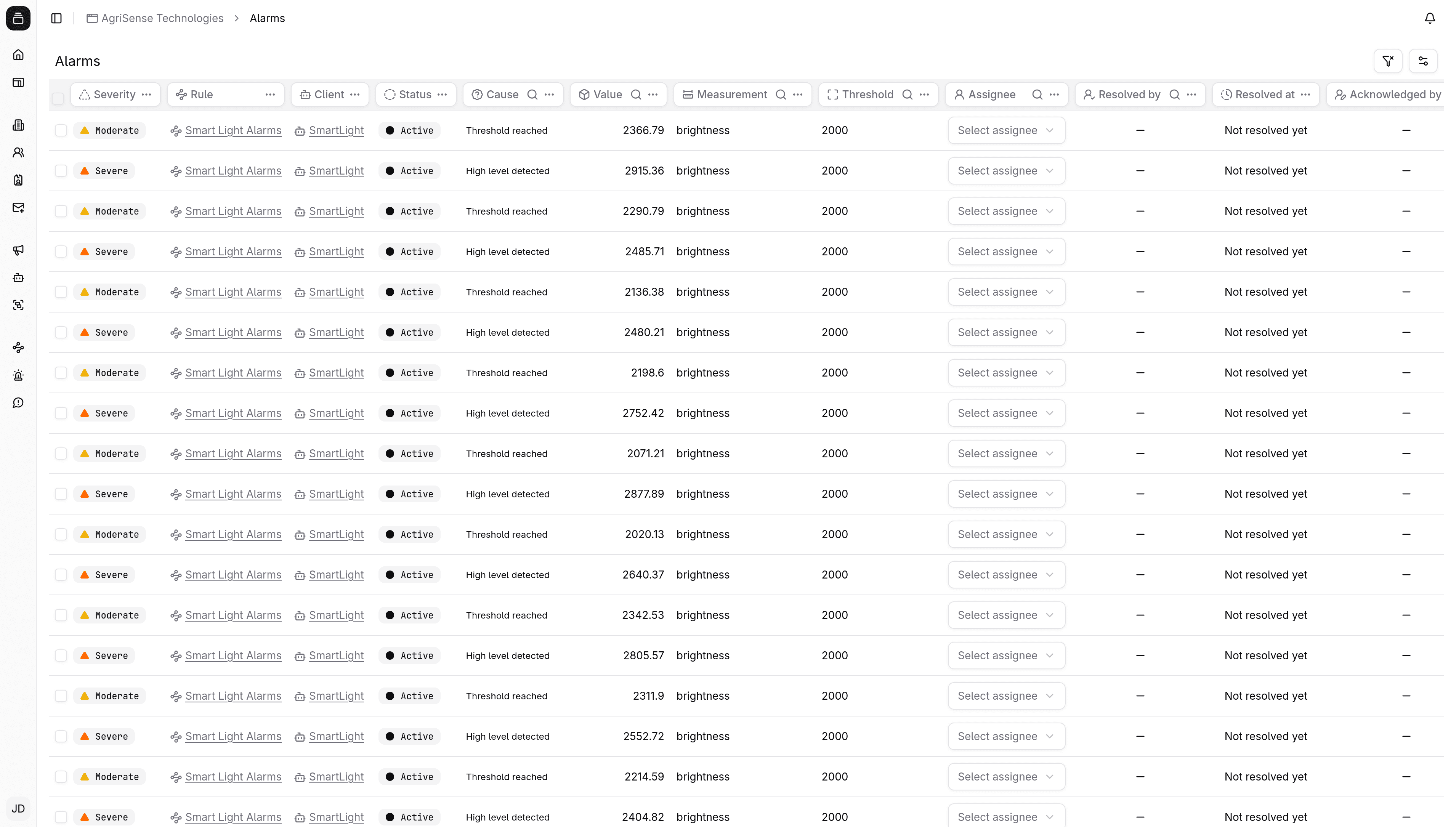
Similar to the Internal database node, the alarms node has no fields or dropdowns. All configuration should be handled in the logic node. For more on alarms, refer to the alarms reference page.
Publish data to another channel
The "Channel" output node mirros the "Listener" input node in that you specify a channel, and optionally a subtopic, to forward the logic node's processed output to another channel.
Keep in mind that there must be a rule for the output channel to also process and store data, just like we are doing here for this rule's input channel.
Scheduling
By default, the rule executes every time a message is received to the chosen channel (and subtopic). You may additionally set a schedule and have the rule execute at scheduled intervals as well.
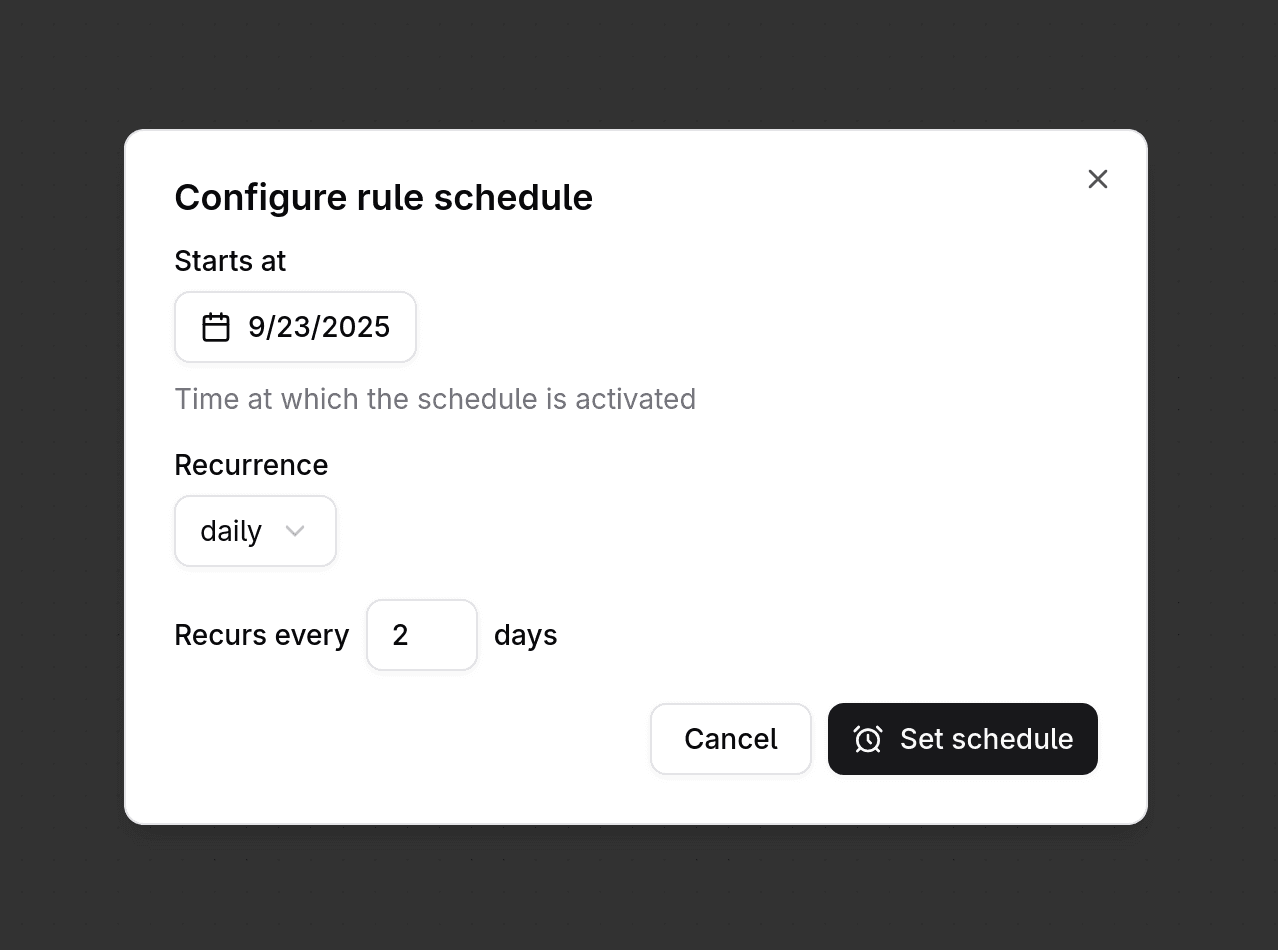
Click on the "Schedule" button. Here, you can configure the date at which scheduled executions begins, the exact time at which the rule will execute each interval, and, lastly, the recurrence type and value.
The chosen date value must be greater than the current date.