Gridsense Docs
Visualize Your Data
Learn how to create a dynamic, interactive dashboard that allows you to see and control your devices' data in real-time
Dashboards are canvases that contain dynamic and interactive elements, referred to as "widgets." Widgets are the building blocks of dashboards. They can be customized to you and your end-users' liking by changing their icons, colors, sizes, appearances, and more.
An organization can have multiple dashboards, each having its own name, widgets, and customizations. This allows you to model different areas of your business in separate, distinct dashboards.
Create a dashboard
Go to the dashboards page and click on "Add New Dashboard" from the "Select dashboard" dropdown menu on the top. Enter a name then hit "Ok."
You will be greeted with a blank canvas and a message prompting you to add your first widget. Make sure "Edit mode" is enabled by switching on the toggle on the top right, then click on "Add widget" on the bottom right corner to view all available widgets.
Add a widget
Line chart
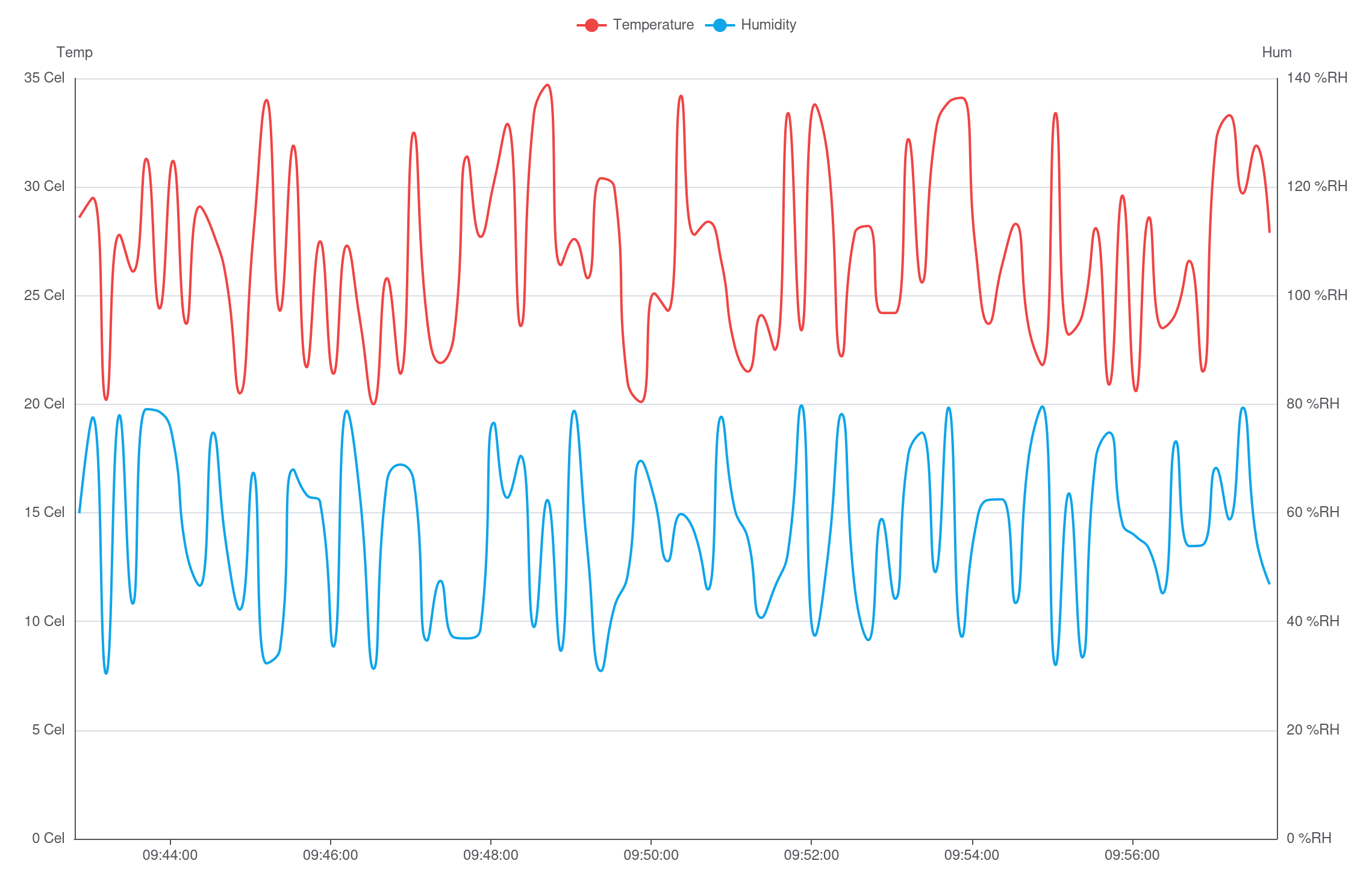
Area charts are time-series widgets that plot data on a two-dimensional grid. They can be configured to plot multiple lines, each representing a number of data points of a specific measurement reported by a specific device/sensor.
To create an area chart, first add a Chart widget. You can then add a data source and configure the data source's chart type to be a line chart.
Configuration
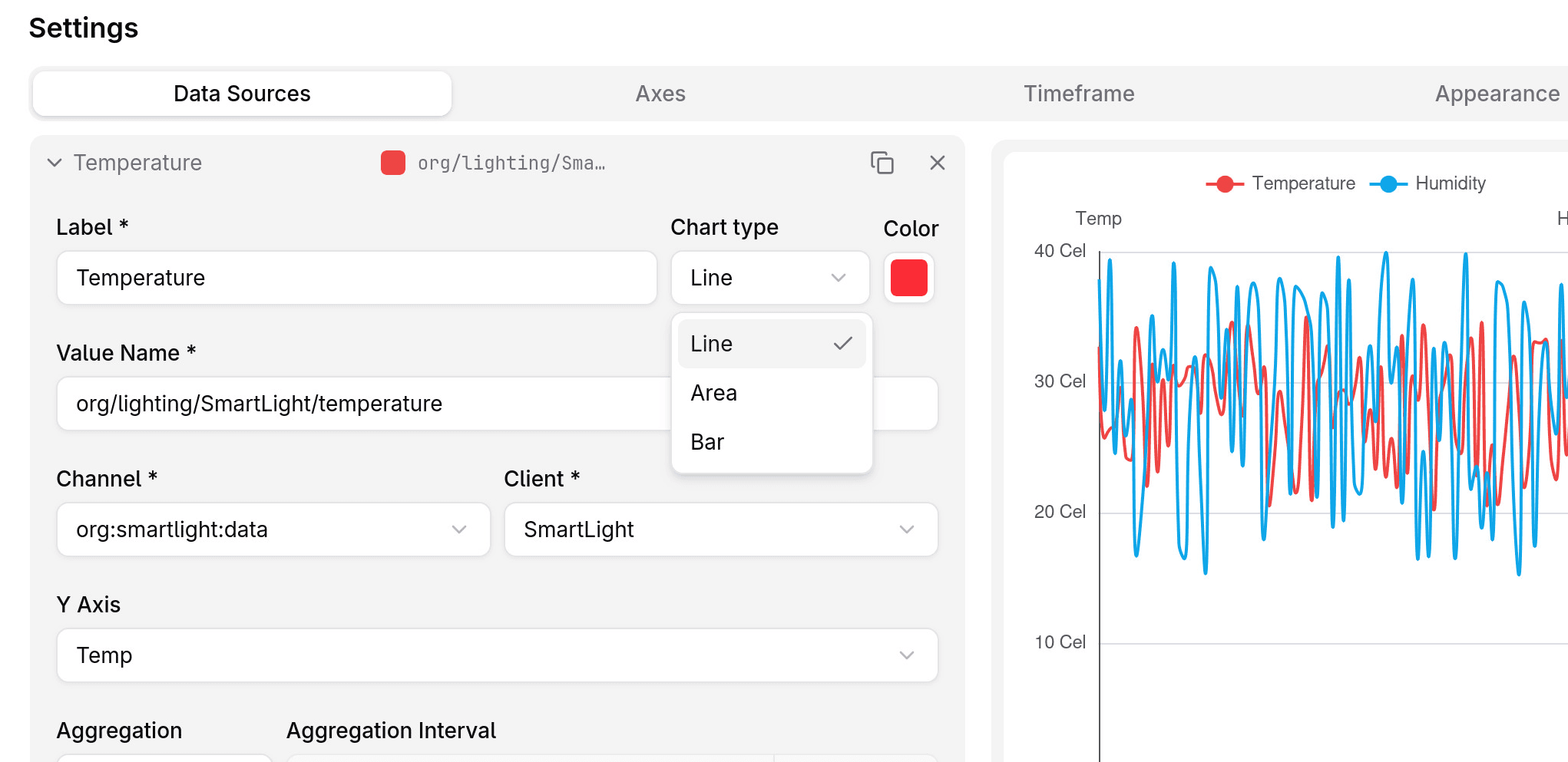
A line chart provides many configuration options, which are categorized into four groups:
- Data Sources
- Axes
- Timeframe
- Appearance
Data Sources
The Data Sources tab is where you define the data to be plotted on the chart. Each data source represents a series of measurements reported by a specific device, which in turn represents a line on the chart.
Each data source entry is configured through the following fields:
| Field | Description | Example | Required |
|---|---|---|---|
| Label | The label that will be displayed on the legend and when hovering over the chart. | Temperature | |
| Chart type | Can be Line, Area, or Bar. | Line | |
| Color | The line color. | ||
| Value Name | The name of the measurement that will be plotted. It's the name under which the sensor publishes a specific measurement. | org/smart_thermostat/temperature | |
| Channel | The channel from which data will be sourced. | org:office:temperature | |
| Device | The device whose measurements will be plotted. | SmartThermostat | |
| Y Axis | The y axis that the plot will be measured against. When adding a new data source, a new y axis will be added automatically. Multiple data sources can use the same y axis. | ||
| Aggregation | The aggregation function. Can be one of min, max, avg, sum, count, or none (default). | Avg | |
| Aggregation Interval | The interval on which measurements will be aggregated. Only required if an aggregation function was chosen. | 30 Seconds | Only if an aggregation function was chosen. |
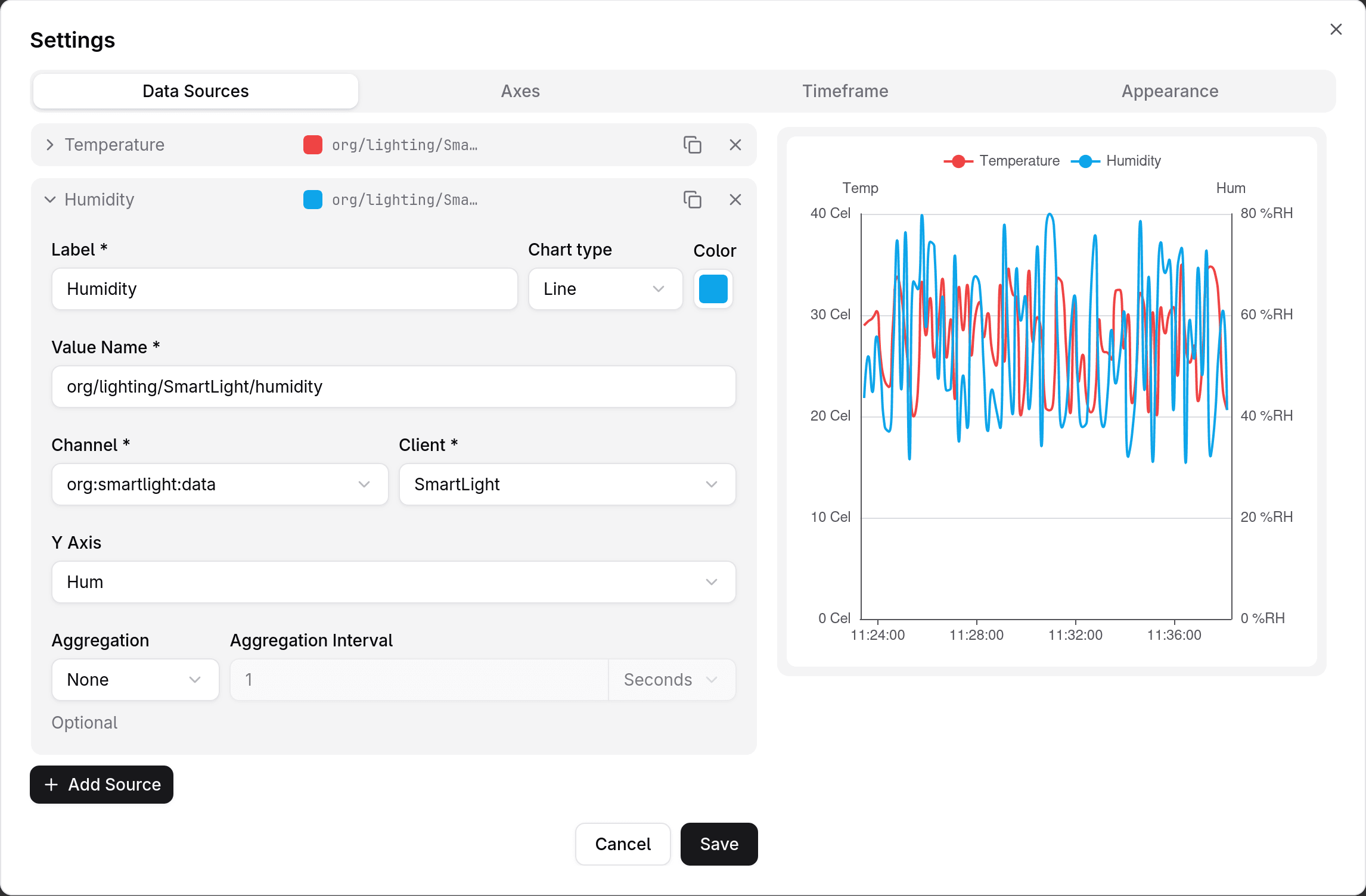
A data source can be:
- duplicated (a new y axis will not be created)
- deleted
Axes
A line chart can display one or more y axes. When adding a new data source, a new y axis will be added automatically. It's not compulsory, however, that each data source use its own y axis. Multiple data sources can use the same y axis.
| Field | Description | Example |
|---|---|---|
| Name | The title that will be displayed above the y axis. Can be left blank to have nothing be displayed. | Humidity |
| Position | Can be left (default) or right. | Left |
| Unit | The unit that will be displayed next to each axis label. A list of predefined units are provided, but a custom unit can be input as well. | %RH |
| Min | The minimum value of the y axis' domain. | Auto |
| Max | The maximum value of the y axis' domain. | Auto |
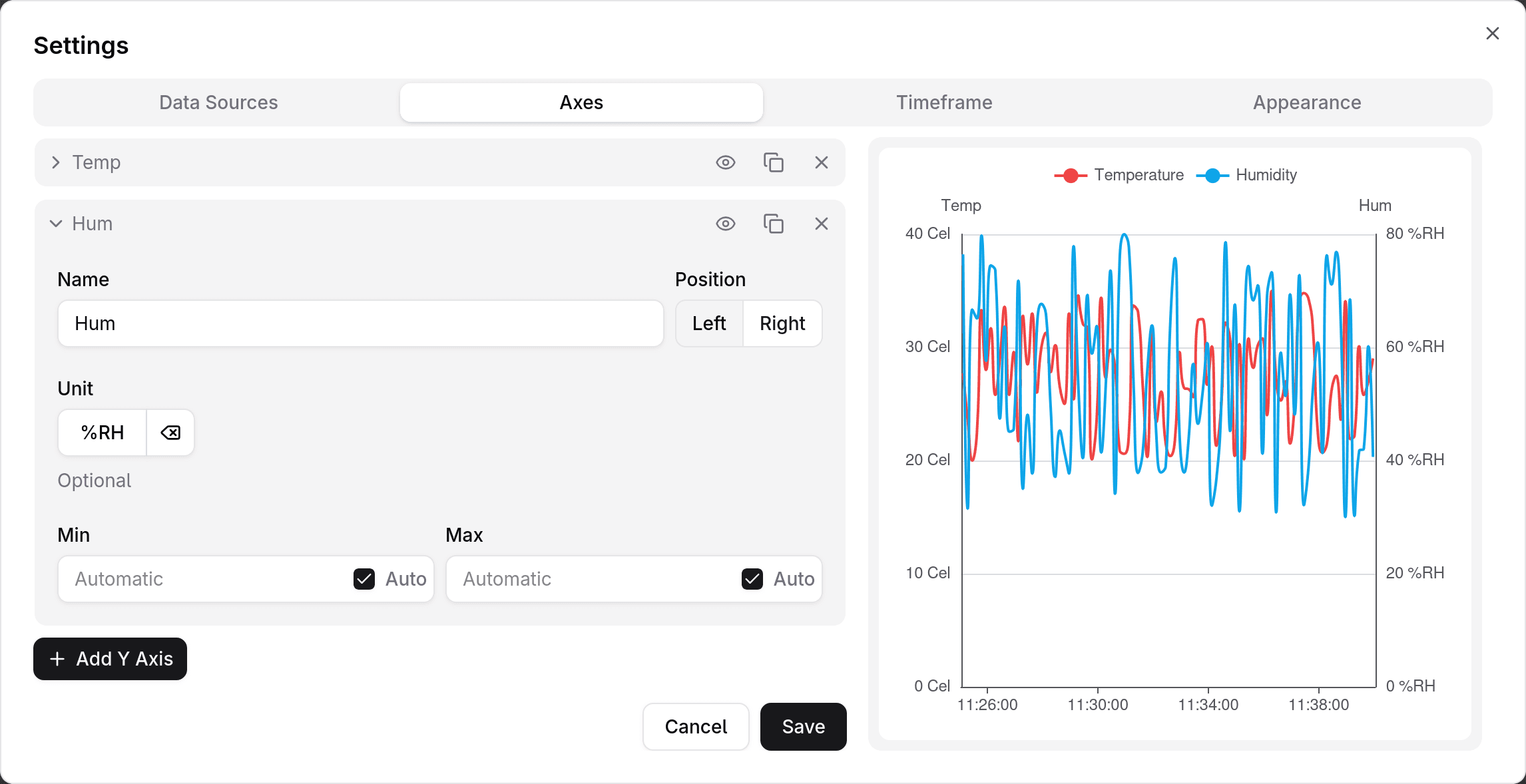
An axis can be:
- hidden
- duplicated
- deleted. If the axis is used by one or more data sources, it will not be deleted, and a message with the name of the data source will be shown instead.
Timeframe
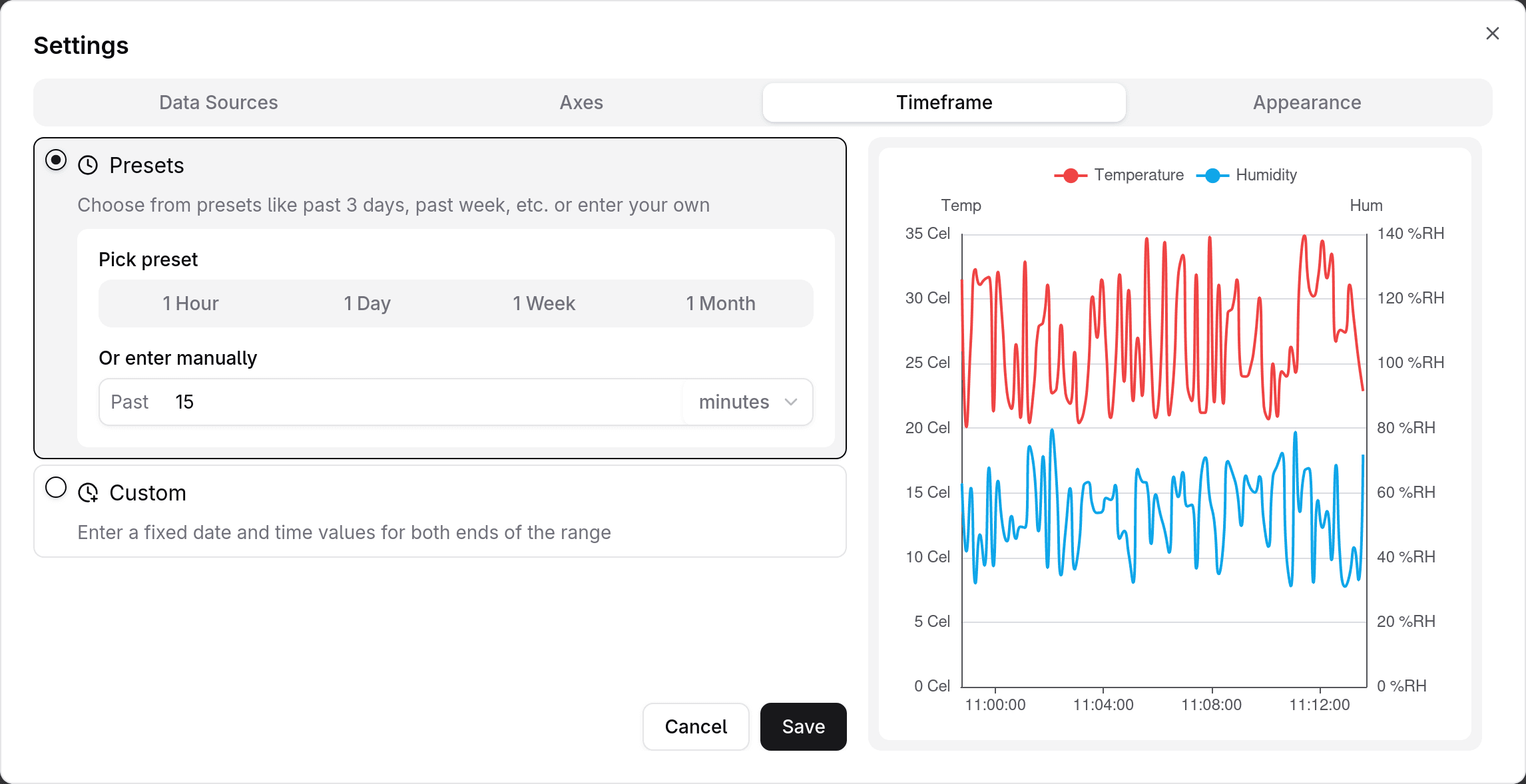
A chart can display live or historical data. Live means you choose the start date and time value while the end value is fixed (to the current date and time value).
By default, the chart will be in live mode, displaying data from the past one hour. You can change this behavior by choosing a predefined timeframe presets (1 hour, 1 day, 1 week, or 1 month) or entering a value manually (e.g. past 15 minutes).
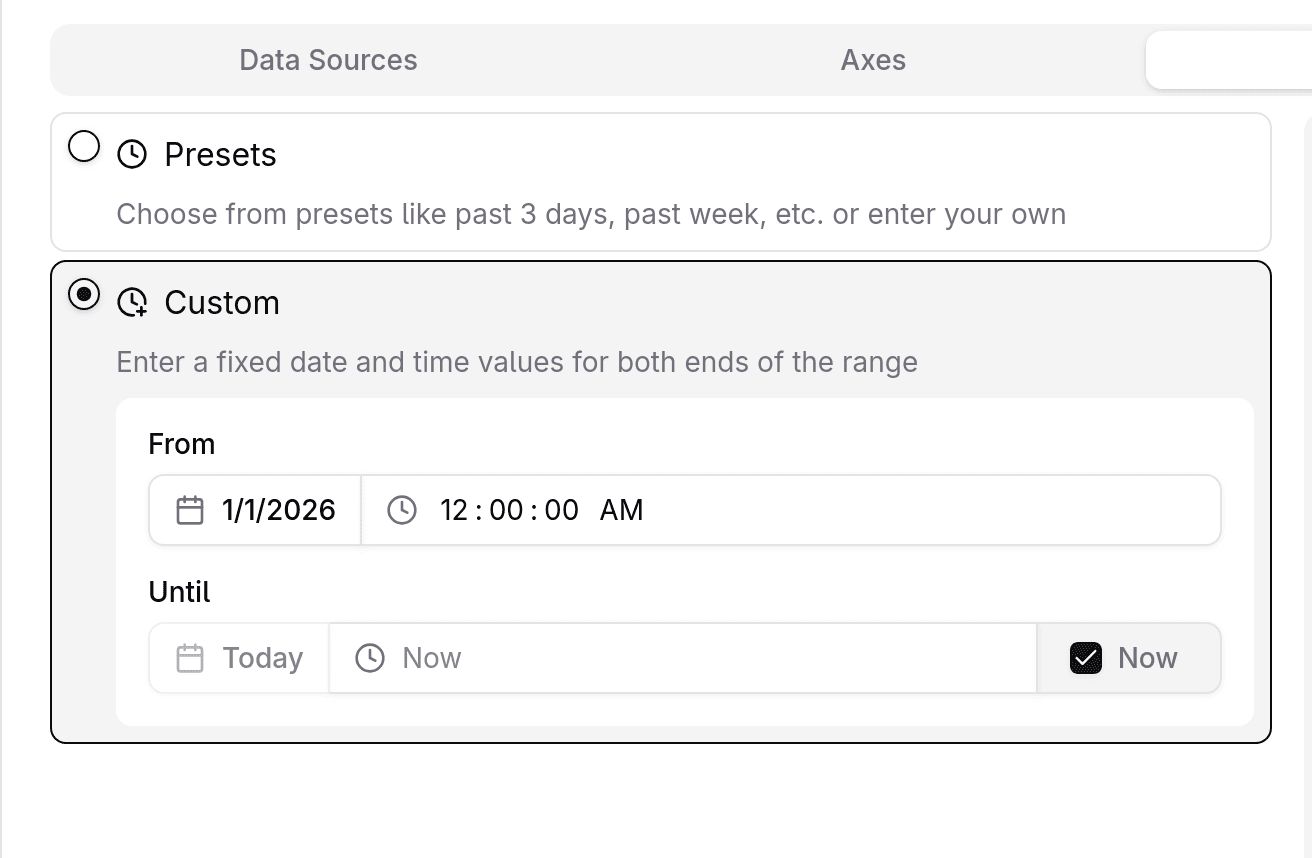
To have a fixed start (and optionally, end) date, choose the " Custom" option and enter the values manually.
Appearance
The Appearance tab contains settings that are purely cosmetic.
Currently, there are two categories within the Appearance settings:
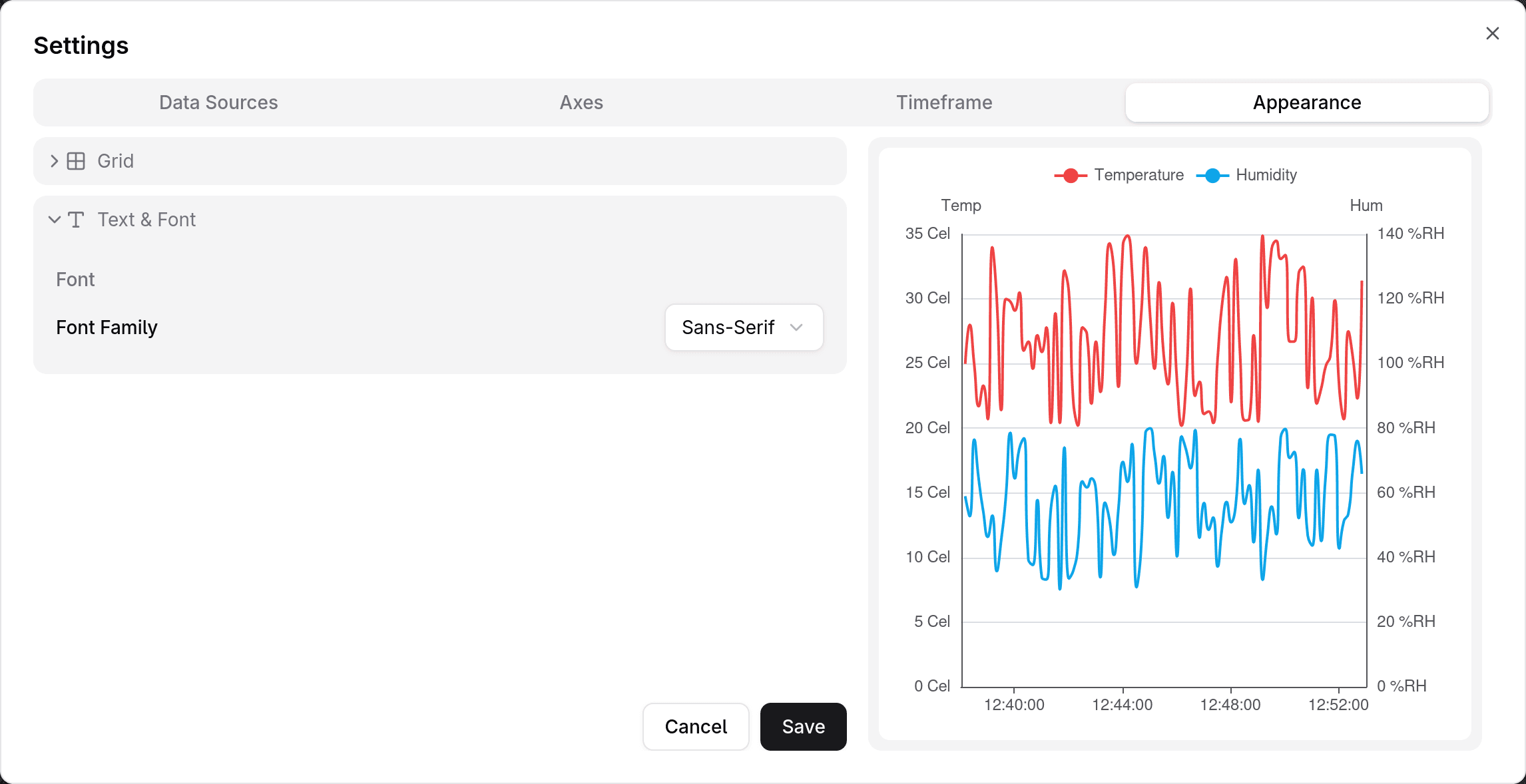
- Grid
- Text & Font
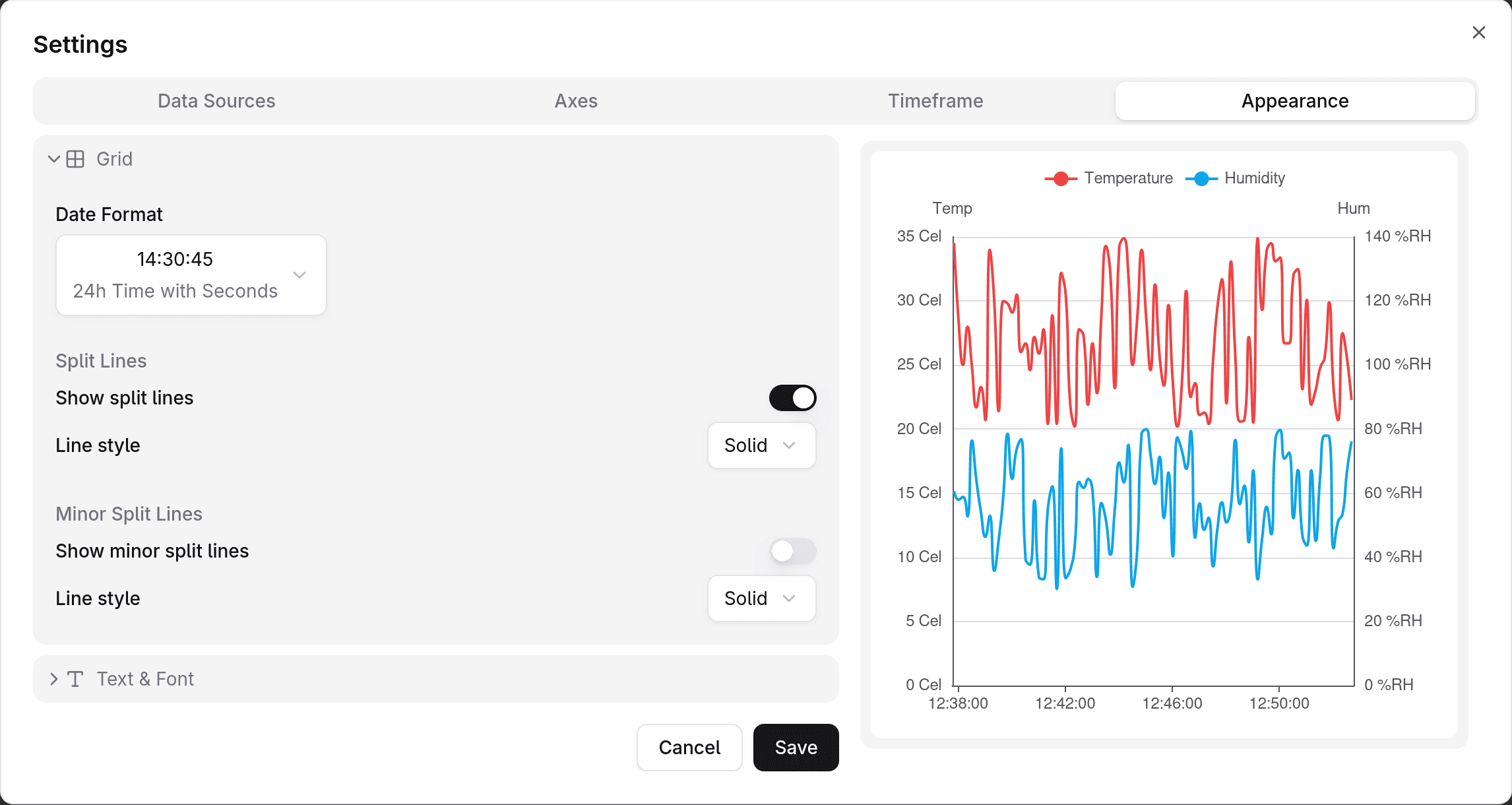
Grid
| Field | Description |
|---|---|
| Date Format | Controls how the labels on the x axis are displayed. Choose from a comprehensive list of options. |
| Show split lines | Whether or not to display grid lines for each y axis label. |
| Line style | Can be solid, dashed, or dotted. |
| Show minor split lines | Whether or not to display minor grid lines between each pair of split lines. |
| Line style | Can be solid, dashed, or dotted. |
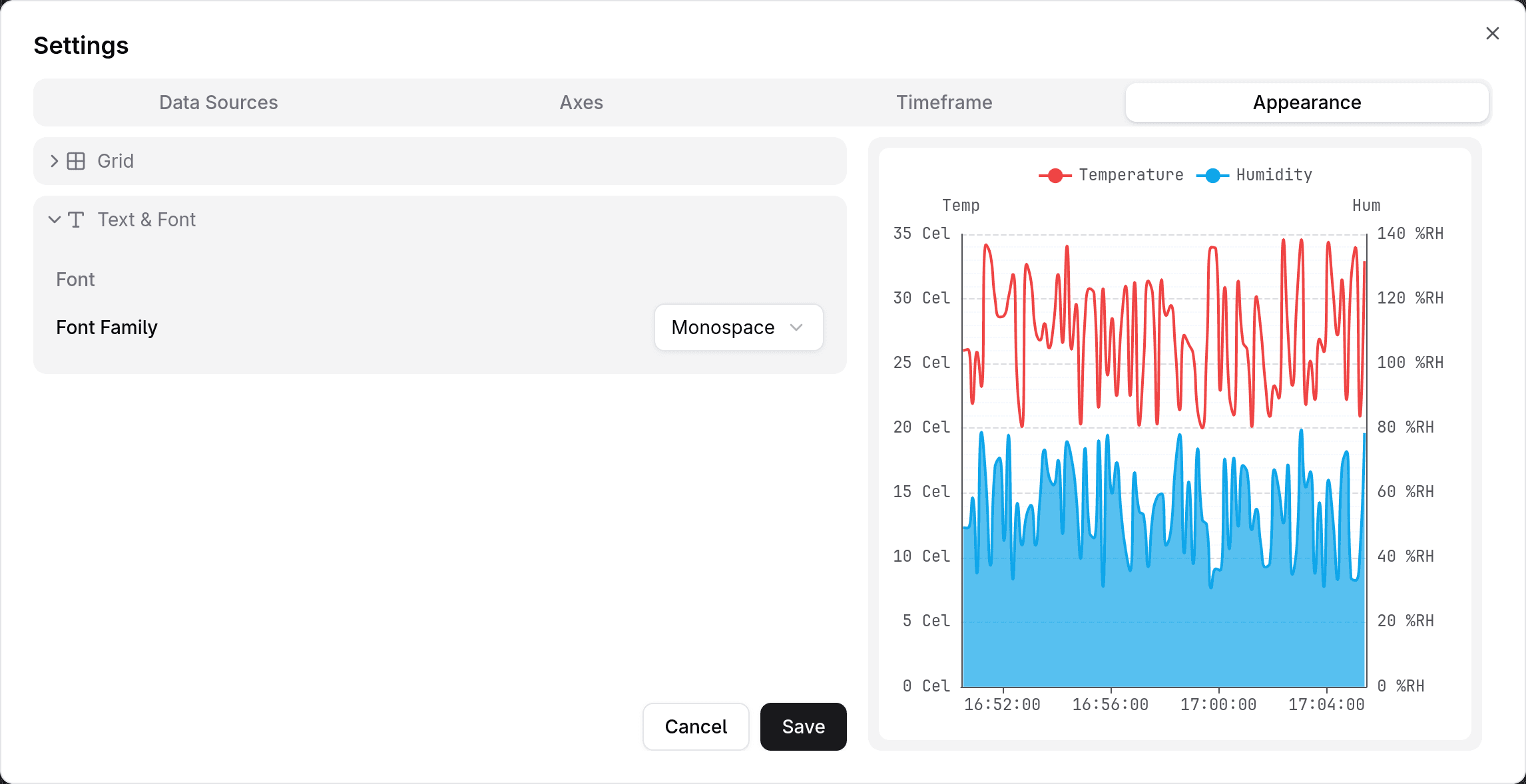
Text & Font
| Field | Description |
|---|---|
| Font Family | Can be Sans-Serif, Serif, or Monospace. |
Area chart
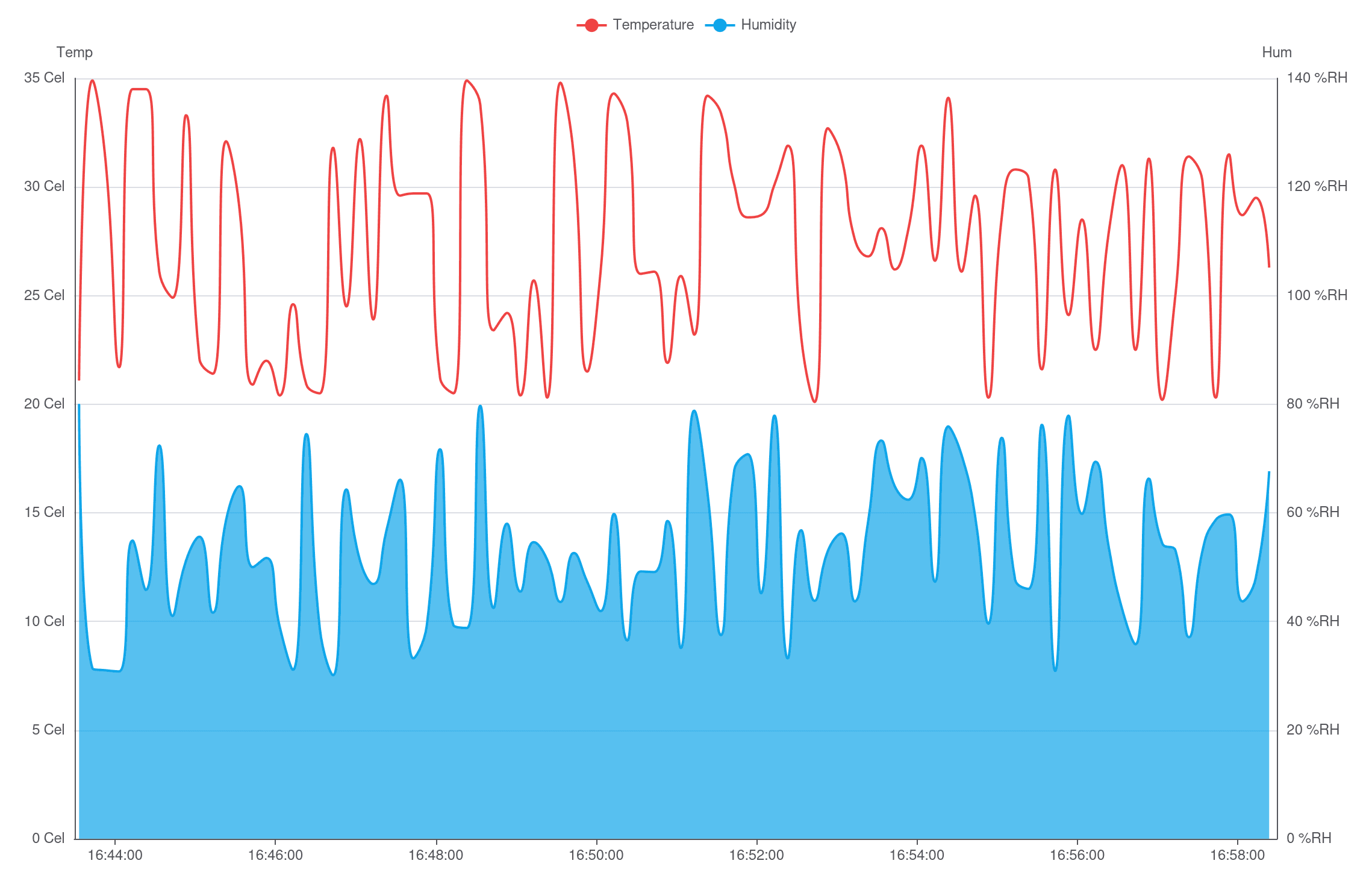
Area charts are time-series widgets that plot data on a two-dimensional grid. They can be configured to plot multiple lines, each representing a number of data points of a specific measurement reported by a specific device/sensor.
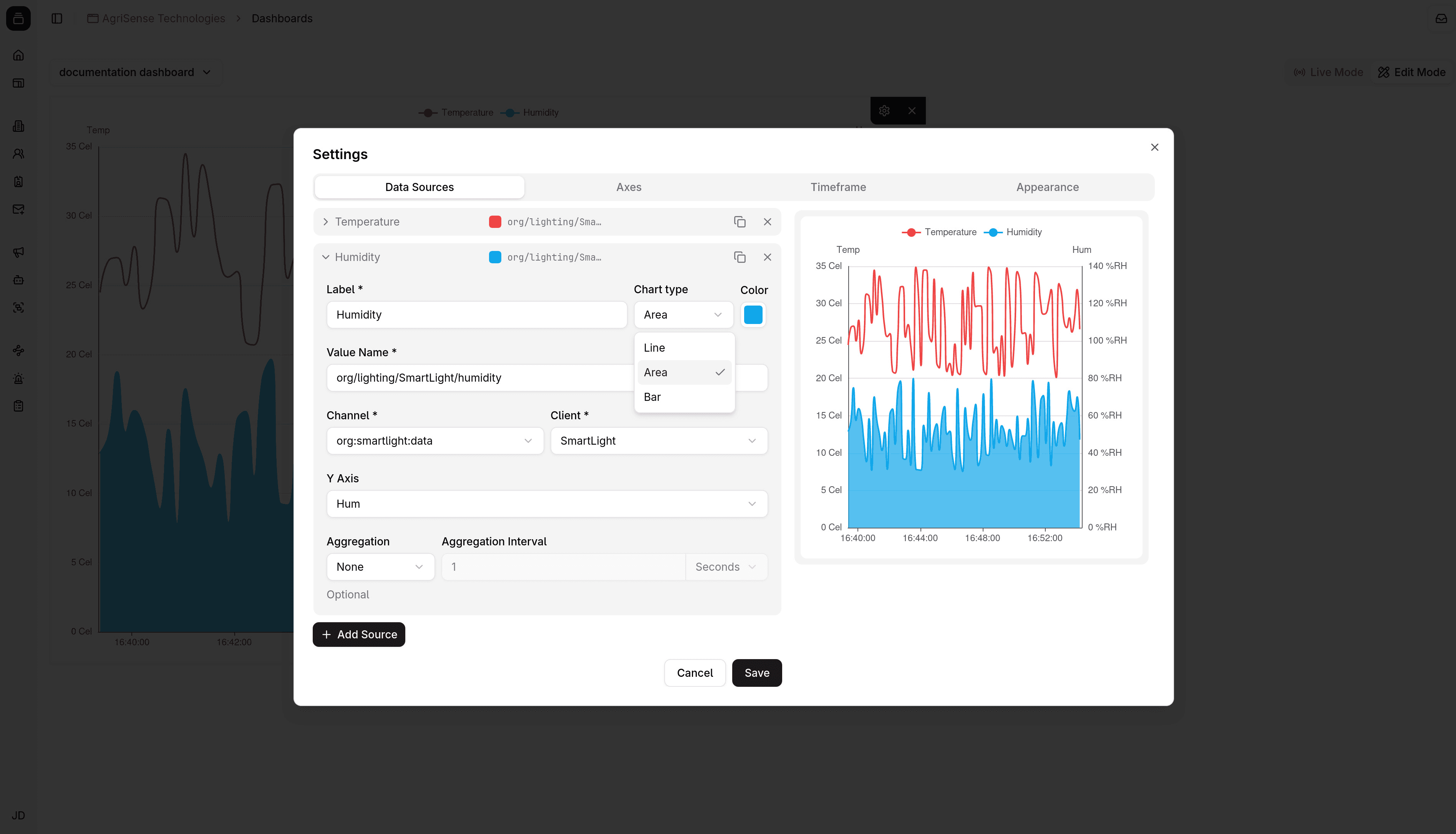
To create an area chart, first add a Chart widget. You can then add a data source and configure the data source's chart type to be an area chart.
Configuration
An area chart provides many configuration options, which are categorized into four groups:
- Data Sources
- Axes
- Timeframe
- Appearance
Data Sources
The Data Sources tab is where you define the data to be plotted on the chart. Each data source represents a series of measurements reported by a specific device, which in turn represents an area on the chart.
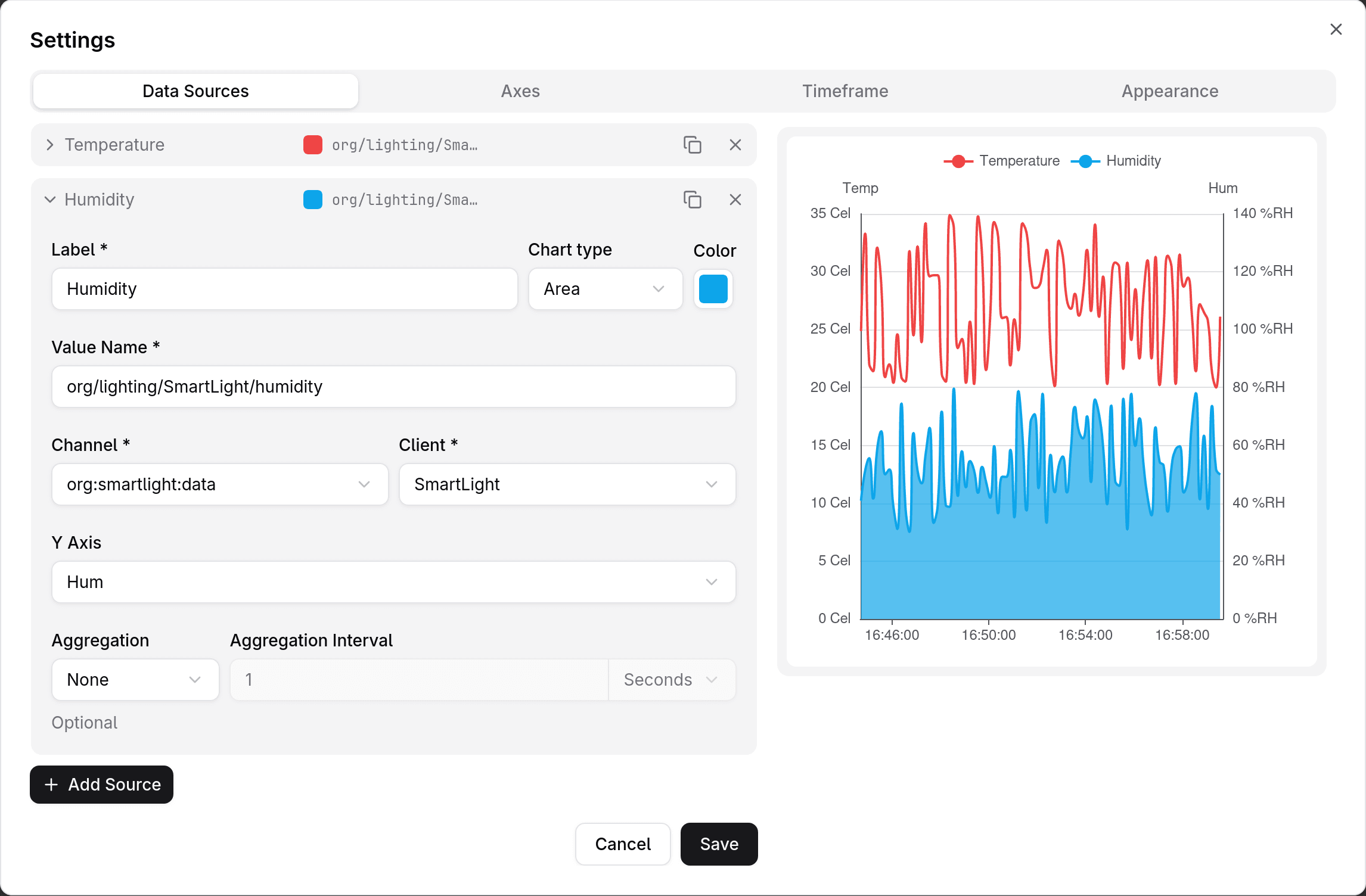
Each data source entry is configured through the following fields:
| Field | Description | Example | Required |
|---|---|---|---|
| Label | The label that will be displayed on the legend and when hovering over the chart. | Temperature | |
| Chart type | Can be Line, Area, or Bar. | Area | |
| Color | The line and area color. | ||
| Value Name | The name of the measurement that will be plotted. It's the name under which the sensor publishes a specific measurement. | org/smart_thermostat/temperature | |
| Channel | The channel from which data will be sourced. | org:office:temperature | |
| Device | The device whose measurements will be plotted. | SmartThermostat | |
| Y Axis | The y axis that the plot will be measured against. When adding a new data source, a new y axis will be added automatically. Multiple data sources can use the same y axis. | ||
| Aggregation | The aggregation function. Can be one of min, max, avg, sum, count, or none (default). | Avg | |
| Aggregation Interval | The interval on which measurements will be aggregated. Only required if an aggregation function was chosen. | 30 Seconds | Only if an aggregation function was chosen. |
A data source can be:
- duplicated (a new y axis will not be created)
- deleted
Axes
An area chart can display one or more y axes. When adding a new data source, a new y axis will be added automatically. It's not compulsory, however, that each data source use its own y axis. Multiple data sources can use the same y axis.
| Field | Description | Example |
|---|---|---|
| Name | The title that will be displayed above the y axis. Can be left blank to have nothing be displayed. | Humidity |
| Position | Can be left (default) or right. | Left |
| Unit | The unit that will be displayed next to each axis label. A list of predefined units are provided, but a custom unit can be input as well. | %RH |
| Min | The minimum value of the y axis' domain. | Auto |
| Max | The maximum value of the y axis' domain. | Auto |
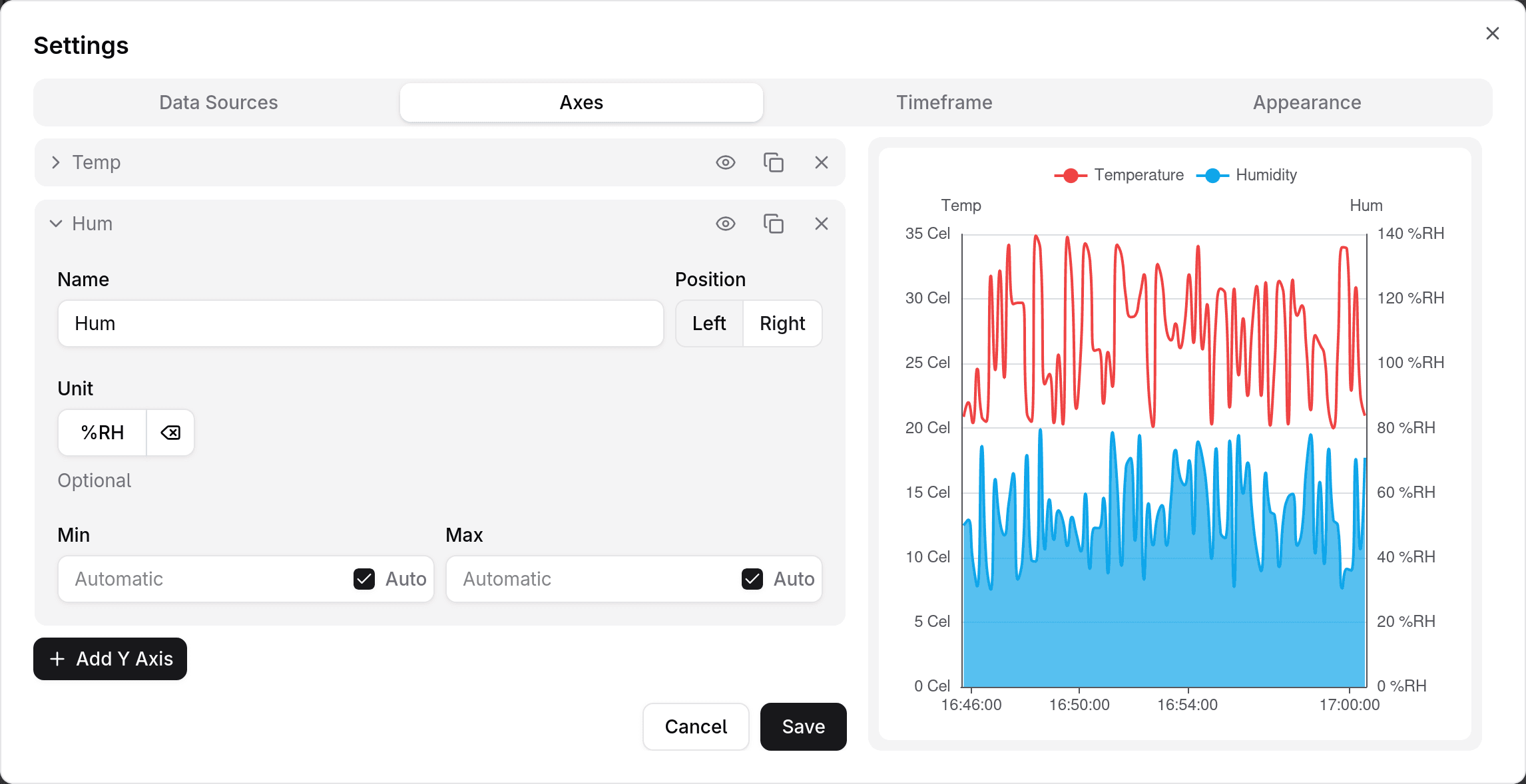
An axis can be:
- hidden
- duplicated
- deleted. If the axis is used by one or more data sources, it will not be deleted, and a message with the name of the data source will be shown instead.
Timeframe
A chart can display live or historical data. Live means you choose the start date and time value while the end value is fixed (to the current date and time value).
By default, the chart will be in live mode, displaying data from the past one hour. You can change this behavior by choosing a predefined timeframe presets (1 hour, 1 day, 1 week, or 1 month) or entering a value manually (e.g. past 15 minutes).
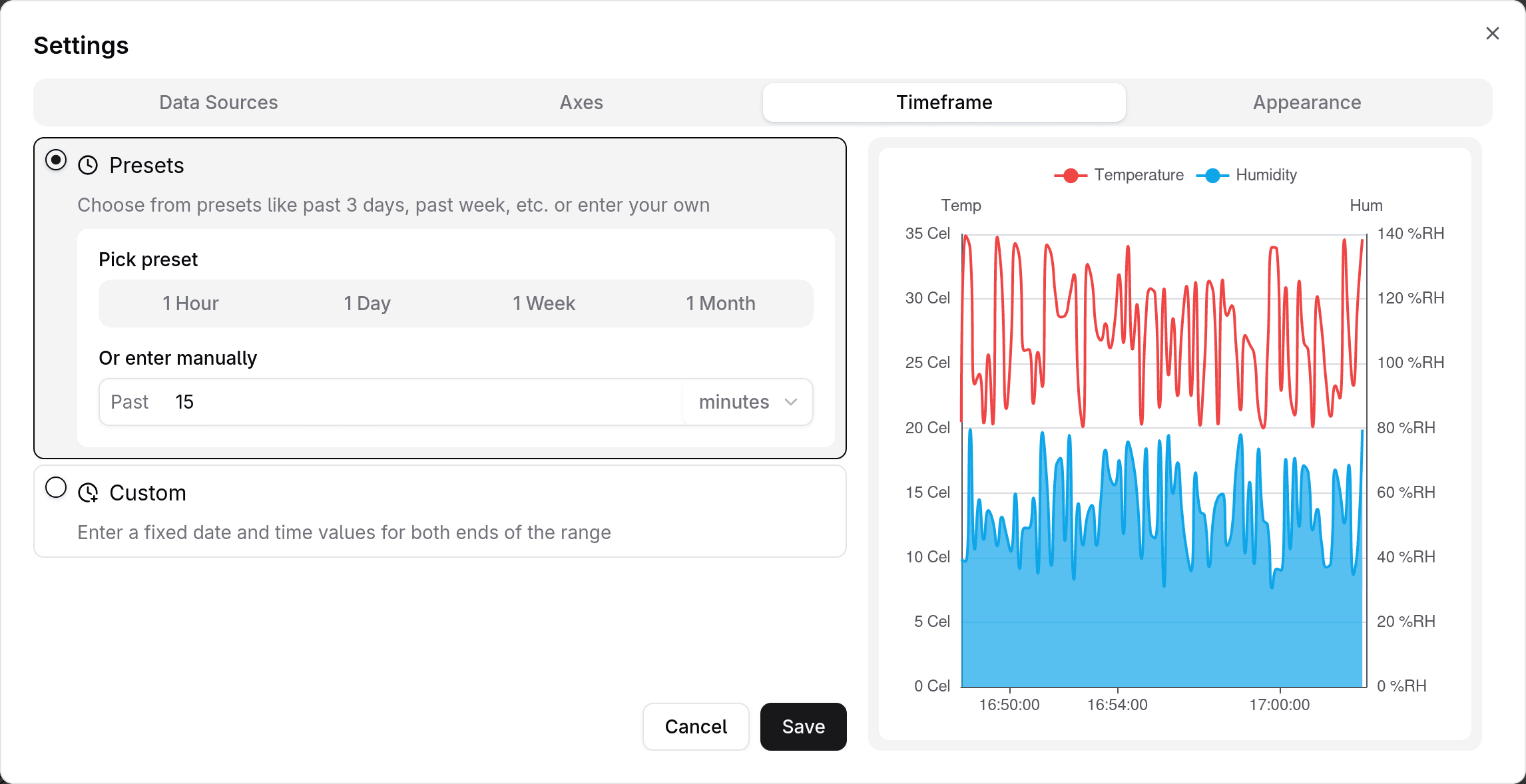
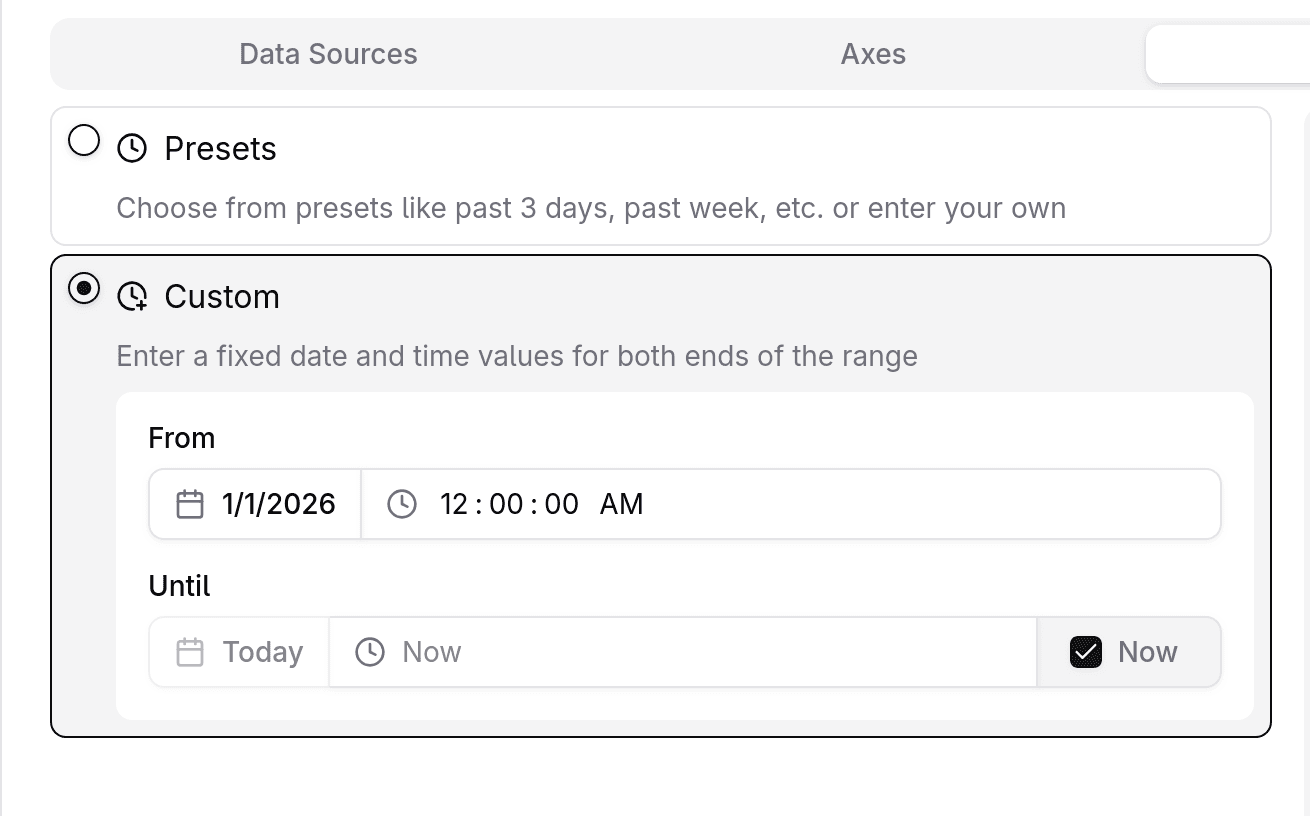
To have a fixed start (and optionally, end) date, choose the " Custom" option and enter the values manually.
Appearance
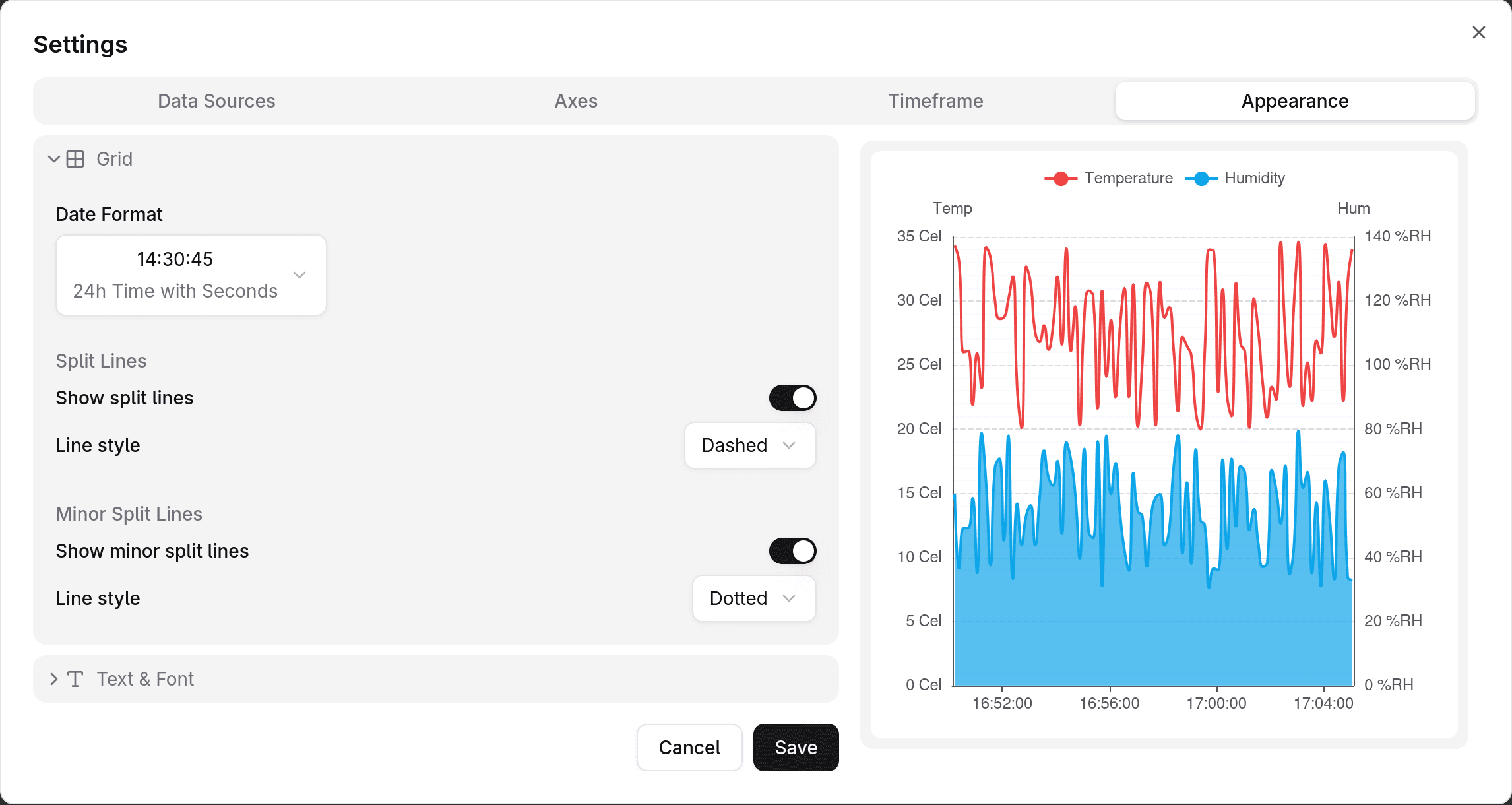
The Appearance tab contains settings that are purely cosmetic.
Currently, there are two categories within the Appearance settings:
- Grid
- Text & Font
Grid
| Field | Description |
|---|---|
| Date Format | Controls how the labels on the x axis are displayed. Choose from a comprehensive list of options. |
| Show split lines | Whether or not to display grid lines for each y axis label. |
| Line style | Can be solid, dashed, or dotted. |
| Show minor split lines | Whether or not to display minor grid lines between each pair of split lines. |
| Line style | Can be solid, dashed, or dotted. |
Text & Font
| Field | Description |
|---|---|
| Font Family | Can be Sans-Serif, Serif, or Monospace. |
Bar chart
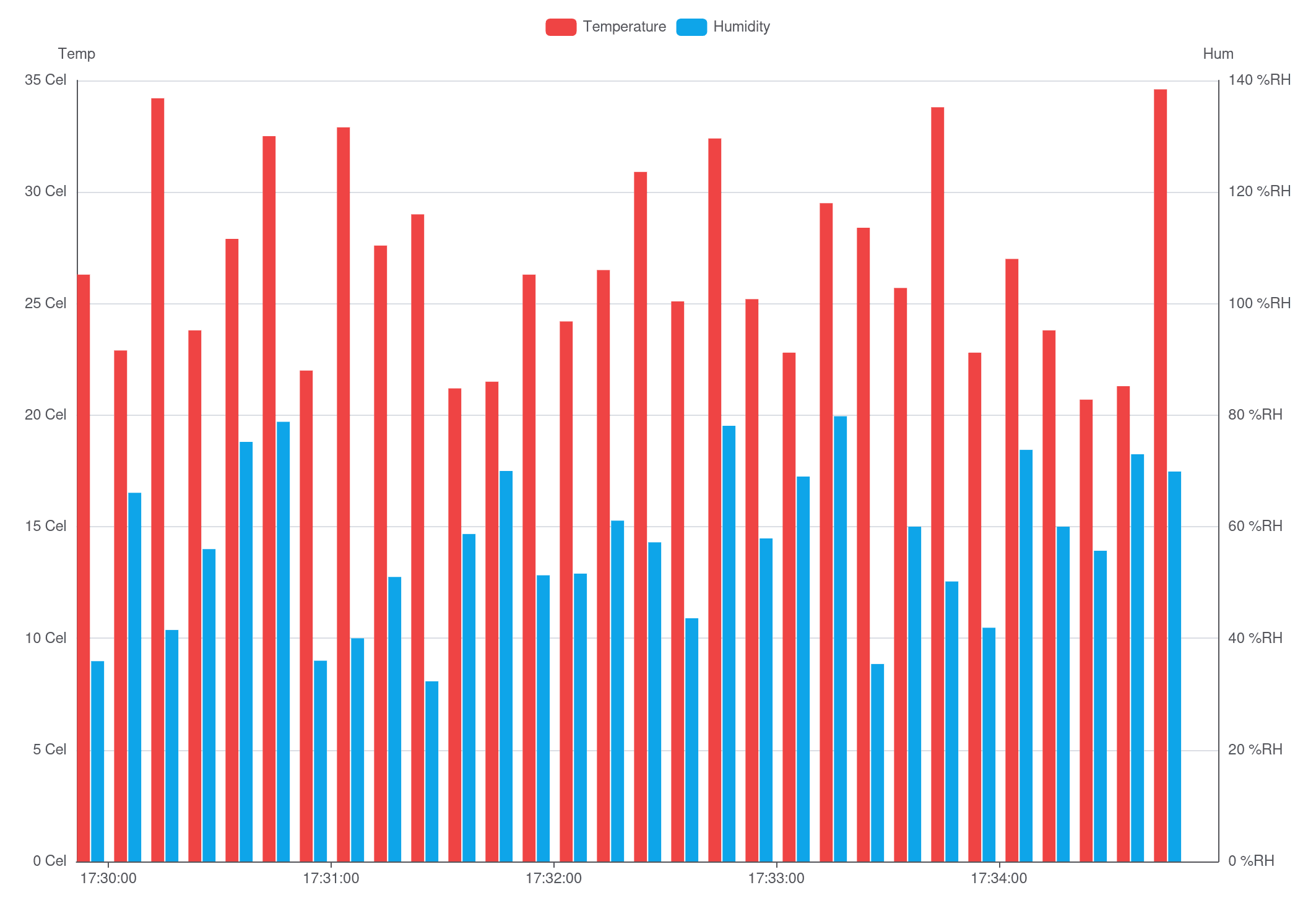
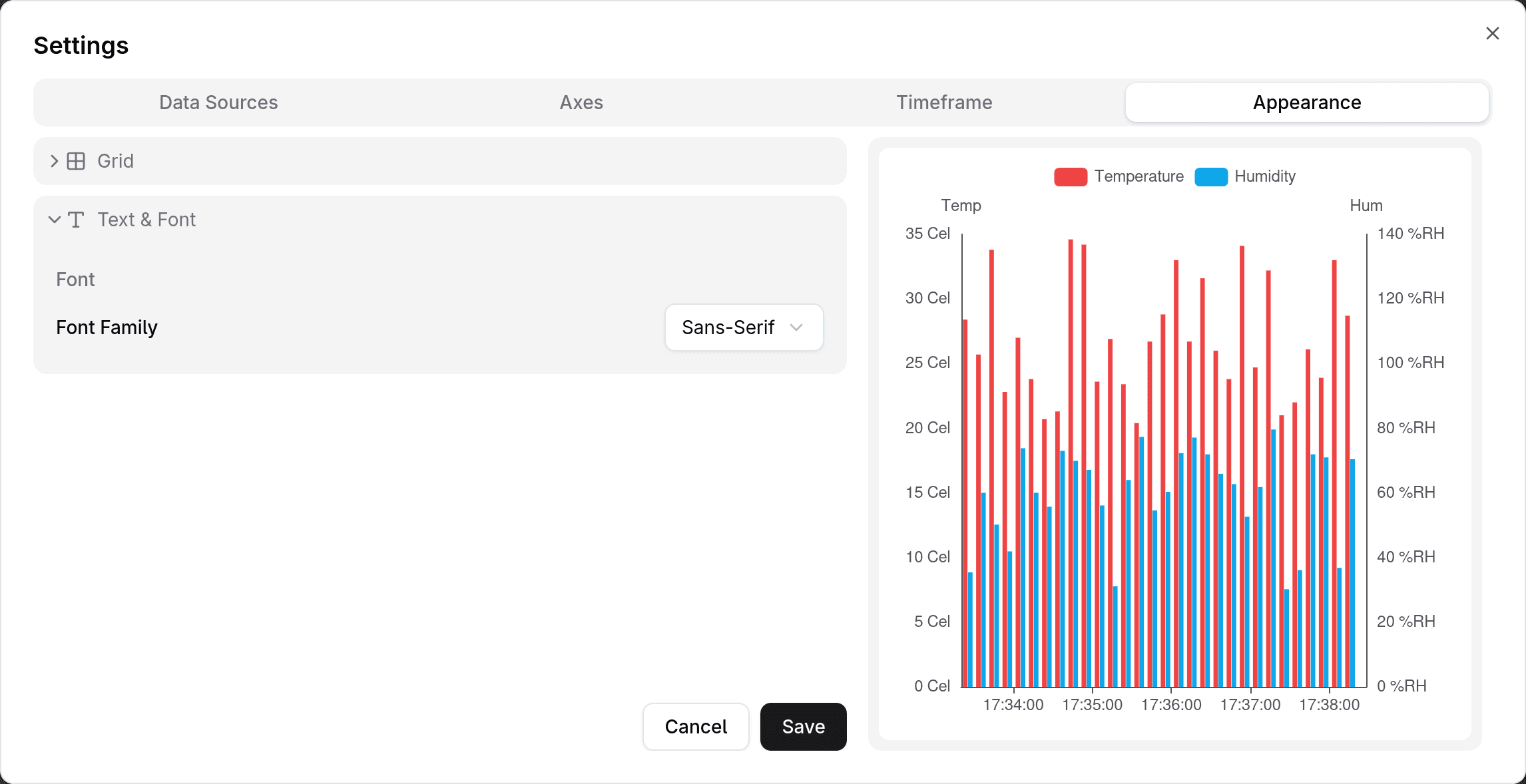
Bar charts are time-series widgets that plot data on a two-dimensional grid. They can be configured to plot multiple lines, each representing a number of data points of a specific measurement reported by a specific device/sensor.
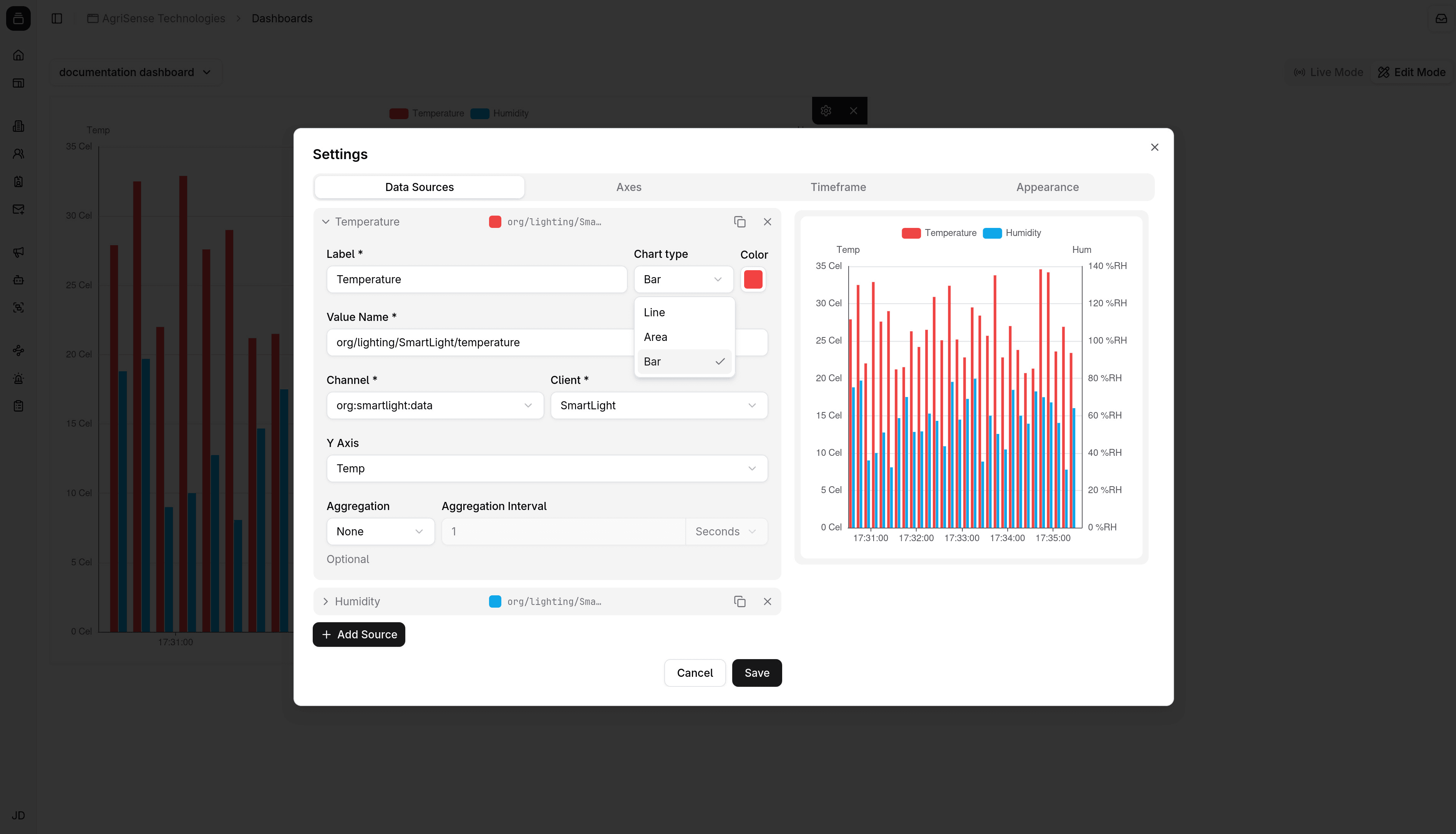
To create a bar chart, first add a Chart widget. You can then add a data source and configure the data source's chart type to be a bar chart.
Configuration
A bar chart provides many configuration options, which are categorized into four groups:
- Data Sources
- Axes
- Timeframe
- Appearance
Data Sources
The Data Sources tab is where you define the data to be plotted on the chart. Each data source represents a series of measurements reported by a specific device, which in turn represents a series of bars on the chart.
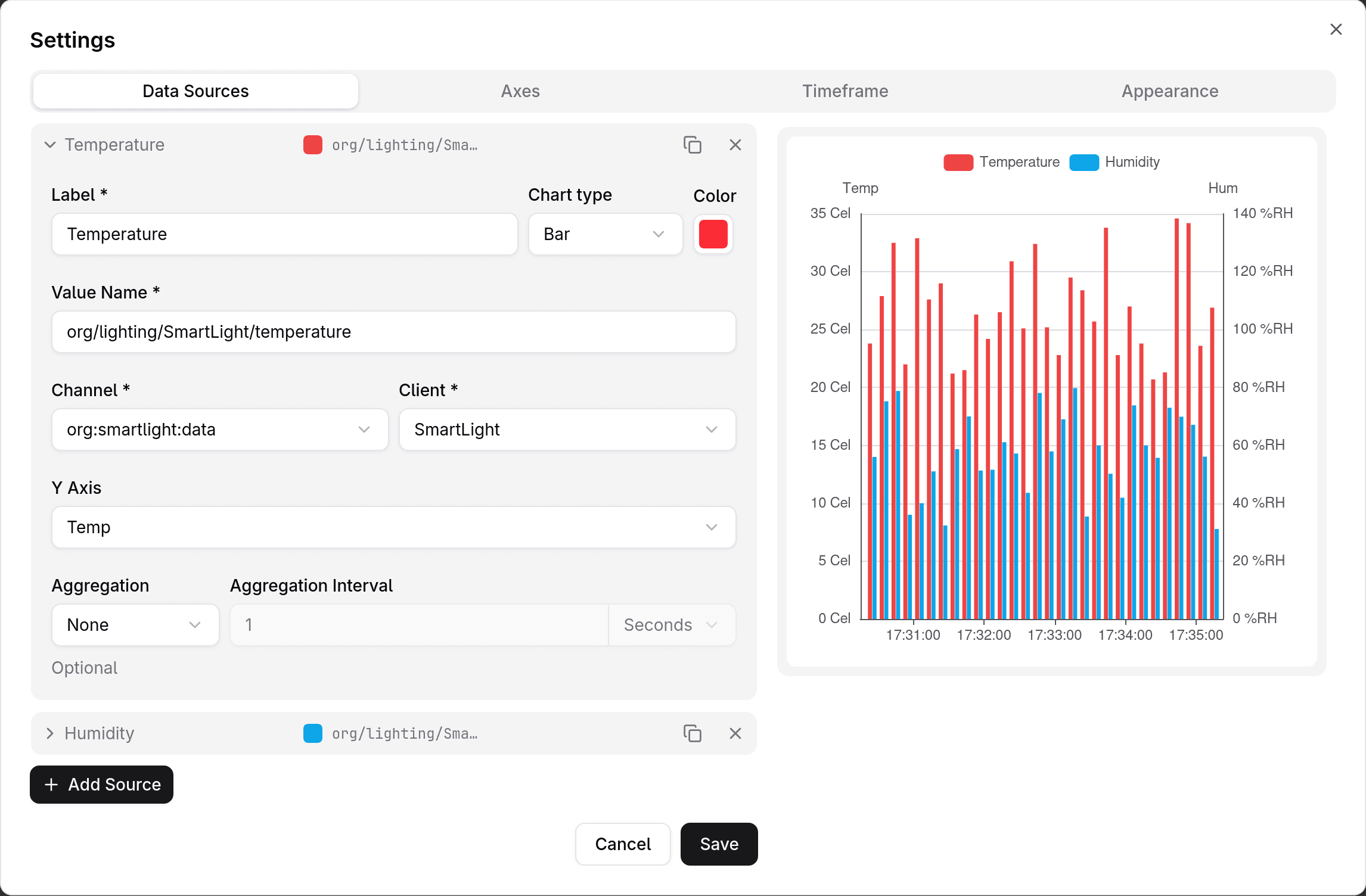
Each data source entry is configured through the following fields:
| Field | Description | Example | Required |
|---|---|---|---|
| Label | The label that will be displayed on the legend and when hovering over the chart. | Temperature | |
| Chart type | Can be Line, Area, or Bar. | Bar | |
| Color | The color of bars. | ||
| Value Name | The name of the measurement that will be plotted. It's the name under which the sensor publishes a specific measurement. | org/smart_thermostat/temperature | |
| Channel | The channel from which data will be sourced. | org:office:temperature | |
| Device | The device whose measurements will be plotted. | SmartThermostat | |
| Y Axis | The y axis that the plot will be measured against. When adding a new data source, a new y axis will be added automatically. Multiple data sources can use the same y axis. | ||
| Aggregation | The aggregation function. Can be one of min, max, avg, sum, count, or none (default). | Avg | |
| Aggregation Interval | The interval on which measurements will be aggregated. Only required if an aggregation function was chosen. | 30 Seconds | Only if an aggregation function was chosen. |
A data source can be:
- duplicated (a new y axis will not be created)
- deleted
Axes
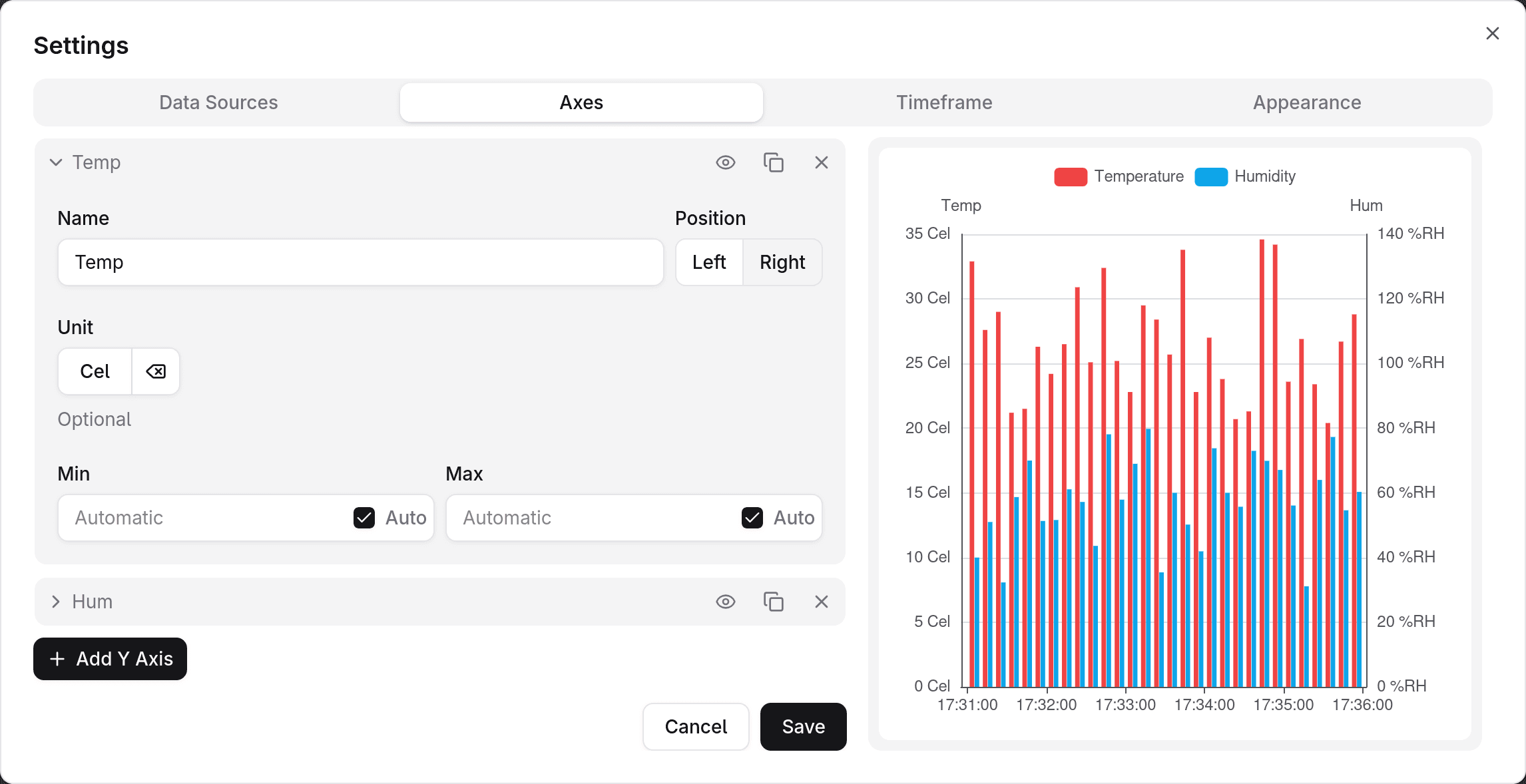
A bar chart can display one or more y axes. When adding a new data source, a new y axis will be added automatically. It's not compulsory, however, that each data source use its own y axis. Multiple data sources can use the same y axis.
| Field | Description | Example |
|---|---|---|
| Name | The title that will be displayed above the y axis. Can be left blank to have nothing be displayed. | Humidity |
| Position | Can be left (default) or right. | Left |
| Unit | The unit that will be displayed next to each axis label. A list of predefined units are provided, but a custom unit can be input as well. | %RH |
| Min | The minimum value of the y axis' domain. | Auto |
| Max | The maximum value of the y axis' domain. | Auto |
An axis can be:
- hidden
- duplicated
- deleted. If the axis is used by one or more data sources, it will not be deleted, and a message with the name of the data source will be shown instead.
Timeframe
A chart can display live or historical data. Live means you choose the start date and time value while the end value is fixed (to the current date and time value).
By default, the chart will be in live mode, displaying data from the past one hour. You can change this behavior by choosing a predefined timeframe presets (1 hour, 1 day, 1 week, or 1 month) or entering a value manually (e.g. past 15 minutes).
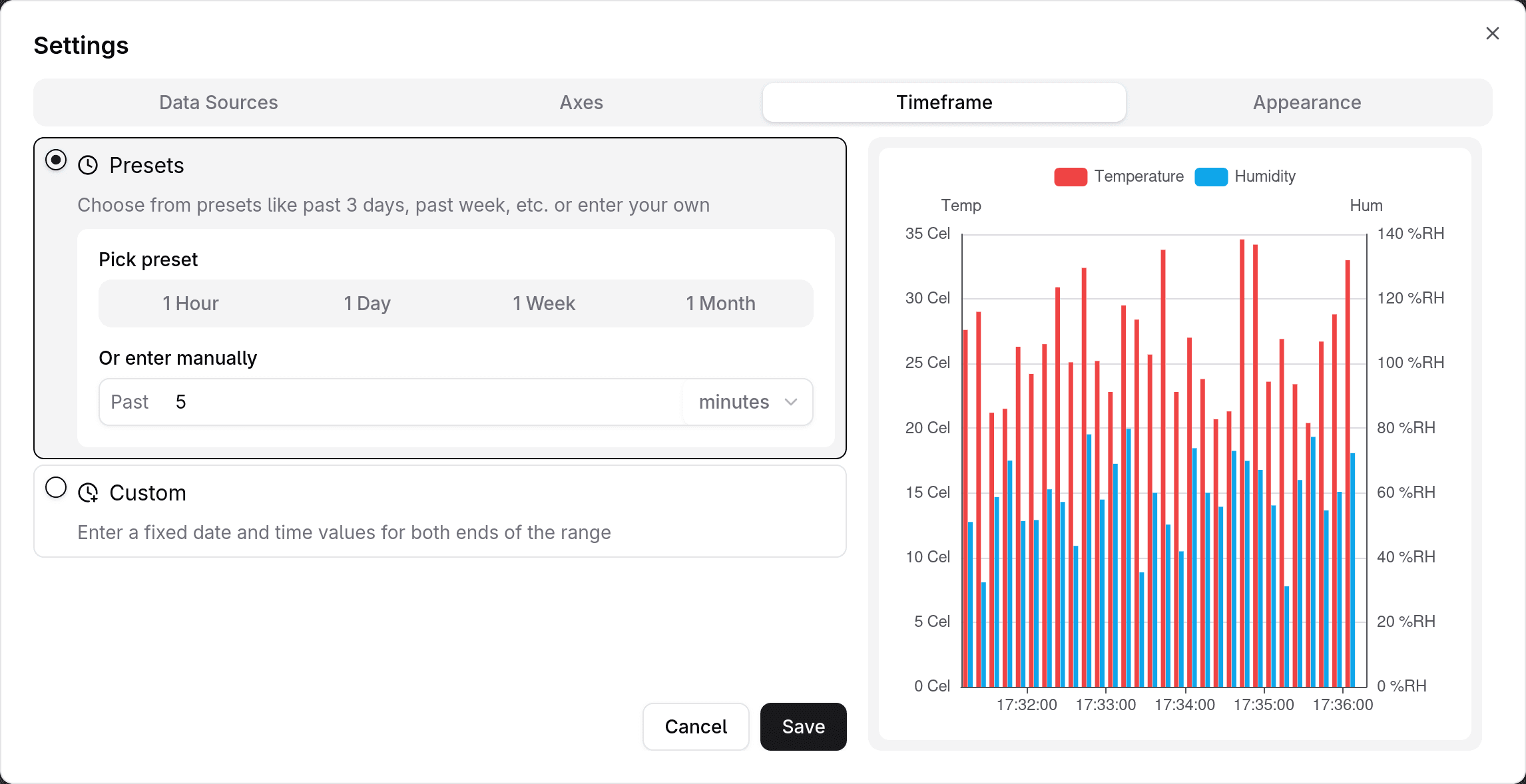
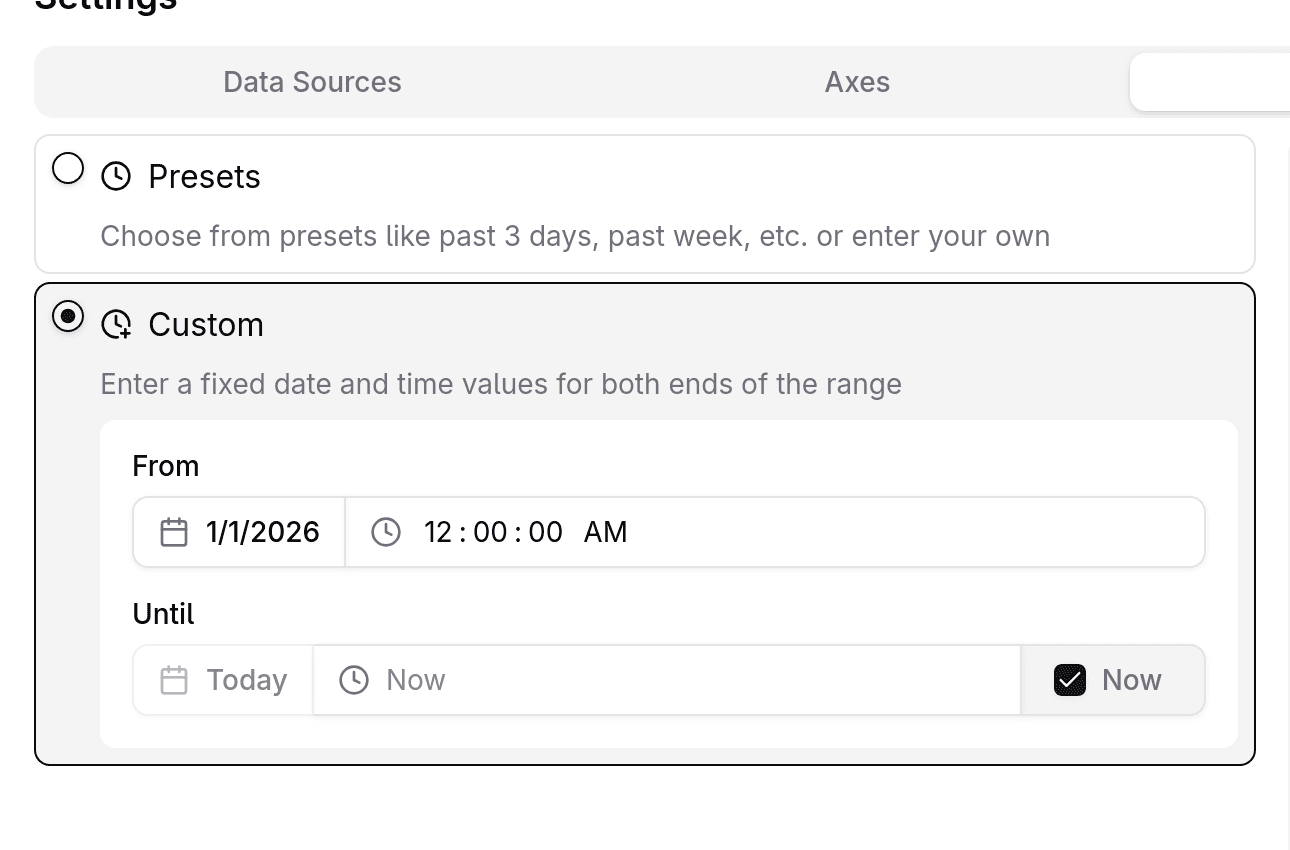
To have a fixed start (and optionally, end) date, choose the " Custom" option and enter the values manually.
Appearance
The Appearance tab contains settings that are purely cosmetic.
Currently, there are two categories within the Appearance settings:
- Grid
- Text & Font
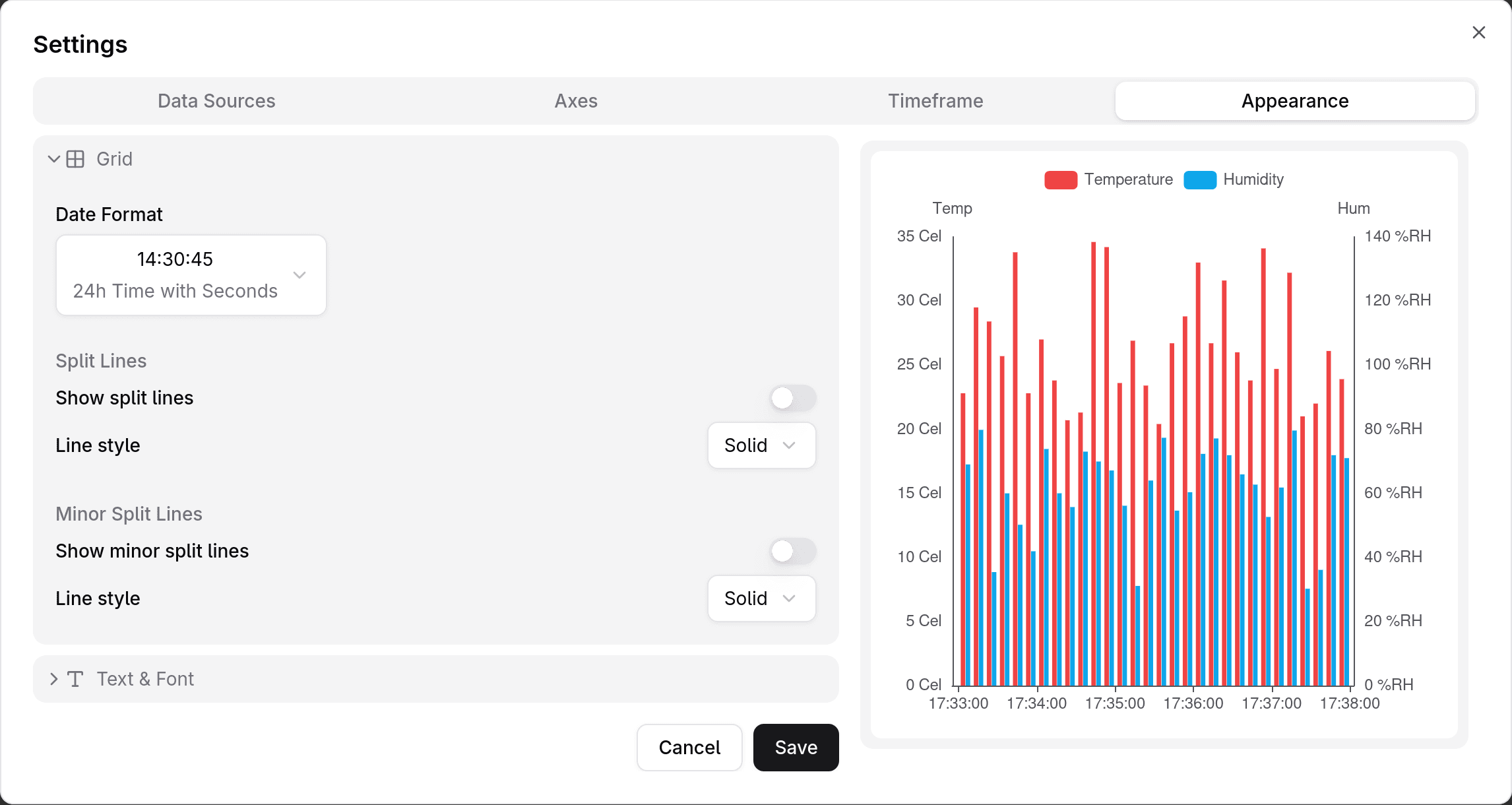
Grid
| Field | Description |
|---|---|
| Date Format | Controls how the labels on the x axis are displayed. Choose from a comprehensive list of options. |
| Show split lines | Whether or not to display grid lines for each y axis label. |
| Line style | Can be solid, dashed, or dotted. |
| Show minor split lines | Whether or not to display minor grid lines between each pair of split lines. |
| Line style | Can be solid, dashed, or dotted. |
Text & Font
| Field | Description |
|---|---|
| Font Family | Can be Sans-Serif, Serif, or Monospace. |
Pie chart
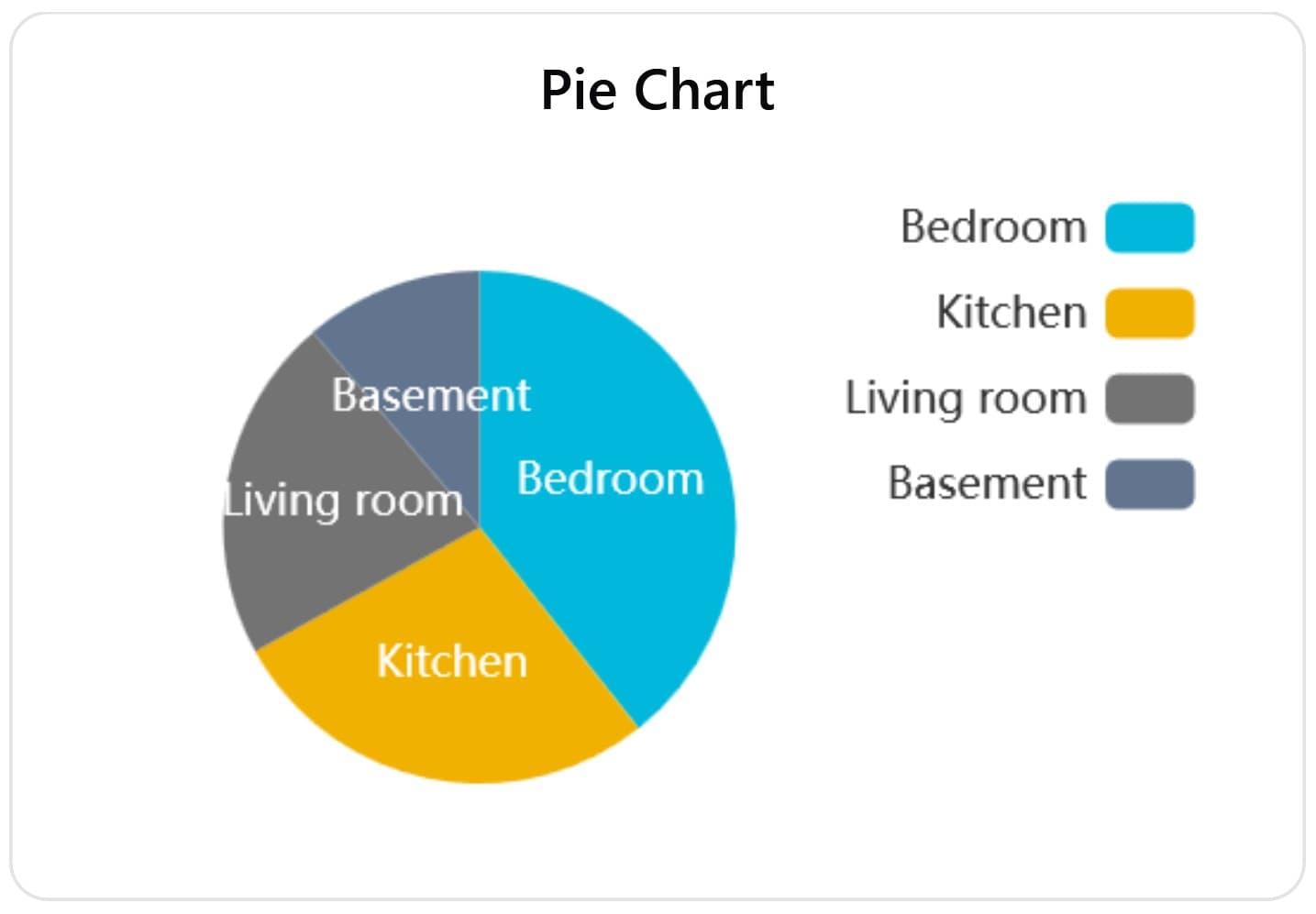
Pie charts visualize values at a given point in time from multiple different data sources. The give point in time can be a past date and time value or the current date and time (real-time).
Data Sources
The main configuration options are found under the Data sources tab.
| Field | Description | Example | Required |
|---|---|---|---|
| Value Name | The name of the measurement that will be plotted. This is same as the "Name" field found in a channel's "Messages" page. | org/lighting/SmartLight/brightness | |
| Data Sources | A list of data sources. Each data source is a combination of channel, device, label, and color values, collectively representing a single data source. |
|
Time window
This tab currently has no effect on the widget.
Settings
The bar chart widget can be further customized by going to the Settings tab.
| Field | Description | Example |
|---|---|---|
| Data points | The number of points to plot for each line. If you choose 10, each line will display the 10 last message values received from this line's data source. | 10 |
Gauge chart
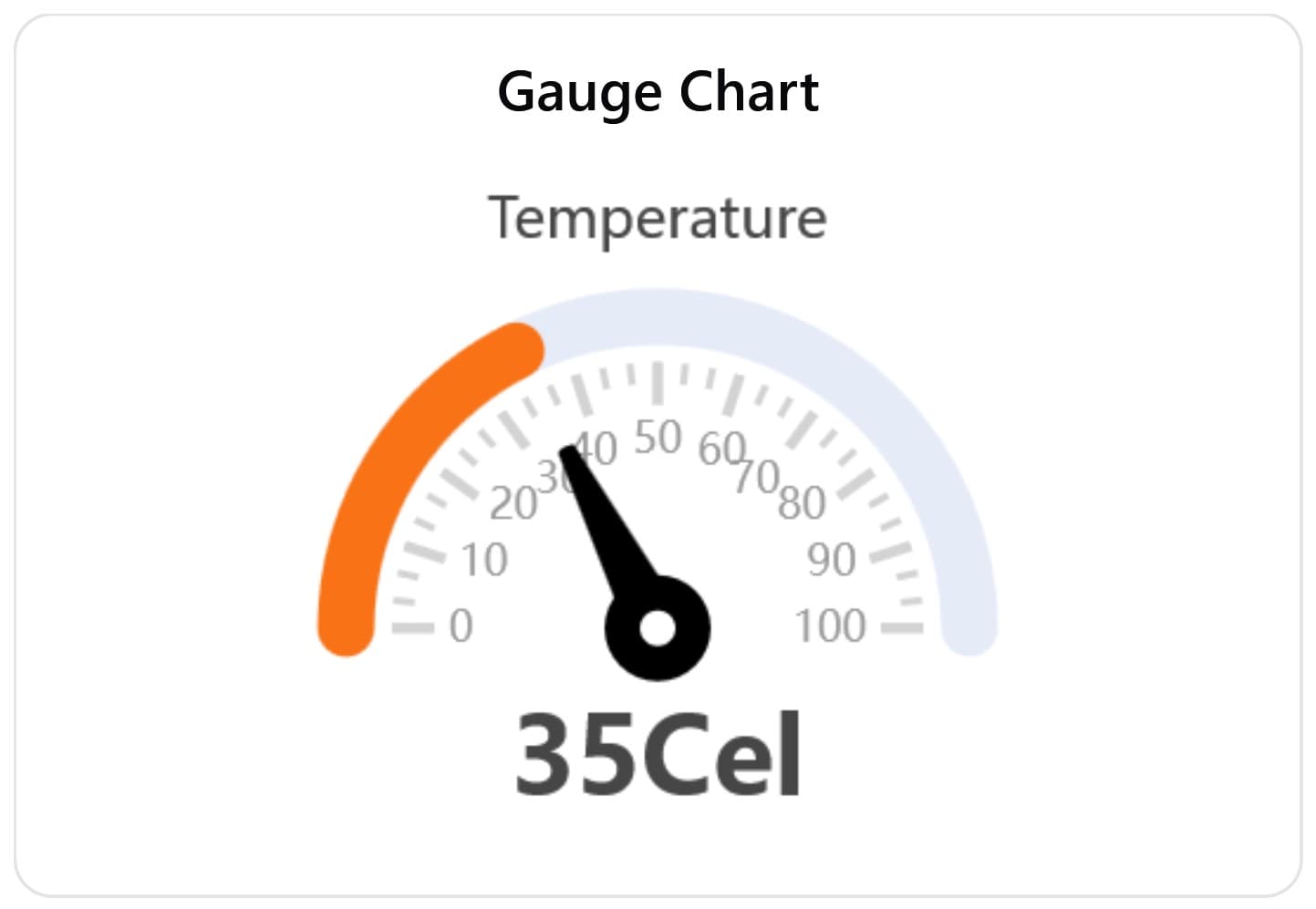
Gauge chart widgets gauge data from a single data source, in real-time.
Configuration
The main configuration options are found under the Configuration tab.
| Field | Description | Example | Required |
|---|---|---|---|
| Label | The label that will be displayed on the gauge. | Temperature | |
| Color | The dial color. | ||
| Base Name | The name of the measurement that will be gauged. If "Value Name" is supplied, it will be appended to the end of this field and messages will be filtered by the resolved name. | org/thermostat/ | |
| Value Name | The name that will be appended to the "Base Name" to form the identifier under which messages are published. If omitted, the base name will be used by itself (optional). | temperature | |
| Channel | The channel from which data will be sourced. | org:office:temperature | |
| Device | The device whose measurements will be plotted. | SmartThermostat | |
| Minimum | The minimum display value of the gauge. | 0 | |
| Maximum | The maximum display value of the gauge. | 100 |
Settings
The bar chart widget can be further customized by going to the Settings tab.
| Field | Description | Example |
|---|---|---|
| Update interval (seconds) | How often the widget fetches data from the server. | 5 |
Marker map
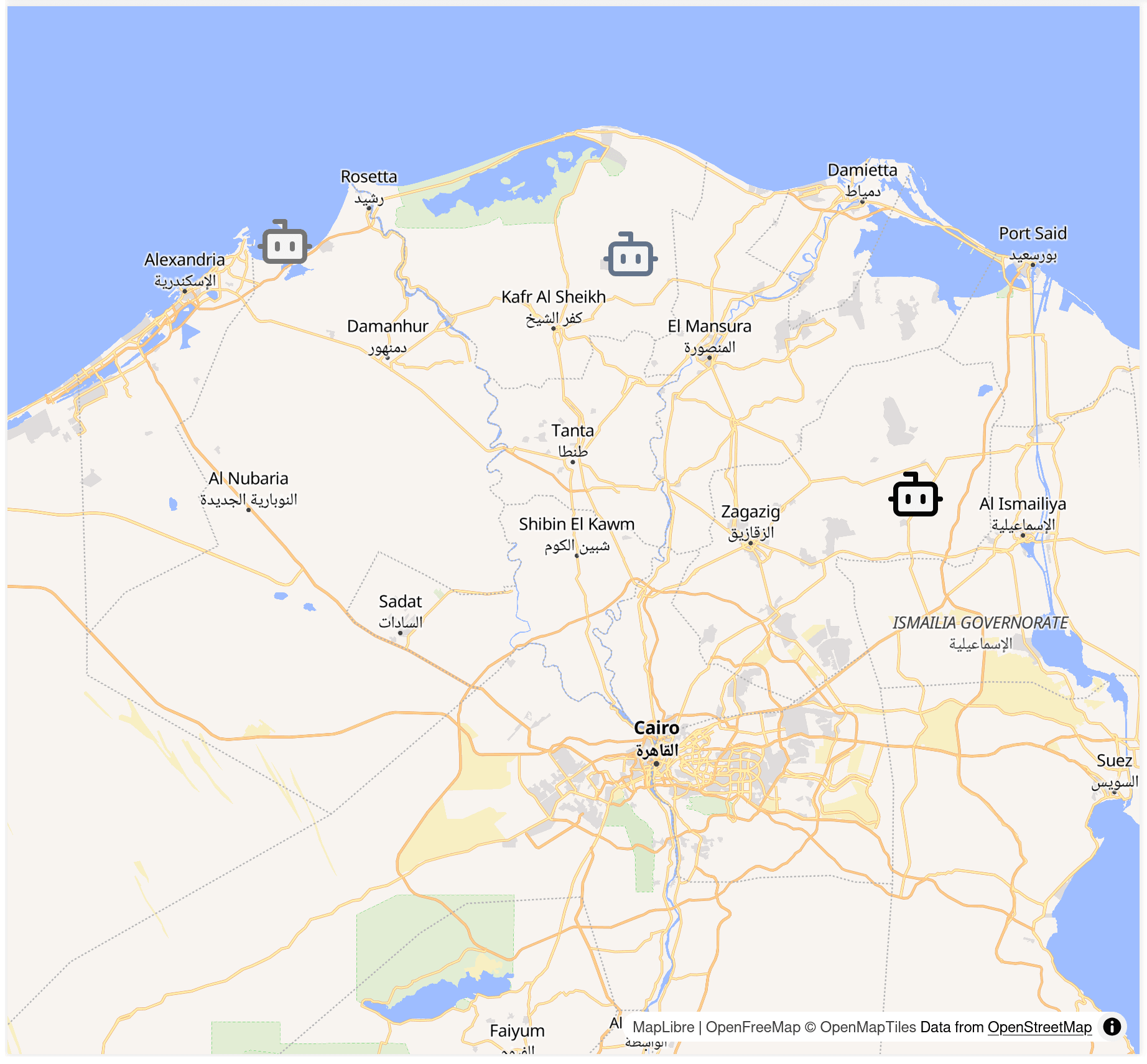
The marker map widget allows you to show entities' locations on the map. You can pan around, zoom in and out, and click on entities to view more information.
How it works
The marker map widget reads the location data from the entity's metadata field,
found in the entity's page. If the entity does not have a pre-configured
location inside its metadata, it will be displayed on the center of the map,
particularly at longitude and latitude 0.
More strictly, the entity's metadata must contain the "location" field like so:
{
    // ... other metadata fields
    "location": {
        "longitude": 31.50161, // any valid longitude value
        "latitude": 34.46672   // any valid latitude value
    }
}
The values for both longitude and latitude must be numbers, and not strings.
Configuration
The main configuration options are found under the Configuration tab.
| Field | Description | Example | Required |
|---|---|---|---|
| Entity type | The type of entities to show on the map. Supported entities are devices, channels, and groups. | Device | |
| Data Sources | A list of data sources. Each data source is a combination of label and color values as well as the entity itself. |
|
Settings
The marker map widget can be stylized by going to the Style tab.
| Field | Description | Example |
|---|---|---|
| Initially, set map location to... | The initial location that will be shown on the map. You can set it to an entity's location or a specific location anywhere on the map. Click the "Set location on map" button and pan around in the preview map to dynamically set the location, or alternatively enter the longitude and latitude values directly. | |
| Map style | Different map styles offer different visuals. | Liberty |
| Map projection | Choose between mercator (flat) projection or a globe. | Mercator (flat) |
| Entity icon size | The size of entity icons on the map. | Medium |
Updating an entity's location
If you add an entity that has no pre-configured location, you can update its location by simply dragging the entity's icon to the desired location on the map. This only works within the "Preview" map seen in the settings dialog.
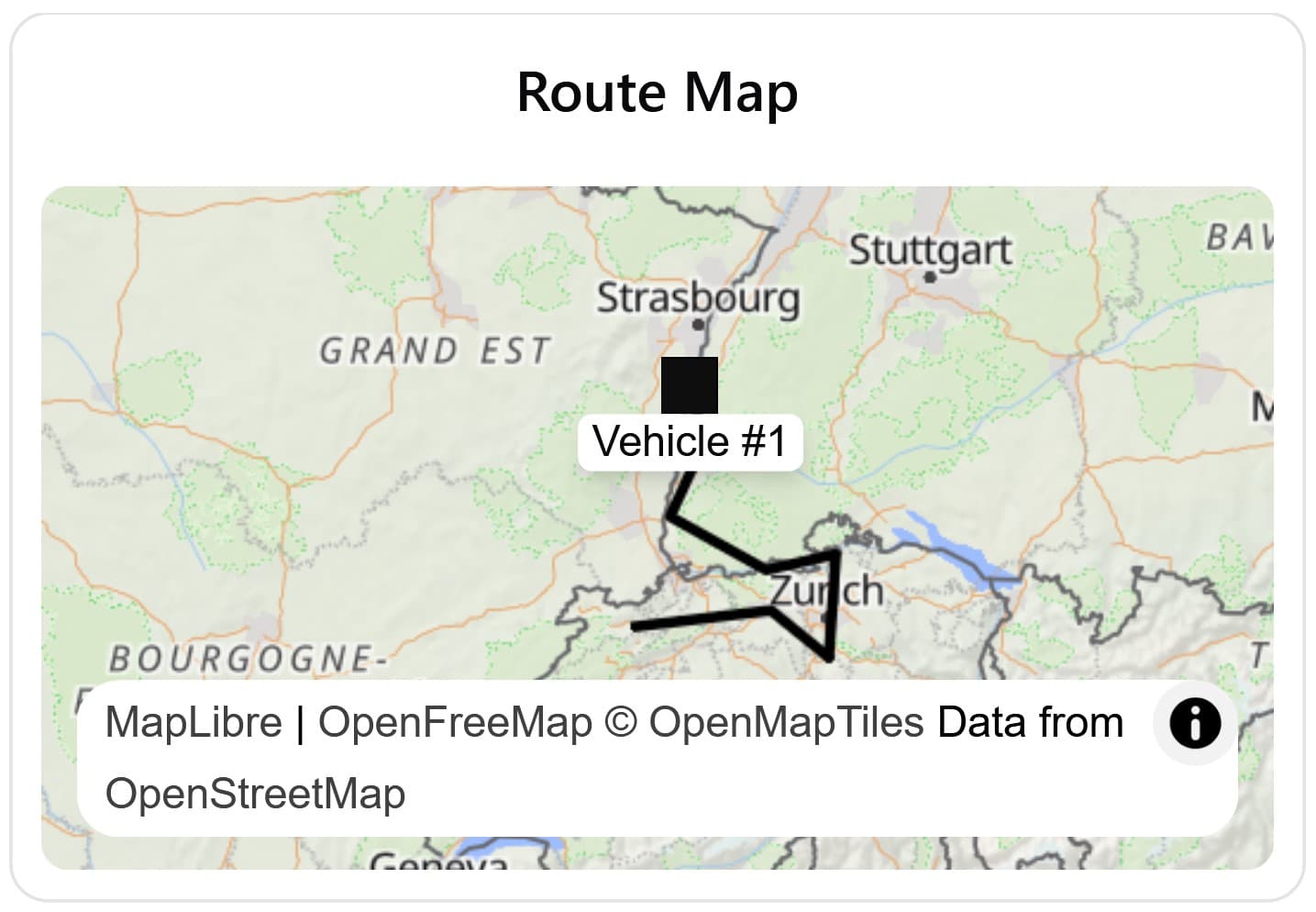
Route map
The route map widget allows you to view and track moving devices in real-time. You can pan around, zoom in and out, and click on entities to view more information.
How it works
The route map widget reads the location data of each device by reading the
messages it sent to the respective channel chosen for this device. Behind the
scenes, the route map widget also updates the device's metadata field to the
latest location with every update.
Configuration
The main configuration options are found under the Configuration tab.
| Field | Description | Example | Required |
|---|---|---|---|
| Longitude value name | The name of the longitude value sent by your devices. | urn:dev:location:gps:longitude | |
| Latitude value name | Same as above but for the latitude. | urn:dev:location:gps:latitude | |
| Data Sources | A list of data sources. Each data source is a combination of channel, device, label and color values, collectively representing a tracked device on the map. |
|
Settings
The marker map widget can be stylized by going to the Style tab.
| Field | Description | Example |
|---|---|---|
| Initially, set map location to... | The initial location that will be shown on the map. You can set it to an entity's location or a specific location anywhere on the map. Click the "Set location on map" button and pan around in the preview map to dynamically set the location, or alternatively enter the longitude and latitude values directly. | |
| Map style | Different map styles offer different visuals. | Liberty |
| Map projection | Choose between mercator (flat) projection or a globe. | Mercator (flat) |
| Entity icon size | The size of entity icons on the map. | Medium |
| Number of points | The number of points to draw each tracked device. If you choose 10, each device's last 10 locations will displayed on the map. | 10 |
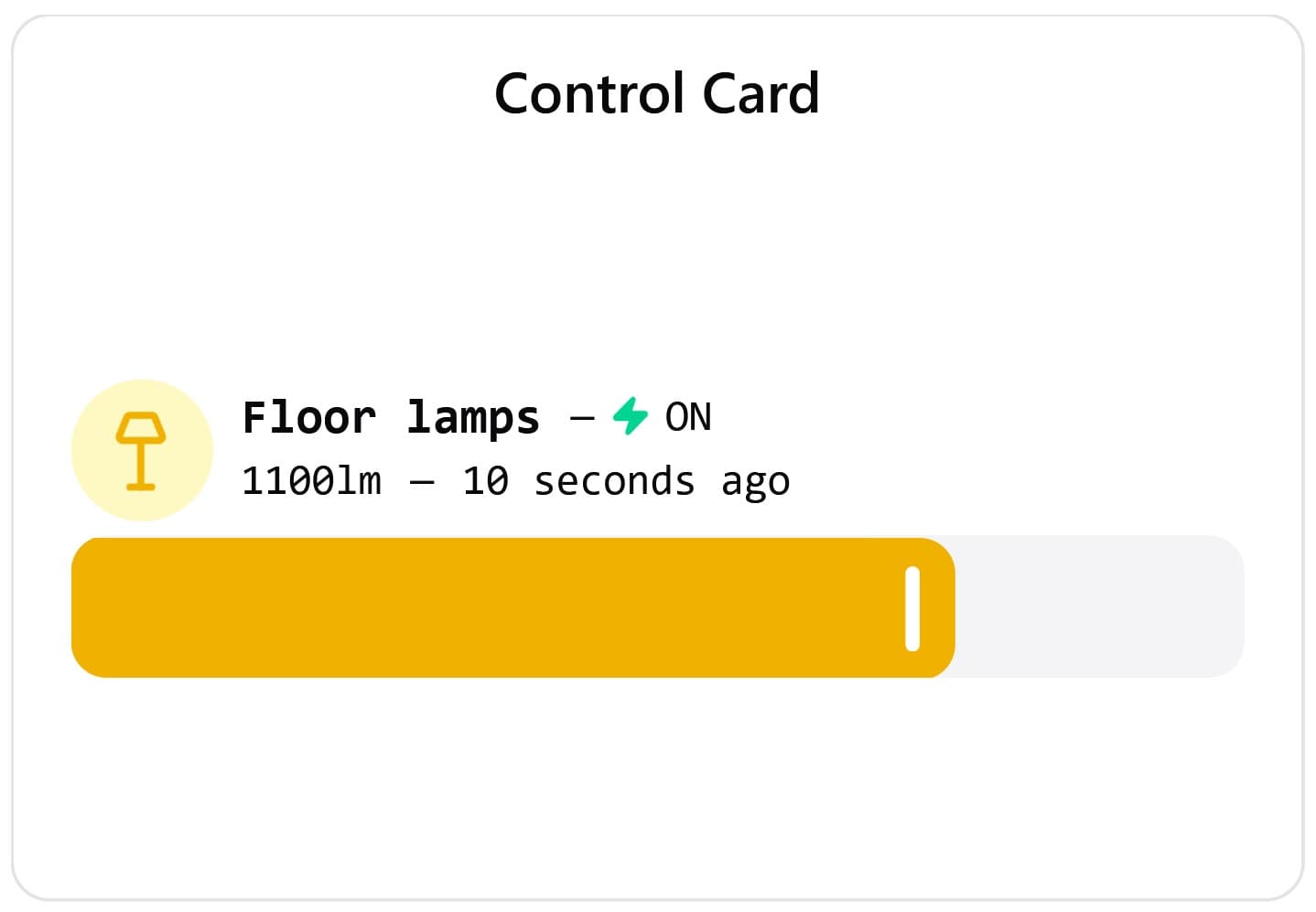
Control card
The control card widget uses a slider bar to display the most recent value published by a specific device to a specific channel. This slider bar can also be controlled and dragged to publish messages directly from the within the dashboard. It can be customized by changing the icon, color, and label of the widget.
Configuration
The main configuration options are found under the Configuration tab.
| Field | Description | Example | Required |
|---|---|---|---|
| Label | The label that will be displayed on the gauge. | Brightness | |
| Icon | The icon that will be shown inside the toggle button. | ||
| Color | The color color of the icon and button. | ||
| Base Name | The name of the measurement that will be visualized and controled. If "Value Name" is supplied, it will be appended to the end of this field and messages will be filtered by and published under this resolved name. | org/smartlight/ | |
| Value Name | The name that will be appended to the "Base Name" to form the identifier under which messages are published. If omitted, the base name will be used by itself (optional). | brightness | |
| Channel | The channel where messages will be read and published. | org:office:lighting | |
| Device | The device by which messages will by filtered and published. | SmartLight |
Settings
The bar chart widget can be further customized by going to the Settings tab.
| Field | Description | Example |
|---|---|---|
| Update interval | How often the widget fetches data from the server, in seconds. | 5 |
| Show timestamp | Whether or not to display the timestamp of the last received message. |
Controlling the device
There are two ways to control a device through the control card widget:
Using the slider bar
You can slide the bar to send a value to the device. More specifically, sliding the bar will publish a message to the configured channel using the configured settings.
Using the on/off toggle
You can send an on of off value to the device by clicking on the icon button.
More specifically, this will send a true or false value to the configured
channel using the configured settings.
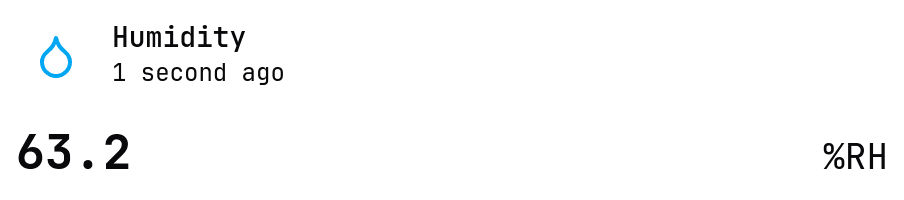
Value card
The value card widget displays the most recent value published by a specific device to a specific channel. It can be customized by changing the icon, color, and label of the widget.
Configuration
The main configuration options are found under the Configuration tab.
| Field | Description | Example | Required |
|---|---|---|---|
| Label | The label that will be displayed on the gauge. | Humidity | |
| Icon | The icon that will be shown inside the toggle button. | ||
| Color | The color color of the icon and button. | ||
| Base Name | The name of the measurement that will be visualized. If "Value Name" is supplied, it will be appended to the end of this field and messages will be filtered by this resolved name. | org/smartsensor/ | |
| Value Name | The name that will be appended to the "Base Name" to form the identifier under which messages are published. If omitted, the base name will be used by itself (optional). | humidity | |
| Channel | The channel from which messages will be read. | org:office:humidity | |
| Device | The device whose measurements will be displayed on the card. | SmartSensor |
Settings
The bar chart widget can be further customized by going to the Settings tab.
| Field | Description | Example |
|---|---|---|
| Update interval | How often the widget fetches data from the server, in seconds. | 5 |
| Show timestamp | Whether or not to display the timestamp of the last received message. |
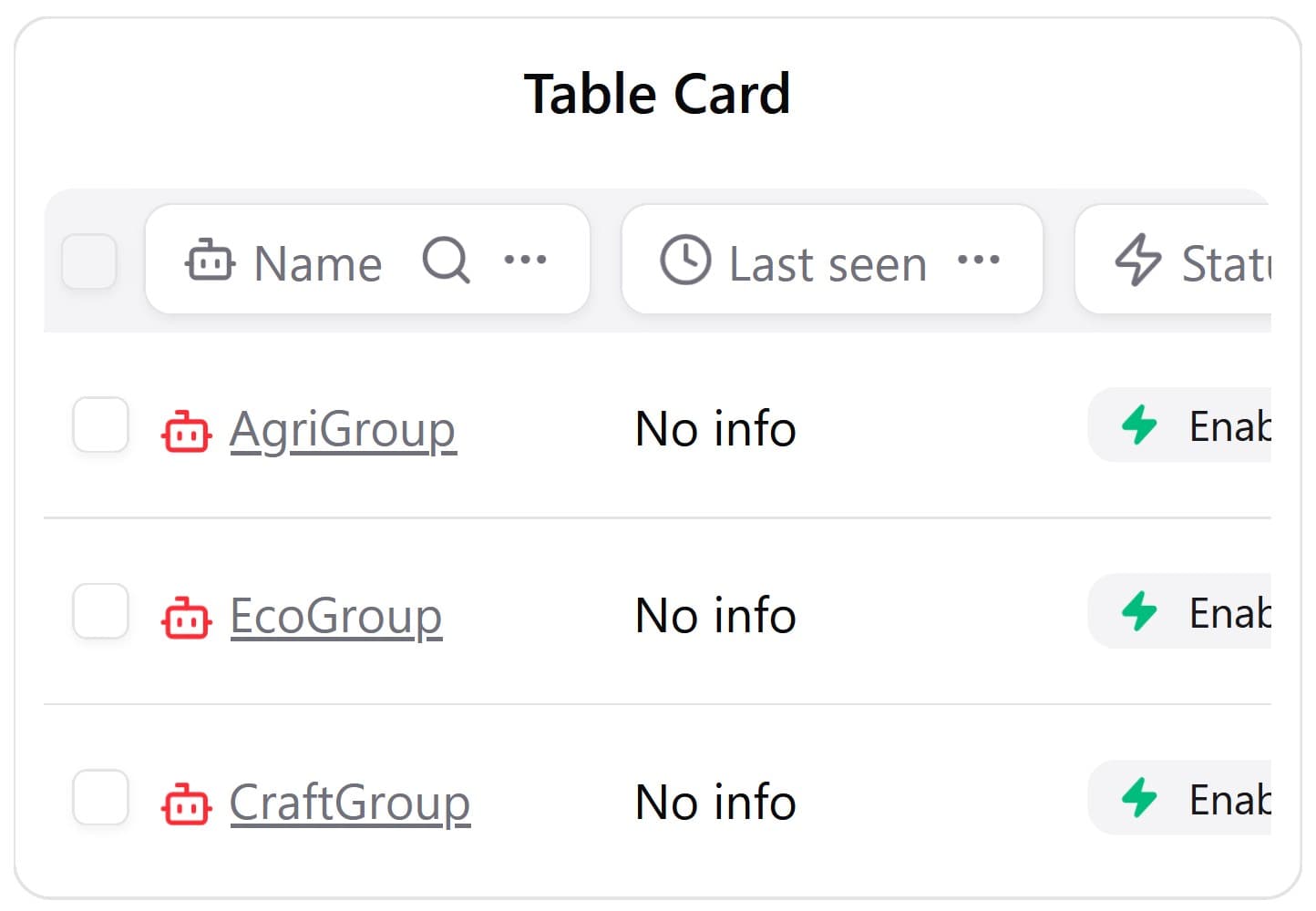
Table card
A simple widget that lists entities of a specific type in a table.
Configuration
The main configuration options are found under the Configuration tab.
| Field | Description | Example | Required |
|---|---|---|---|
| Entity type | The type of entities to show on the table. Supported entities are devices, channels, groups, and members. | Device | |
| Entity status | Filter entities by their status. | All | |
| Update interval | How often the table updates itself, in seconds. | 5 |
Settings
This tab currently has no effect on the widget.
Manipulate widgets
To make any changes to widgets, edit mode must be enabled. These are simple actions and they cannot be undone (i.e. pressing Ctrl+Z will not undo the last action.).
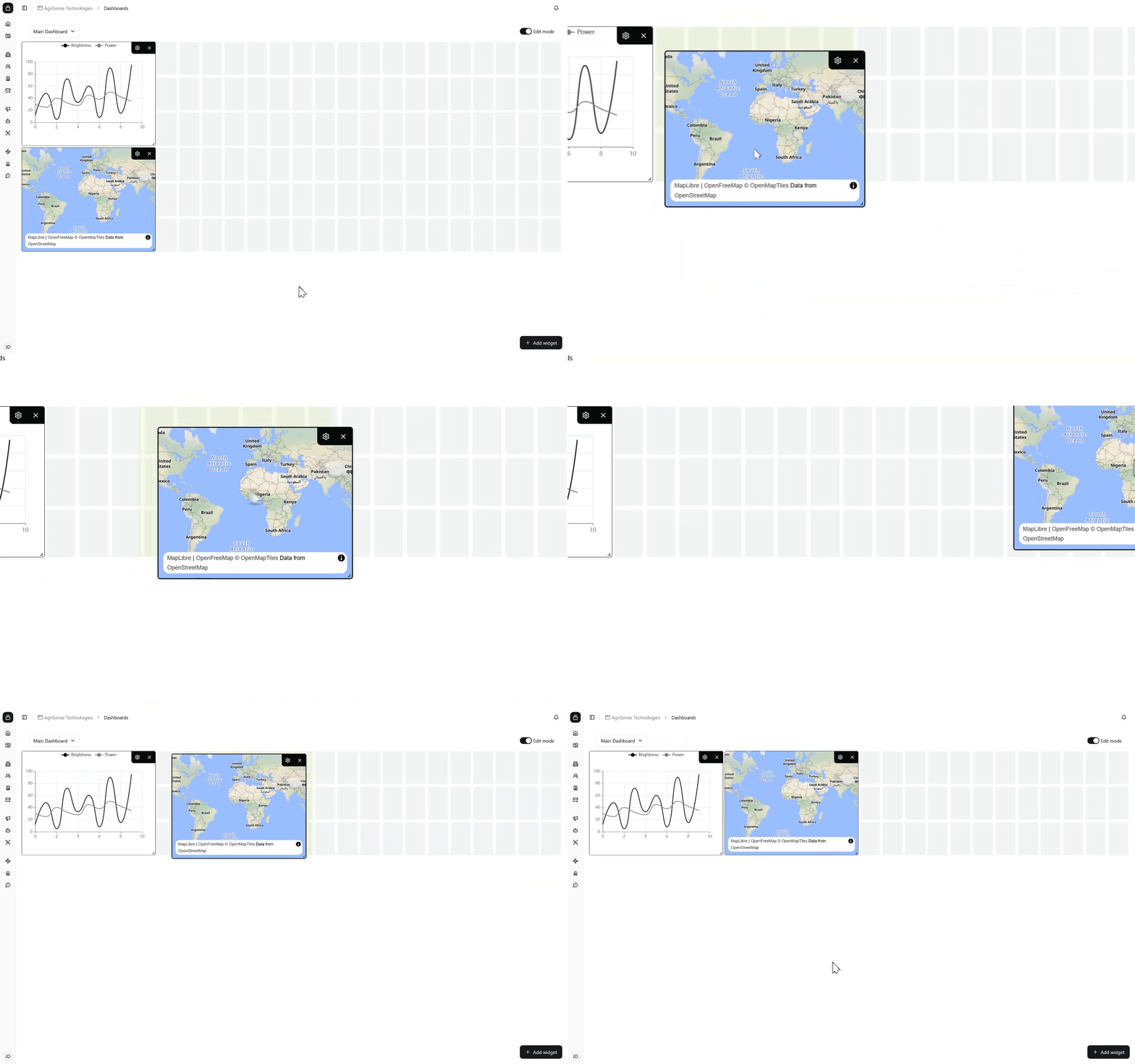
Move
To move a widget, simply drag it over to the desired position.
Resize
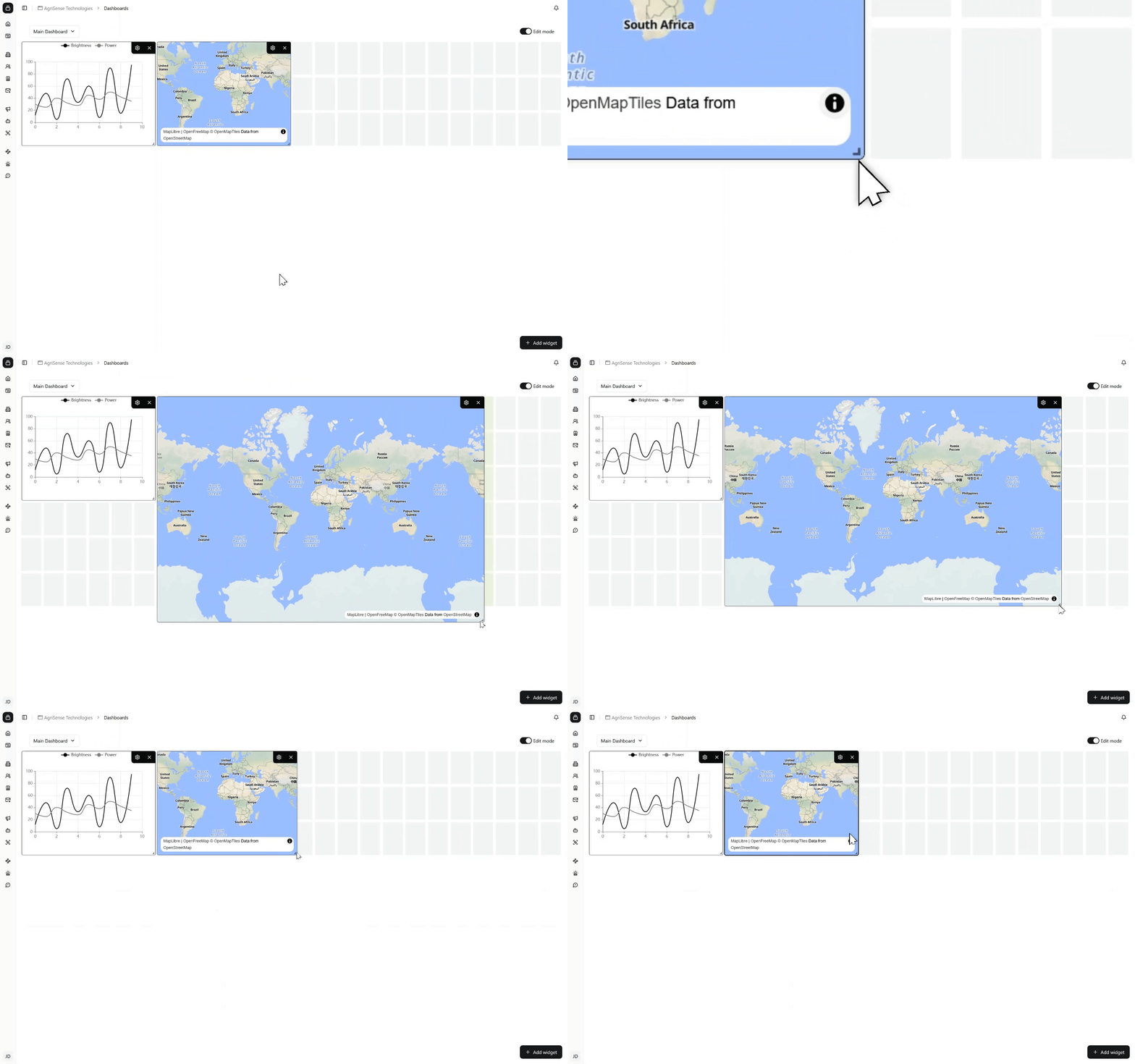
You may also resize a widget by grabbing the bottom-right corner and dragging it. Different widgets have different minimum sizes.
Delete
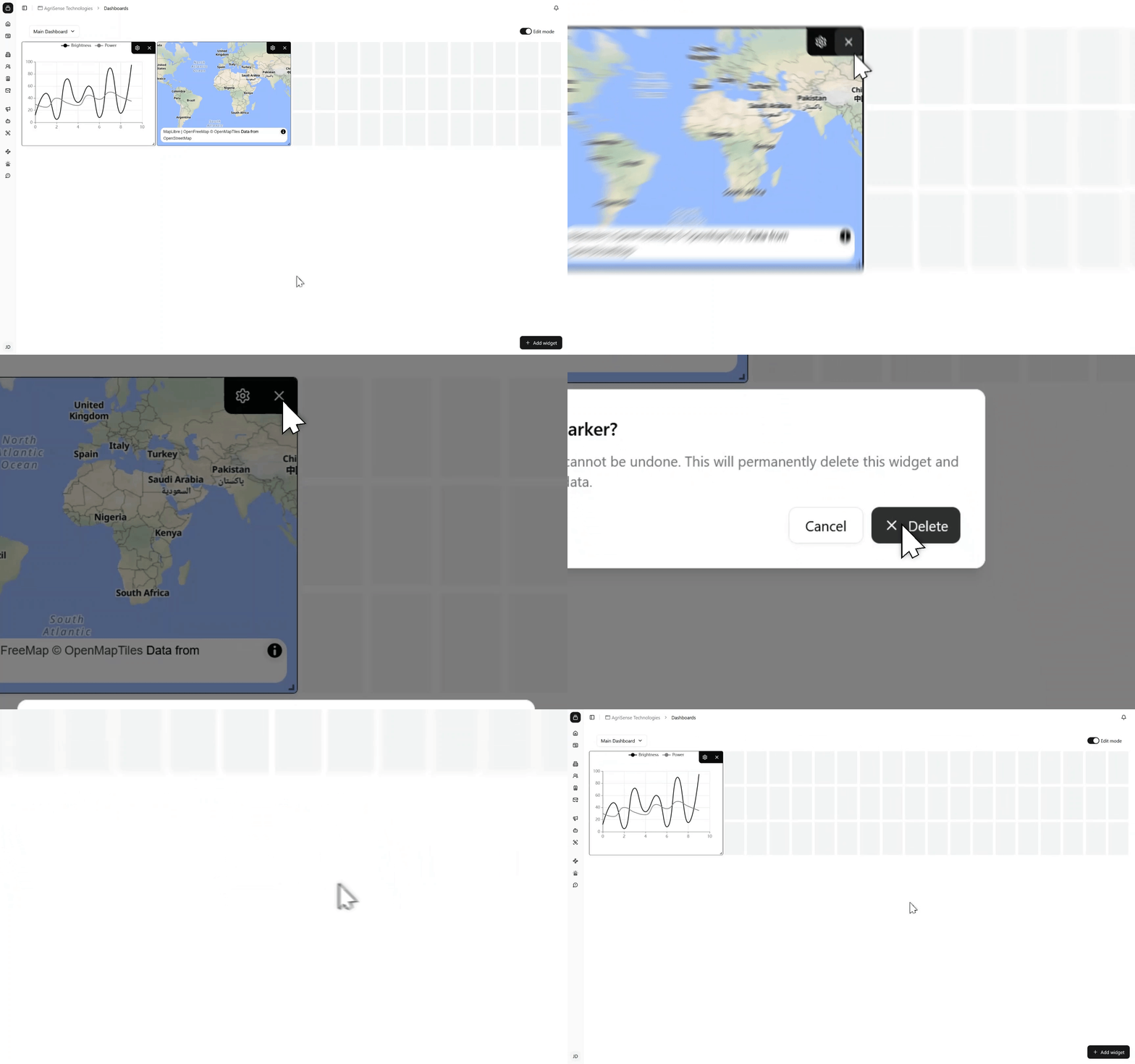
To delete a widget, simply click on the "X" button and confirm your intent in the alert dialog. Deleting a widget cannot be undone.