Gridsense Docs
View Device Telemetry in Real-Time
Learn how to use Gridsense's TelemetryWatch tool
It is often useful to view your devices' telemetry data in its original and unprocessed form; such as when you are creating rules or designing dashboards. Gridsense provides TelemetryWatch; a tool to do just that, without having to use 3rd-party MQTT or WebSocket tools and risking your organization's data privacy in the process.
Accessing TelemetryWatch
TelemetryWatch is embedded into the Gridsense application and does not require installation or a separate subscription. To get started, simply click on TelemetryWatch on the sidebar.
Configuring the connection
Click on the connection indicator on the top right corner to open the configuration menu.
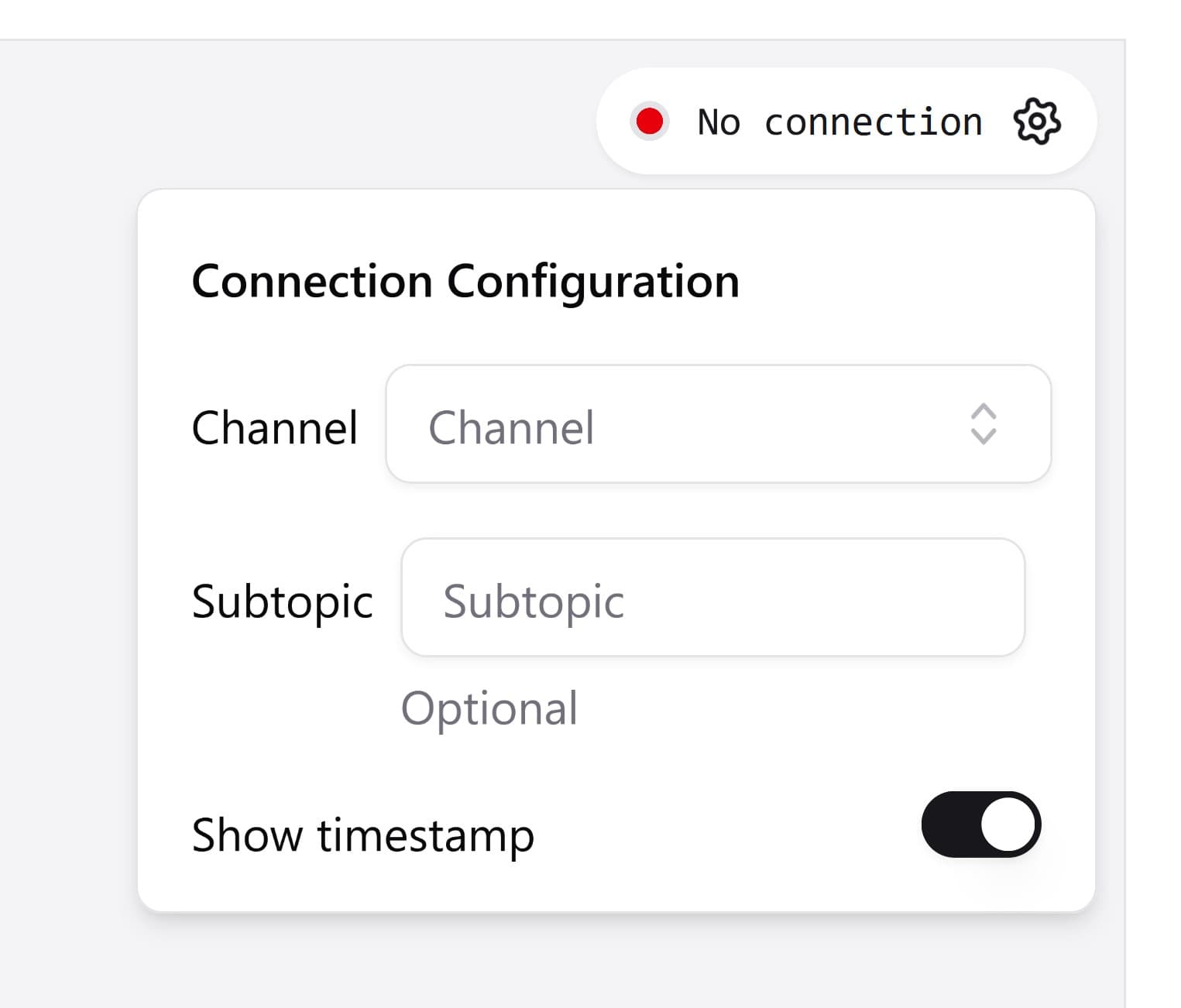
Pick the channel whose messages you want to listen to from the "Channel" dropdown menu. Optionally, you may also specify the subtopic. (see MQTT topic structure).
| Field | Description | Required |
|---|---|---|
| Channel | The channel that TelemetryWatch will connect to and from which telemetry data will be sourced. | |
| Subtopic | The MQTT subtopic(s). See MQTT topic structure. | |
| Show timestamp | Toggle message timestamp visibility. |
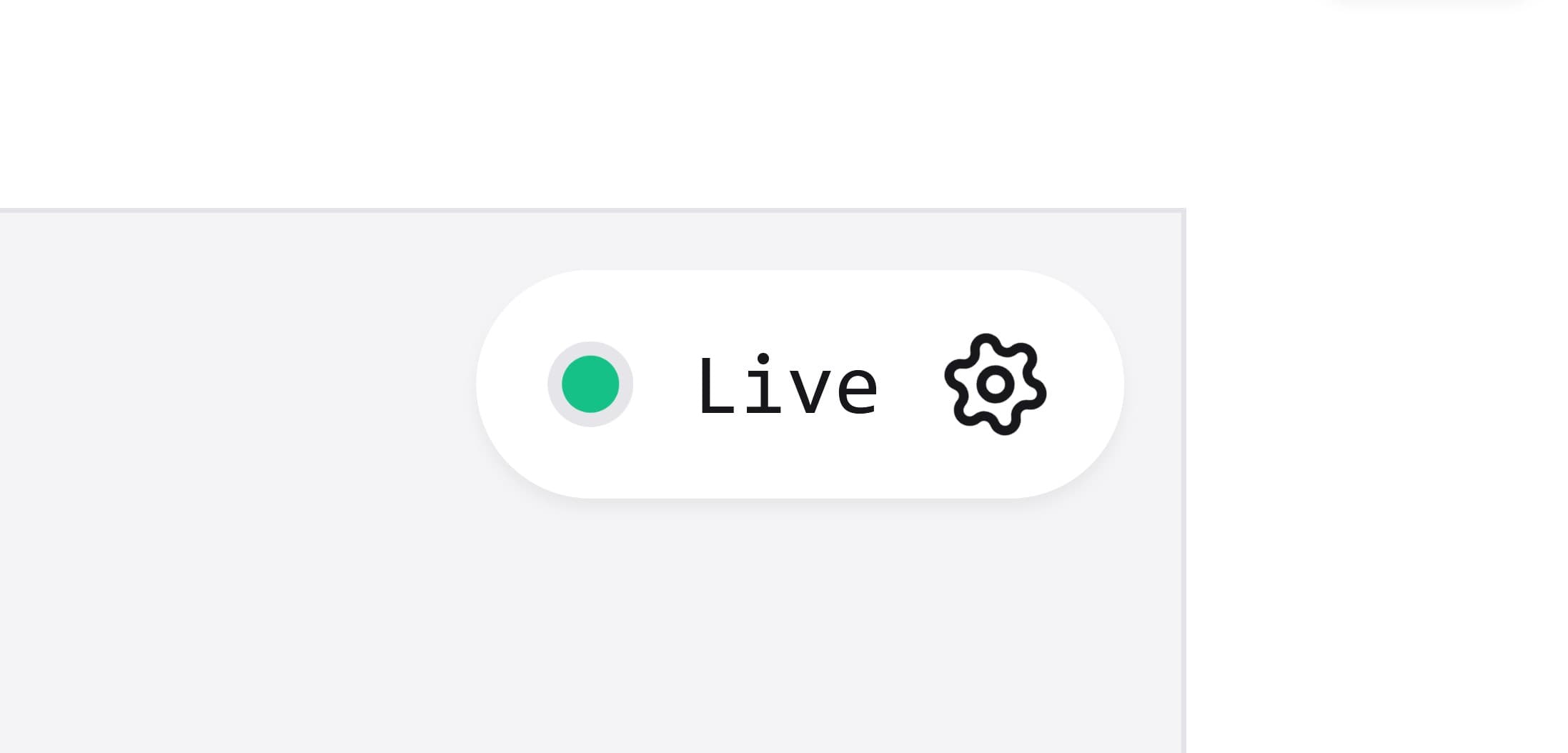
TelemetryWatch will initialize the connection as soon as a channel is
selected. A successful connection will be indicated by the green dot and
Live status on the connection indicator as well as a "Connection
established" message on the messages list. Assuming one or more devices are
actively sending data, any new messages will be listed right away.
If you want to change the channel that you are listening to, simply pick another channel from the configuration menu.
Sending messages
TelemetryWatch's message editor allows you to send messages to the configured connection (channel and subtopic). After configuring a successful connection, a button to open the message editor will be displayed on the bottom of the messages list.
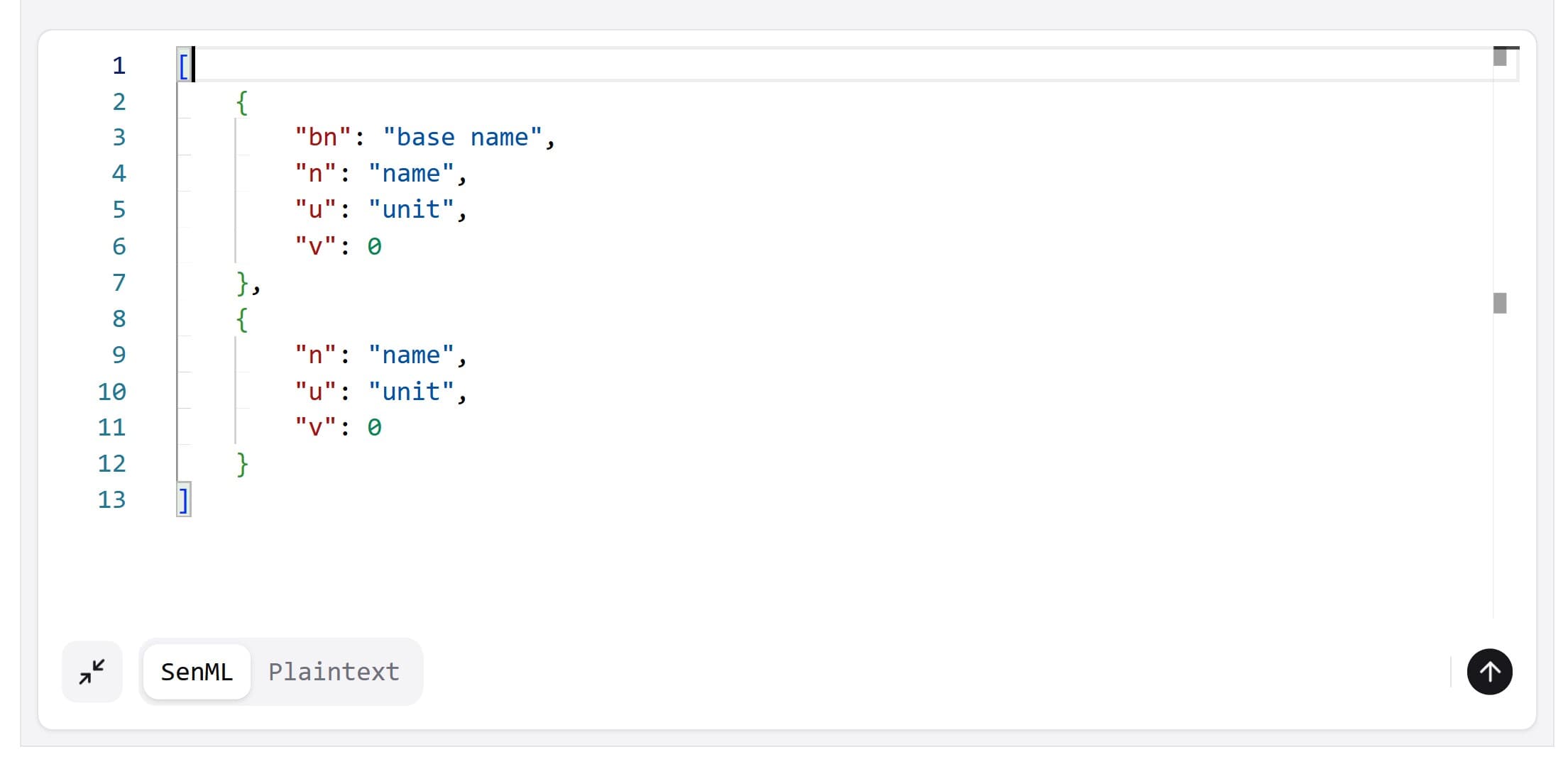
To hide the message editor, simply click on the minimize icon .
The message editor has two modes, SenML and Plaintext. When switching between them, the message you entered will remain present in both editors and will not get deleted or overwritten.
SenML
The default mode is SenML. It allows you to use a code editor to write your messages in JSON format. The code editor offers syntax checking and validation and other useful features.
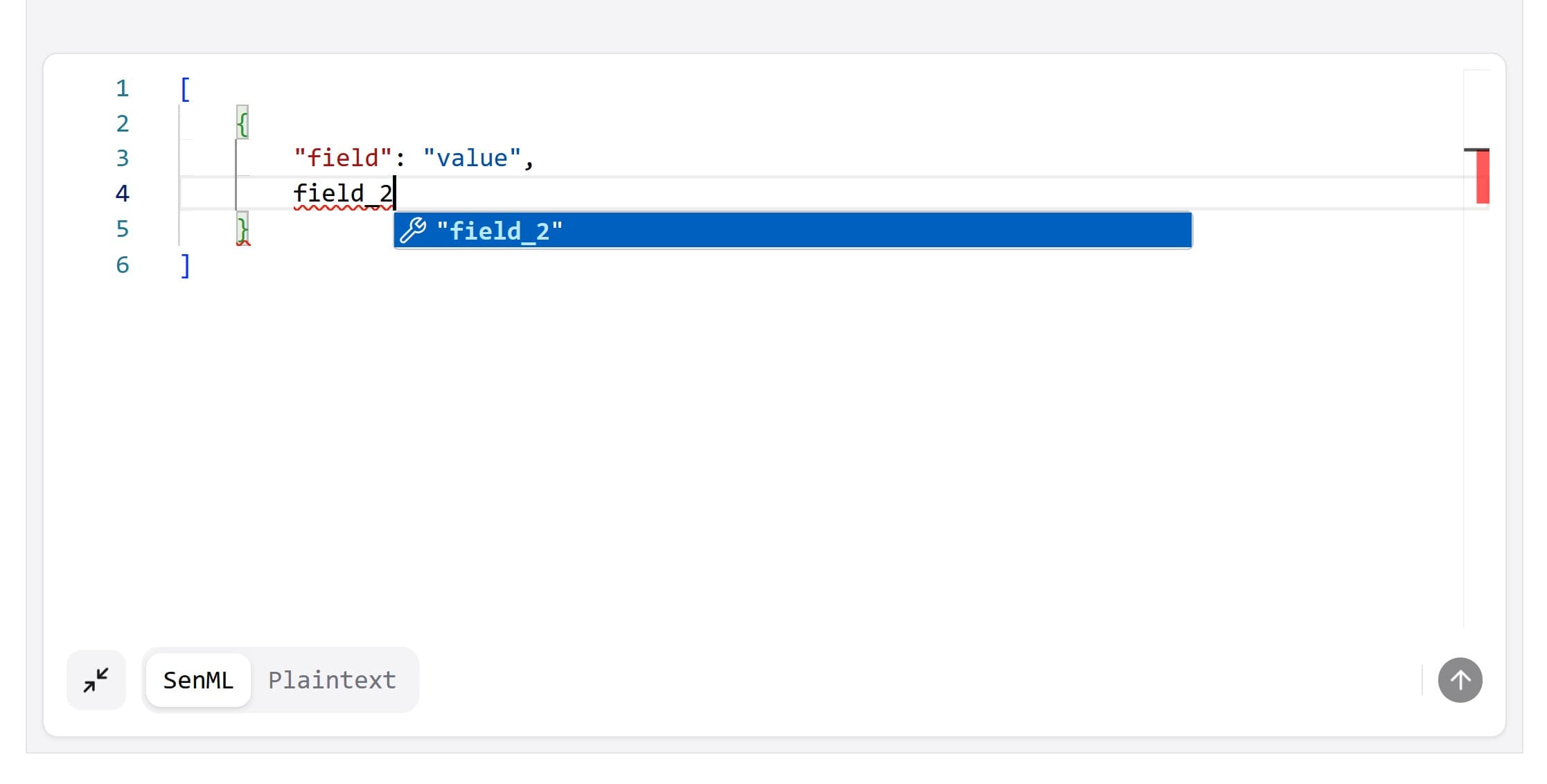
The SenML editor will be populated with placeholder SenML data, which is a JSON array of two objects. This is intended as an example or template of how a SenML message could be written, but feel free to delete it and start from scratch.
Although this mode is called SenML, it can be used to write messages in non-SenML formats. More concretely, it allows any valid JSON-formatted data to be written.
Plaintext
Switch to Plaintext mode if you would like to send messages in a plaintext editor, without the syntax checking and validation of the SenML mode's code editor.

Beware, however, that sending non-formatted messages might cause problems for your devices or other applications if they expect messages to be formatted.
Opening multiple TelemetryWatch panes
You may open multiple TelemetryWatch instances by clicking on the "Add pane" (
) button on the far right of the
page. This will open a new TelemetryWatch instance in a pane to the right of the
page. You can open as many panes as you like. 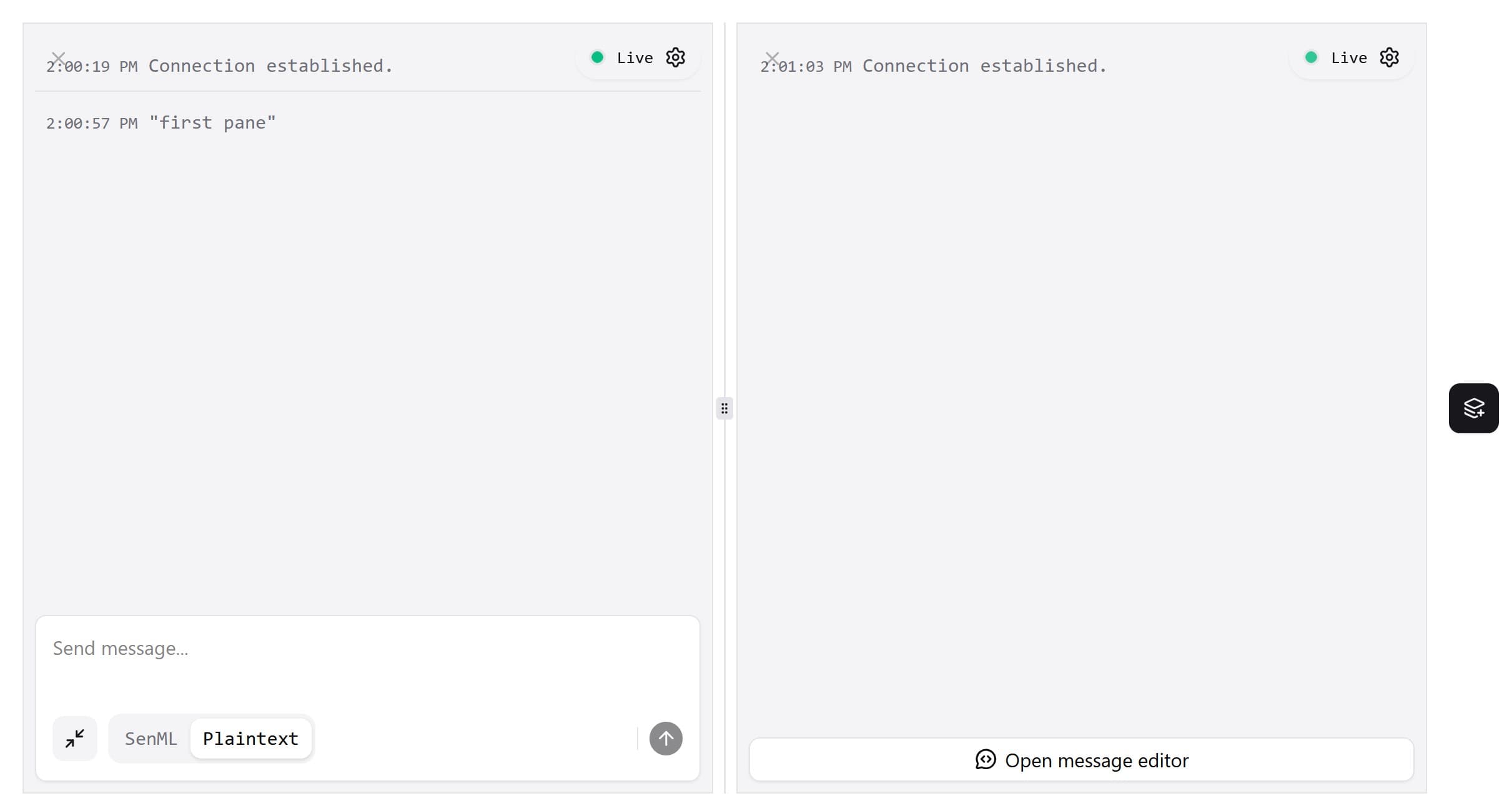
Using TelemetryWatch in popup mode
To help you create rules and design dashboards, TelemetryWatch can be opened in a popup that will persist even while navigating to different pages within the Gridsense application.
Instead of clicking on "TelemetryWatch" on the sidebar, click on the popup icon to its right to open TelemetryWatch as a popup. You may configure the connection as you would on the TelemetryWatch page.
Move the popup
The TelemetryWatch popup can be moved around the page by dragging the gray area on the top of the popup.
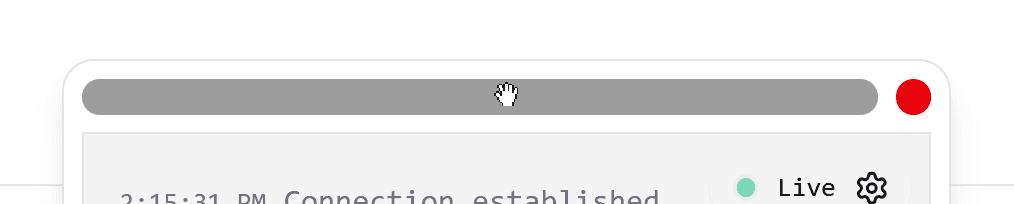
Resize the popup
Make the popup bigger or smaller by dragging the resize handle on the bottom
right corner
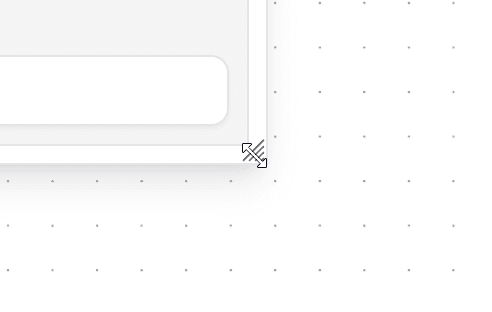
Close the popup
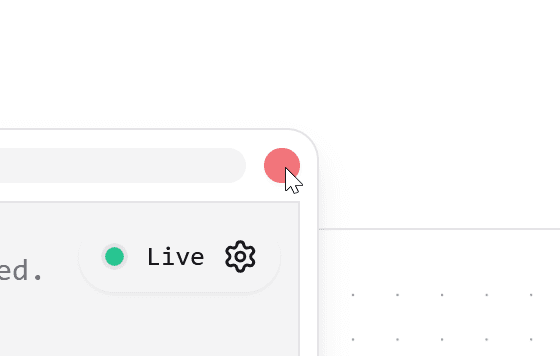
To close the TelemetryWatch popup, click on the red circle on the top right.