 Gridsense Docs
Datastreams
We will be using mosquitto_sub to subscribe and mosquitto_pub to publish
messages over MQTT, but the same concepts apply to any programming language or
MQTT library.
Prerequisites
- Authentication (see authentication)
- A valid topic (see topic structure).
Send data to Gridsense
Gridsense can only store data in the SenML format. However, you may still send data in any format you wish, and have it be parsed by a rule and transformed into a valid SenML array. See create complex data flows with rules for a step-by-step tutorial.
For example, you may send data as plain JSON, then have it go through a rule that parses that JSON data and transforms it into valid SenML array.
In the examples below, we will be sending data that is already structured in SenML.
# Publish a message in SenML format to a channel
mosquitto_pub \
    -h gridsense.cloud \
    -u <device id> \
    -P <device secret> \
    -I <device name> \
    -t m/<organization>/c/<channel> \
    -m '[{"bn": "org/lighting/SmartLight/", "n": "brightness", "u": "lm", "v": 100}]' \
    --capath /etc/ssl/certs # for TLS/SSL
Constraints
For each message object in the SenML array:
- A unique
nfield must be present. - Only one value field must be present (only one of
v,vs,vb,vd). - The fields
bn,u, andtare optional.
Sending data is the first of two steps to store your data in Gridsense. For the sent data to actually be stored and usable across the different Gridsense services, you will need to set up a rule. See create complex data flows with rules for a step-by-step tutorial.
Send batched data to Gridsense
In some cases, it might be necessary to send multiple pieces of data at the same time.
# Publish a message in SenML format to a channel
mosquitto_pub \
    -h gridsense.cloud \
    -u <device id> \
    -P <device secret> \
    -I <device name> \
    -t m/<organization>/c/<channel> \
    -m '[
    {
        "bn": "org/lighting/SmartLight/",
        "n": "brightness",
        "u": "lm",
        "v": 100
    },
    {
        "n": "power",
        "u": "W",
        "v": 150
    }
]' \
    --capath /etc/ssl/certs # for TLS/SSL
The same constraints mentioned in the above section also apply here. See constraints.
Sending data is the first of two steps to store your data in Gridsense. For the sent data to actually be stored and usable across the different Gridsense services, you will need to set up a rule. See create complex data flows with rules for a step-by-step tutorial.
One example where this is useful is when sending the location data of a device, which is used by the Route Map widget to display real-time location updates on an interactive map.
When setting up the widget, you will need to provide the names (bn + n fields
of the SenML objects) of both the latitude and longitude values.
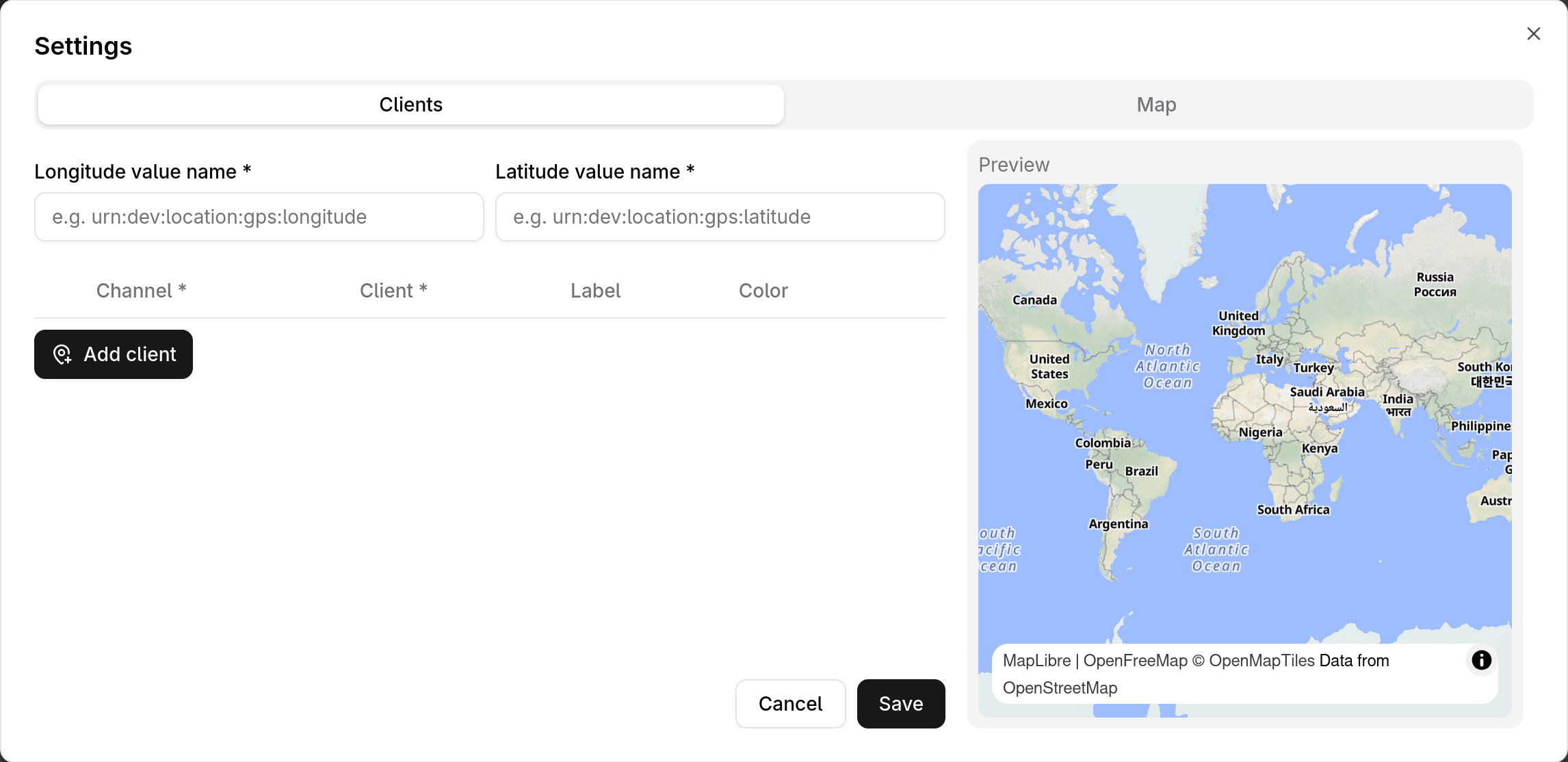
In this case, you could send the device's location data like so:
mosquitto_pub \
    -h gridsense.cloud \
    -u <device id> \
    -P <device secret> \
    -I <device name> \
    -t m/<organization>/c/<channel> \
    -m '[
    {
        "bn": "urn:dev:location:gps:",
        "n": "longitude",
        "u": "lon",
        "v": 31.50161
    },
    {
        "n": "latitude",
        "u": "lat",
        "v": 34.46672
    }
]' \
    --capath /etc/ssl/certs # for TLS/SSL
Then, in the Route Map widget settings, you would fill out the fields "Longitude value name" and "Latitude value name" with "urn:dev:location:gps:longitude" and "urn:dev:location:gps:longitude" respectively.
Get live data from Gridsense
You can get real-time updates by simply subscribing to a channel's topic:
# Subscribe to all messages published to a specific channel
mosquitto_sub \
    -h gridsense.cloud \
    -u <device id> \
    -P <device secret> \
    -I <device name>
    -t m/<organization>/c/<channel> \
    --capath /etc/ssl/certs # for TLS/SSL
You may also use MQTT wildcards like # and + in the topic:
# Subscribe to all messages published to a specific channel
mosquitto_sub \
    -h gridsense.cloud \
    -u <device id> \
    -P <device secret> \
    -I <device name>
    -t m/<organization>/c/<channel>/# \
    --capath /etc/ssl/certs # for TLS/SSL
If you're not seeing incoming data, make sure you have set up a rule to process and store incoming data to that specific channel. See create complex data flows with rules for a step-by-step tutorial.
Troubleshooting
My device is sending valid, well-structured SenML data but it's not being stored, displayed in widgets, read by other devices, listed under the channel's messages, etc
Make sure you have set up a rule to save the incoming data. See create complex data flows with rules.